
Updating games on a diskless server means patching one copy, the one on the server's game disk, and letting every client pick it up on its next boot. The client PCs never run the update themselves. So the working answer to how to update games on a diskless server comes down to two questions: which layer the patch touches, and what the launcher needs to see afterwards to show Play instead of Install. Get the first one wrong and the floor reboots into a launcher that wants to download everything again.
Game disk or boot image: sort the patch first
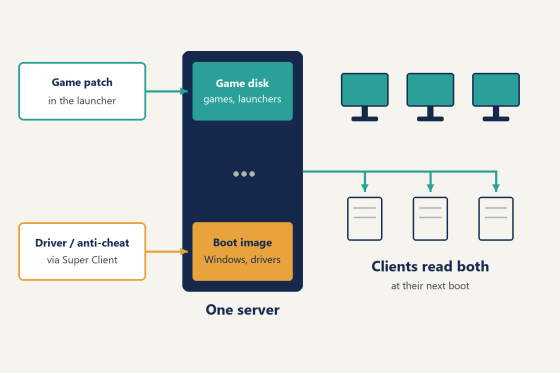
A diskless server holds two kinds of storage that clients read over the network. The game disk carries game files and launchers. The boot image carries Windows itself, along with its drivers and services and anything else that installs into the system rather than into a folder.
Most patches touch only the game disk. A new CS2 build, a Fortnite season, a League of Legends patch: new files in a game folder and nothing else. Those are updated on the server, and clients see them after a reboot.
A smaller group reaches into Windows. Riot Vanguard and other anti-cheat drivers are in this group, as are GPU drivers, Windows updates and the DirectX or Visual C++ runtime that a new game asks for at first launch. Those belong to the image, and they are changed through Super Client, covered further down.
In CCBoot the two layers are set up as separate disks on the Disks tab, one with the type Game and one with the type Image. The update method follows the disk.
What changed | Layer | Where to update it | How clients get it |
Game patch, new | Game disk | The launcher, | Reboot |
New game or new | Game disk | The installer on | Reboot, with |
Anti-cheat driver | Boot image | Super Client on | Image update, |
GPU driver or | Boot image | Super Client on | Image update, |
DirectX or Visual | Boot image | Super Client on | Image update, |
When it is unclear which row a patch belongs to, look at where the installer writes. A folder on the game disk means a game disk update. A new driver or service means an image update, and so do files written under the Windows directory.
Diagram of a diskless server with a game disk and a boot image feeding a row of client PCs
Before the update window
Five things should already be true before the first download starts.
· Every game and launcher lives on the server, under the Gamedisk path. Installers default to C:. Change the path to the game disk every time. A game that ends up inside the image can only be patched through Super Client, which turns a quick launcher update into an image rebuild.
· Game fixes are on for each launcher. Launchers keep their record of what is installed in AppData and ProgramData, and Game fixes links those folders between the server and the clients. The Game fixes page lists every launcher it links, from Steam and Epic to Roblox and FiveM. Close every launcher process on the server, including the ones in the system tray, before saving a new fix. A fix saved while the launcher is still running tends to come out incomplete, and the client shows Install after the reboot.
· The window is after closing time. A running client keeps reading the disk state it booted with. Change the game disk under a full floor and some seats end up with old files in memory and new files on disk. Patch after the last customer leaves, and keep the window clear of tournament bookings.
· One client is set aside as the test seat. It boots first after every update and nobody sits at it until it passes.
· There is no paging file on the game disk. Windows sometimes places one there without asking. The setting is under System Properties > Advanced > Performance Settings > Advanced > Virtual memory. Clear automatic management and select the game disk. Choose No paging file, click Set, then restart the server. With a page file on it, the server cannot lock the game disk when Super Client needs it.
Steam
Steam is the simplest of the launchers, as long as it runs from the game disk.
1. On the server, start Steam from its folder on the game disk, for example D:\Online Games\Steam\Steam.exe.
2. Let every pending update finish. Steam's own download queue does the work here, and nothing special is needed on the CCBoot side.
3. Open the Downloads page and confirm the queue is empty. A half-finished update on the server is a half-finished update on every client.
4. Set the launch parameter once. Send a shortcut for steam.exe to the server desktop and open its Properties. In the Target field, add -noverifyfiles after the path:
"D:\Online Games\Steam\Steam.exe" -noverifyfiles
With the parameter in place, clients skip the file verification pass when Steam starts and go straight to the library.
A new Steam game goes through the same server. Install it from Steam on the server into the library folder on the game disk. If Steam on the server still lists a second library on C:, remove it, because the install dialog may default to it, and the game then lands inside the image instead of on the game disk. After the download completes, the new title appears on every client at its next boot with no extra step.
When one game reports corrupted or missing files, verify it on the server, not on a client. The path is Library > right-click the game > Properties > Installed Files > Verify integrity of game cache. Steam re-downloads only the damaged files and closes the window when it is done. Every client gets the repaired copy on its next boot. Running the same check from a client PC changes nothing that survives the reboot.
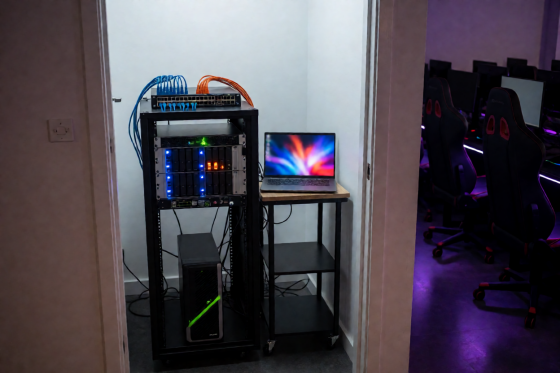
Server rack in a closed gaming center during an after-hours game update
Epic Games and the other launchers
Epic Games
Fortnite and the other Epic titles update from the Epic Games Launcher on the server, the same way Steam does. Now and then, after a large update, the launcher on the server shows Install for a game whose files are plainly on the disk. Re-attaching it takes a couple of minutes:
1. In the Epic Games folder on the game disk, rename the game's folder.
2. In the launcher, click Install on that game and choose the original install path.
3. After 15 to 20 seconds, pause the download.
4. Rename the folder back to its original name. Click Yes when Windows asks whether to replace files.
5. Resume. The launcher switches to verifying the existing files instead of downloading them.
Two details decide whether this works. The path in step 2 has to be the exact path the game used before, and the folder has to carry its original name again before step 5. Miss either one and the launcher downloads the whole game from scratch.
Battle.net
Overwatch 2 and Call of Duty update from Battle.net on the server once Battle.net itself is installed on the game disk and its Game fixes entry points to that folder. The Battle.net install steps in the wiki cover the install path and the settings to change inside the launcher.
Everything else
Rockstar, Roblox and the other launchers in the Game fixes list follow the same pattern. Update on the server, keep the fix enabled, reboot the clients.
Riot, Vanguard and anything that installs a driver
The Riot Client and the game files for Valorant and League of Legends sit on the game disk and update on the server like any other launcher. Vanguard is a different piece. It is a kernel-level anti-cheat driver installed into Windows, so it lives in the boot image, and an update to Vanguard is an image update.
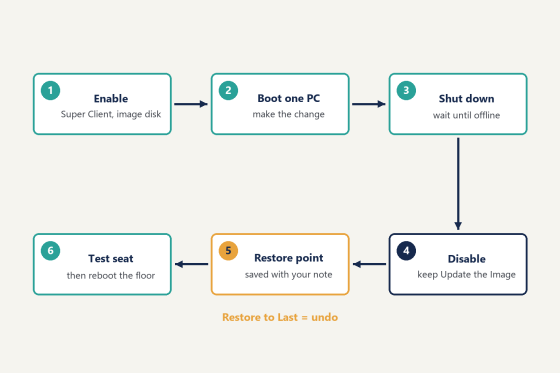
Image updates go through Super Client. Super Client turns one client PC into an editable copy of the image: whatever changes on that PC while the mode is on can be written back into the image for the whole floor. It is switched on from the Computers page in CCBoot, or from the Boot page of the iCafeCloud control panel.
1. Boot the chosen PC once in normal mode and confirm it starts clean. Any driver problem it already has will be saved into the image along with the update.
2. Right-click the PC and choose Enable superclient.
3. Tick the image disk only, then click OK. The PC name turns red while it is editable.
4. Boot the PC and make the change.
5. Shut it down.
6. When it shows offline, choose Disable Super Client.
7. Keep Update the Image checked and type a short note such as "Vanguard reinstall". Click OK. Progress appears at the top of the page.
For Riot, step 4 has its own sequence. Open C:\Program Files\Riot Vanguard, run installer.exe, and click Yes to uninstall Vanguard. Sign in to the Riot Client and run the game update again so it reinstalls a current Vanguard. Restart once when it finishes. Then shut down and go to step 6.
GPU drivers and Windows updates go through the same seven steps, as do DirectX and Visual C++ runtimes. The wiki has separate pages for GPU drivers and for Windows updates on the image. Download the current driver from the GPU vendor on the night of the update rather than reusing an old installer left on the server.
Super Client workflow for updating a diskless boot image with a restore point
Restore points
Every image update creates a restore point automatically. They are under Boot > Image > select the image > Image Restore, listed by date with the note typed in step 7. Three actions are available:
· Restore to Last rolls the image back to the previous point. It is the undo button.
· Merge to Last folds the newest point into the one before it.
· Merge All folds every point into the base image and clears the list. Super Client has to be disabled and the image unmounted first.
Both merges are permanent. Merge only after every PC on the floor has booted the new image and run a game on it. Once 5 to 10 points have built up, run Merge All so the image disk keeps free space. Do it before the next Super Client session.
How to update games on a diskless server and confirm every seat got it
Whichever layer changed, the last step is the same: reboot the clients. A running client holds on to the disk state it booted with and reads the new game disk or the new image on its next start. Clients can be restarted from the server instead of by hand: on the Boot page, Computers tab, right-click a PC > Power control > Reboot.
Boot the test seat before anything else.
1. Open each launcher that was updated tonight.
2. Look at the button on every patched game. Play means the files on the game disk and the launcher's record agree. Install means the Game fixes link for that launcher is not doing its job. Update means the copy on the server did not finish.
3. Get past the main menu and into a match or a practice range. Missing files and anti-cheat errors tend to show up at that point, not on the title screen.
4. Reboot the rest of the floor, then spot-check a few seats in different rows.
Keep a short log on the server desktop: the date, which games were patched, and the note typed into Update the Image. When a seat misbehaves a week later, that log and the restore point list together show what changed and when.
When the test seat shows something other than Play, this is the order to check things in:
What the client shows | Check first |
Install instead of Play | Is Game fixes on for that launcher? Is |
Update required | The server finished the update with an |
Epic shows Install on the server as well | Re-attach the game with the |
Steam opens slowly or verifies files | -noverifyfiles is in the Target field of the |
Vanguard or another anti-cheat error | The driver was reinstalled through |
Several seats misbehave after an | Boot > Image > Image Restore > |
The first match stutters | Shader compilation, see the FAQ below |
For anyone still evaluating a diskless setup, the whole sequence above can be rehearsed on a spare server: download the free trial and put two or three games on its game disk. Then run one patch night end to end before the real floor depends on it.
Technician checking one test seat after a diskless game update before opening the floor
FAQ
Can I update games while customers are playing?
Leave the game disk alone while seats are in use. Clients read the disk state they booted with, and changing it under them can leave a launcher looking at a mix of old and new files. Update after closing, then reboot.
Do I have to update the game on every PC?
No. There is one copy on the server and every client reads it. Francis Tungpalan of GetPoint Gaming in the Philippines put it this way: "We have about 5 online games that update every week, now we only update the server. Imagine the bandwidth we've saved!"
Does adding more seats change the update process?
No. Twenty seats or sixty, the server holds the same single copy and the patch night takes the same steps. Licensing is per client PC, so new seats are added to the license rather than to the routine. You can see the current per-PC licensing on the purchase page.
Why is the first match after a patch slow?
Usually shader compilation. A patched game rebuilds its shaders the first time it runs. CCBoot can keep compiled shaders on a server share for supported titles such as Call of Duty, so seats do not rebuild them after every boot. The Save game shaders page in the wiki covers the setup.
Which layer, which method
One rule covers almost every patch night. If the update writes files into a game folder, it is a game disk update: run the launcher on the server, then reboot and look for Play. If it installs a driver, a service or a runtime into Windows, it is an image update: Super Client on one PC, save the image with a note, test it, and merge only after the floor has booted it. Sort every patch into one of those two before downloading anything, and that is how to update games on a diskless server without touching each client PC.