
What changes when a gaming center runs CS2 on diskless PCs? Windows and game files are delivered from centrally managed storage over the local network, while the PC at the seat runs the game. The customer still signs into Steam and plays using that machine's processor, graphics hardware and peripherals.
The useful distinction is between preparing the game environment and playing inside it. CCBoot gives the venue a central place to maintain its client environment. Understanding where the files live, what happens during launch and how updates reach the seats makes that arrangement easier to manage between customer sessions.
Where CS2 on diskless stores files and runs the game
There are two parts to follow: the files supplied by the server and the work performed by the customer PC. In a fully diskless deployment, the client boots its Windows environment from a server image. The game installation is also available through the venue's central storage. Once the game starts, its running processes use the hardware in the PC at the seat.
The CCBoot diskless boot system brings system images and game delivery into that central maintenance arrangement. This gives the venue an identified environment to prepare for its client PCs. The game installation and the Windows image serve different purposes, even though both are managed through the server.
New game assets belong to the game installation, while a change to the client's Windows environment belongs to the system image. Keep those two maintenance jobs identifiable, and a question such as "Did this seat receive the update?" has a specific place to check.
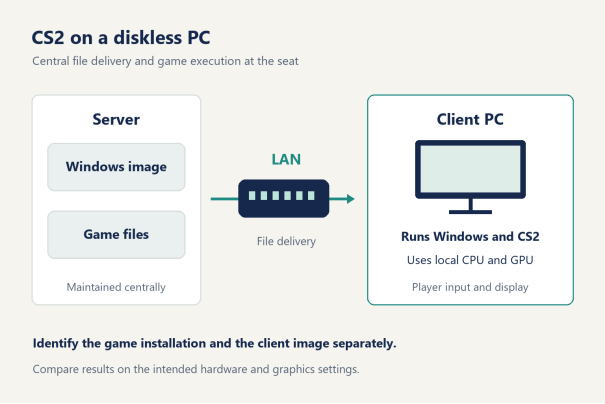
At the seat, CS2 reads the content it needs and builds the running game environment. The processor handles game work, the graphics hardware renders the scene, and the monitor displays the result. A keyboard or mouse input is handled within that client session. File delivery over the LAN is one part of this process.
Online play introduces a connection to the game session as well. Keep that connection separate from the venue's storage path when describing the setup. The server supplying the Windows image has a file-delivery job, while the game session exchanges gameplay information. This distinction helps an operator describe a delayed file load, an uneven frame sequence or a connection issue with the right observation.
That is why a description of CS2 on diskless should identify both the storage arrangement and the client configuration. The same centrally maintained game can be used by different hardware groups, but each group should be evaluated with its own graphics settings and display configuration. Record which combination is being observed before comparing the results.
For example, choose a test configuration with the venue's intended resolution and graphics preset. Keep those settings fixed while comparing launches on the same PC. If another test uses a different preset or a different hardware group, label it separately. This gives the operator a useful comparison without attaching an unexplained performance claim to the word "diskless."
CCBoot's physical memory and SSD cache support form part of preparing the storage side of the deployment. Work through the server and client configuration together, and discuss the client configuration with CCBoot support when planning a current hardware or configuration list for the venue.
Why the first launch differs from reopening the game
A game launch begins before the main menu appears. Steam starts the game, required content is read and the client prepares the resources it will use. After a PC has just booted, some of that work is being done for the first time in that Windows session. Closing CS2 and opening it again leaves the operating system running, so the second attempt begins under different conditions.
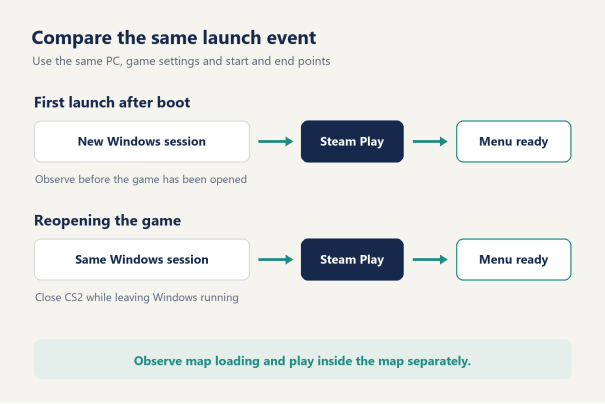
Compare the same event.
If the question is how long the customer waits after pressing Play in Steam, start the observation there and end it when the main menu is ready. Keep Steam sign-in time outside that measurement. Loading a map is another event, and joining an online session adds another stage. Combining them into one unexplained "loading time" hides what the operator is trying to improve.
The comparison matters for CS2 on diskless because the venue can reproduce both conditions on the same seat. Boot the client, open Steam and observe the first launch. Then close the game while leaving Windows running and open it again. Compare those two launches before changing anything else. The difference describes the starting conditions of those runs.
What the cache changes
Windows and game components can reuse data that has already been loaded or prepared. That can reduce repeated work during a later launch. A fresh Windows session and an already active session can therefore produce different observations, even when the PC is reading the same installed game files.
The game reads assets and initializes its running process, with graphics resources also requiring preparation. Shader caching contributes to that work, so treat the launch as a sequence rather than assigning every pause to one cause.
Avoid turning a faster second launch into a forecast for every subsequent customer. Record whether Windows remained running, whether the game was updated and whether another workload was active. These details explain what was compared. They also help the next shift repeat the observation under the same conditions.
Use the same endpoint for every run. A menu that has appeared but is still processing a prompt should be recorded consistently with the other attempts. When comparing a launch before and after maintenance, note that the installed content may have changed too. Keep the earlier result as context, and create a fresh pair of first and repeat observations for the updated game.
Stage being observed | Useful observation | Conditions to keep consistent |
First launch after client boot | Steam Play to a ready main menu | Client, installed game and graphics settings |
Reopening in the same Windows session | The same start and end points | Leave Windows running and note other activity |
Loading a map | Start of map loading to a playable scene | Map and test method |
Playing inside the map | Frame delivery and response during play | Client hardware, resolution and graphics preset |
Where FPS belongs
Frame rate describes the game running over time. Measure it inside a defined scene or repeatable play sequence, with the same settings. The time taken to reach the menu answers a different question. A longer wait at startup, by itself, does not establish the frame rate the player will see after entering a map.
For a useful venue evaluation, retain both observations: the time to become ready and the behavior during play. Use comparable client configurations and consistent background activity, noting any game update between runs, so the comparison describes what changed in the customer's experience.
How a central update reaches the gaming floor
Central maintenance gives the operator one place to prepare changes before clients receive them. CCBoot's documented master-update workflow brings those changes to the other PCs through a reboot. The practical benefit for a gaming center is being able to maintain an identified system environment and then open the seats with that environment in place.
For CS2 on diskless, separate the game update from any planned operating system work. A download containing game content is a change to the game installation. An update that also requires a system component needs the corresponding client environment prepared. Read the actual installer's instructions, then use the CCBoot setup documentation for the applicable maintenance procedure.
Consider a maintenance window before a private booking. Finish the intended game update, complete any system work and restart a representative client into normal use. Open Steam through the route customers use. Confirm the expected installation is available, then enter a suitable game session. This connects the central change to an observable result at a seat.
If Steam reports missing or damaged game content, its official file verification procedure provides a way to check the installation. Use it for the specific file question being investigated. Keep the result with the maintenance note so a later operator knows whether the game content was checked or another part of the environment was changed.
For an evaluation deployment, download CCBoot for evaluation and observe the same customer workflow. Use the intended client configuration and normal game settings. The resulting notes should show which environment was prepared and how the client behaved after receiving it.
Keep the client inventory alongside the deployment plan. CCBoot licensing is based on client PC count, so consult the current per-PC licensing options for the planned venue. The inventory also provides a useful list of hardware groups to check when an update is introduced to the floor.
From Steam sign-in to a real match
Shared game files give customers access to the installed content. Each customer still brings a Steam account and personal preferences to the session. Keep the venue's maintained environment separate from the individual player's choices when checking CS2 on diskless.
Steam's Cloud documentation explains that developers choose which files use synchronization. Check the settings relevant to the player instead of assuming that every preference follows an account automatically. At a venue, that means confirming the intended resolution, controls and audio behavior after the normal sign-in process.
A venue default and a returning player's preference answer different needs. The default prepares an understandable starting point at the seat. The player then checks the controls and display choices used for that session. When evaluating a deployment, observe both stages: how the maintained environment opens and what the signed-in player needs to select before play.
Use the same launch route the customer will use. Start through Steam or the venue's normal Steam launch path, then continue into an appropriate online mode. A working menu confirms one stage. Entry into a match confirms the next part of the customer session.
CS2 also has its own Trusted Mode behavior. Valve describes Trusted Mode as enabled by default and restricting third-party files from interacting with the game. Keep the intended venue software in the evaluation so the result reflects the actual seat configuration. Follow Valve's guidance for a specific message rather than copying launch parameters from an unrelated optimization list.
CCBoot restores the client system after reboot. Include a normal reboot in the venue's observation of the maintained environment, then repeat the customer launch. This shows what is ready for the next session. Before a group booking, confirm that the relevant hardware groups can complete the same ordinary Steam-to-match path.
What to remember before the next session
Three points explain most of the day-to-day work around CS2 on diskless:
· Maintain the game files and client system environment as identifiable parts of the deployment. Central maintenance gives the venue a clear place to prepare updates.
· Observe first launch, repeat launch and play inside a map separately. Keep comparison conditions fixed so the result answers a specific question.
· Check the customer session from Steam sign-in through actual play, then repeat after a normal client reboot. Include the hardware groups and software customers will use.
The useful outcome is a seat with a known environment, the intended game content and a customer launch path that has been observed all the way into play. Keep that result with the maintenance notes for the next shift.