

Forty-two seats in a strip mall outside Sacramento, every machine built in 2024, every one carrying a 1TB NVMe that somebody already paid for. The owner did not want to hear about saving money on drives. The drives were bought, they worked, and pulled them out of forty-two cases to prove a point was never going to happen. What he wanted back was his Thursdays. Hybrid diskless is the arrangement that gives them to him, and it does it without touching a single one of those drives.
Valorant, CS2, Fortnite, League of Legends and Overwatch 2 all live on that floor, and every one of those forty-two machines was pulling every patch down separately. The same 12GB, forty-two times, through one business connection, while he watched progress bars and worked out which stations he would have to close on Friday afternoon. No amount of local NVMe fixes that. It is a distribution problem rather than a hardware one, and it has a specific solution that most owners have never heard named.
The hybrid diskless split is simple once you see it. Windows stays where it already is, on the local SSD in each client, booting the way it always has. The games move to one disk on one server, and every station reads them across the LAN. Nothing comes out of any case, and the patch gets downloaded once.
What hybrid diskless actually means
The name causes trouble, so start with the definition from the CCBoot wiki, which is unusually blunt about it:
"CCBoot Hybrid Solution is a deployment mode where each client PC installs and runs the operating system locally on its own SSD, while games and shared data are stored and managed centrally on the CCBoot server."
Read that twice, because it is not what people assume. A hybrid diskless floor is not half diskless machines and half normal ones. Every station in the room gets set up identically. The split runs through each individual PC rather than across the room: system on the local drive, game library on the server.
In practice that means the boot path never touches the network. The machine powers on, the motherboard finds its own SSD, Windows starts from it, and none of the network boot machinery is involved at any point. Switching the mode on actually stops the TFTP, DHCP and DHCP proxy services on the server, since with nothing booting over the wire there is nothing left for them to do. The panel you manage the room from even swaps its main page from Boot to Disk once you flip the switch, which is a nice piece of design: the interface stops offering you things that no longer apply.
What the network does carry is the games. One copy of Valorant, one copy of CS2, one copy of everything else, sitting on a game disk that every station mounts as a drive letter. Windows on station 19 sees a D: drive full of installed games and has no idea the storage is two rooms away.
Nothing changes for the person sitting down. They get the same desktop, the same login, the same wallpaper somebody put up in 2023, and the games launch from the same shortcuts. A hybrid diskless conversion is invisible from the customer's chair, which is worth saying out loud, because operators worry about that more than they admit (the one thing a regular might notice is that a map they used to wait on opens straight away, because somebody two seats over already pulled those files across the switch an hour ago).
That is the difference between this and the diskless boot system this mode sits inside, where the C: drive itself arrives over the network from a master image. Both are CCBoot. They solve different halves of the same annoyance, and which half you care about depends entirely on what you already own.
Diagram comparing a fully diskless client with a hybrid client that keeps Windows on a local SSD
Which room is this built for?
I will take a position here rather than list considerations, because the answer is usually obvious once you look at your own purchase orders.
Go hybrid diskless if your machines already have drives in them. That describes most American gaming centers. Stations get bought as gaming PCs from a system integrator, they arrive with a 1TB NVMe in the M.2 slot whether you asked for one or not, and by the time you are thinking about centralizing anything you own forty of them. Those drives are a sunk cost. Hybrid goes after the thing that is actually hurting, which is forty separate copies of a game library that changes every week, and it does that without asking you to rebuild the floor first.
Go fully diskless if you are buying the machines now. If you are speccing a new room, or replacing a whole batch, leaving the drives out of the order is free money, and the fully diskless path hands you reset-on-reboot behaviour as well. There is no sense in buying forty drives and then centralizing around them. Hybrid diskless is for rooms with history. Fully diskless is for rooms with a purchase order.
There is a middle case that comes up more often than either of those, though. A room that wants to move in stages. Centralize the game library first, live with it for a month while nothing else about the floor changes, then decide about the boot path once you have seen what centralizing actually does to your Thursdays. Hybrid diskless is a good place to stop and it is an equally good place to pause.
Two more situations where this shape fits well. The first is a floor with three or four hardware generations on it, where the machines are different enough that people get nervous about a single image, and centralizing only the games sidesteps that conversation entirely. The second is a venue that runs stations for something other than gaming during the day, a training room or a classroom booking, where the local Windows install is doing work that has nothing to do with the game library at all.
The other thing worth weighing is who does the work. If one person covers the whole floor, and in the United States that is nearly always the case because a second technician costs more per month than the hardware does, then value lives in how many machines that person has to physically touch on a Thursday. Hybrid takes patch night from forty-two machines down to one. That number does not care how your PCs boot, which is why this lands so well in rooms that already own their hardware.
Michael G. at PrecisionGaming put the before-and-after plainly on the CCBoot site: "Before it was all chaos. I had to manually set everything up. Since I starting running CCBoot, maintaining new programs and having precise control has been a breeze."
A mid-size US LAN center with rows of gaming PCs during a weekday afternoon
The server you need gets smaller
This is the part that surprises people who priced out a fully diskless build once and quietly walked away from it.
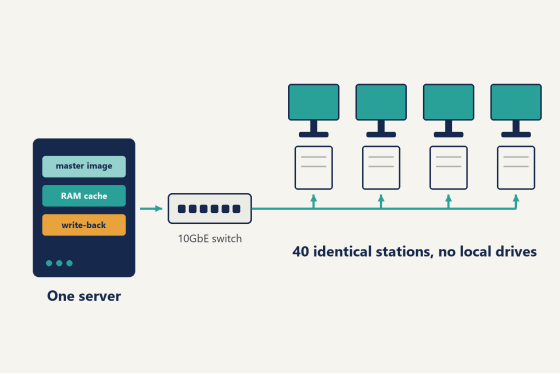
A fully diskless server holds the master image, serves every boot block for every station during the opening rush, and absorbs all the write-back traffic on top. Memory is the first thing you buy and you buy plenty of it, because cache hit rate is what a room feels as speed.
A hybrid diskless server carries less than that. It needs no image disk at all, since no image is being served, so the disk layout comes down to a game disk and a write-back disk. The RAM requirement falls with it, and the official figure is worth quoting directly: a 32GB CCDisk server is enough for 100 PCs. For a 42-seat room, that is a machine you may already have in the back rather than a project you have to fund.
Size the game disk around your actual library, not around a round number. Five current competitive titles plus their launchers will ask for something in the region of 200GB once everything is installed, and that grows every season rather than shrinking, so buying the next size up is the cheap decision here. Keep the write-back disk separate from the game disk. They do different jobs and they do them at the same time.
Give the switch a thought while you are at it, because it works harder in this design than in a room full of local installs. Every station reading from the same game disk means the uplink between switch and server is the busiest cable in the building at eight on a Friday. A managed gigabit switch with a 10-gigabit uplink port carries a 42-seat room without complaining (and that money goes further there than on server CPU, which spends most of the evening idle).
The rest of the shopping list is ordinary. A server board that takes 16GB or more, with six to eight SATA ports and at least two NVMe slots. An Intel Core i5 or better, which is not the bottleneck in this design. Gigabit to every station and a 10-gigabit uplink out of the server, the same as any centralized setup, because all the game reads come down that pipe when the room fills at four in the afternoon.
Three notes on the server operating system that will save you a support ticket. Run Windows Server rather than a desktop edition once you are past twenty seats, because the shared folder and iSCSI target side of the house is built around it. On a US floor specifically, Windows Server 2022 is the version to install: it covers Riot's Vanguard anti-cheat, which Valorant will not launch without, and it covers Roblox, which matters more on a weekday afternoon than people outside the business expect. And leave antivirus off the server itself (it adds disk activity you will feel on the floor as slow loading, and that machine is not the one anybody is browsing the internet on).
Turn CCDisk mode on
The switch that puts a room into hybrid diskless takes about a minute, which is out of all proportion to how much it changes.
Open the cloud panel, go to Settings, then Center settings, then CCDisk mode. Set it to Enable and save. That is the entire toggle. Setting it back to Disable returns the room to standard CCBoot behaviour, so this is not a door that locks behind you, which is worth knowing before you do it for the first time.
Two things happen right away and both are better expected than discovered. The TFTP and DHCP services stop, along with the DHCP proxy, since a hybrid diskless room has nothing booting over the network. And the panel's main page changes from Boot to Disk, which is your visual confirmation that the mode took.
Do this outside opening hours the first time. Not because anything dramatic happens, but because you want the room quiet while you install the first client and confirm it sees the game disk, and a Tuesday morning is a better classroom than a Friday evening.
The installers you need afterwards live in the panel too, under Settings and then Install links, listed as CCBootCloud. The same download covers server and client, you just pick a different option inside the setup wizard.
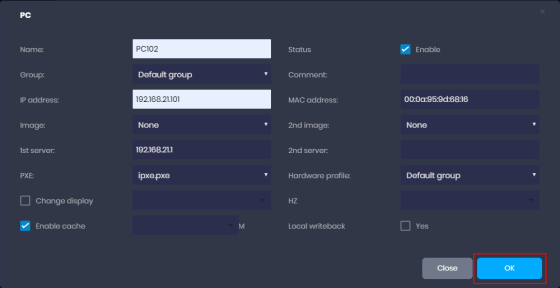
Server side, run the file, choose "CCBoot server installation", leave the destination as C:, and click through. When it finishes, the server opens and asks for your license and password. Fill those in, click OK, and it connects to the cloud. Nothing about that step differs from a normal CCBoot install, which is rather the point.
One note on versions. CCBootCloud has supported the CCDisk function since August 2023, and the client side has supported CCDiskClient since April 2024, so anything you download today has both halves in it. If you are looking at an install somebody left behind two years ago, update it before you start rather than halfway through.
Installing the clients without breaking anything
This is where hybrid diskless deployments go sideways, and every one of the traps is a five second decision that costs an evening when you get it wrong.
Before you install anything, give each client a unique static IP address and a distinct PC name. Both of those, on every machine, no exceptions. The server identifies clients by them, and a machine that quietly flips back to DHCP a month later stops being recognized. Set it static and leave it static.
Take the naming seriously while you are at it, because you will live with it for years. Name stations by their physical position rather than by when you bought them, so that PC-14 is the machine at desk 14 and an attendant who started last week can find it without a map. Sounds obvious. Almost nobody does it, and every room that skipped it has one person who knows that ST-0093 is the corner machine by the window.
Then the install itself:
1. Run the CCBootCloud file on the client and choose "CCBoot Client installation" in the setup window.
2. Click through to the end, select "Launch CCBootCloud" on the final screen, and finish.
3. Disable UAC and confirm the static IP is set, then answer Yes to "Start Install Client".
4. When it offers "Please reboot this PC and then upload image", answer No.
That last one is the step people get wrong, because on every other CCBoot install you say yes. A hybrid client boots from its own disk and there is no image to upload. Saying yes sends you down a path built for a different setup.
If a client stops at a secure boot violation rather than finishing, that machine wants a clean Windows install before it joins the room. Check your oldest few stations first, since those are the ones with the most interesting BIOS history behind them.
Now the detail nobody puts in a guide. When the client's virtual disk comes up, ccbootclient.exe runs C:\CCBootClient\DiskIsReady.bat if that file exists. It does not exist by default. You create it. Anything you want happening on every station the moment the game disk is mounted goes in there: mapping a drive, kicking off a launcher, setting a registry value your tournament build needs, clearing a scratch folder. One batch file, forty-two machines, and it fires at exactly the right moment instead of racing Windows startup and losing about a third of the time. That hook is worth more than most of the settings in the panel, and honestly almost nobody uses it.
The local writeback cache is where the speed lives
Centralizing a game library means every station reads the same files across the same switch at the same time. Friday at eight, that is forty-two copies of a Valorant map load landing on one server inside the same few seconds.
The local writeback cache is what makes that comfortable. Since every machine in a hybrid diskless room already has a drive in it, the hardware for this is sitting there doing nothing.
Turn it on with the checkbox in the client's edit settings. Then respect three requirements, because they are not suggestions, and skipping them shows up later as clients that freeze or restart:
- The writeback disk has to be an SSD or NVMe. Not a spinning drive.
- Format it with a 32K allocation unit size. This is the one people miss, because Windows will happily format at 4K and never mention it again.
- Give it a single partition, and leave only that one disk in the machine. CCBootClient uses the first disk it detects, so a second drive somebody left in a case two years ago turns into a mystery you get to solve at 7pm.
Use a drive you trust for this. A Samsung EVO is the sort of part that behaves, and the write pattern here is constant rather than bursty, so this is not the slot to save eleven dollars in.
Once it is running you will find two files on that disk, C.CCachex and D.CCachex. The letter in front tells you which drive is being cached, so C is the system side and D is the game disk in a standard layout. Windows Explorer shows both as 0 KB. That is normal, and it is not a sign anything failed. Right-click and open Properties, where the real size is waiting. I have watched more than one operator spend twenty minutes convinced the cache was broken because a file listing said zero.
Caches fill by being used, so give a converted row two or three evenings before you read anything into the numbers. By the second or third night the working set is sitting local on every station, the server sees far fewer repeat reads, and the room settles into the rhythm it will keep. Judge it on the week rather than the first hour.
What this arrangement buys you is a load taken off the server's own write-back disk and spread across forty-two client SSDs that were already paid for. The drives you were never going to remove end up earning their place in the case.
Putting the game menu on the game disk
A centralized game library wants a front end, otherwise your staff spend the evening explaining folder paths to customers. This is where iCafeCloud comes in, and in a hybrid diskless layout there is a specific arrangement that works.
Install the iCafeCloud server on the same physical machine as CCBoot, in C:\iCafeCloudServer. Same box, not a separate one. The reason is the game disk: iCafeMenu has to be downloaded onto it, at E:\Apps\iCafeMenu in a standard setup, and keeping both services on one machine keeps that straightforward.
Open Options on the iCafeCloud server, enter your license code and password, and let it initialize. Then click Manage, or go to cp.icafecloud.com, and log in with your license and the admin account.
Set the timezone before you touch anything else. Settings, then Center Settings, then Timezone. Every report and every session record downstream inherits that setting, and fixing it later means fixing everything it already touched. Two minutes now saves a bad afternoon in March.
Then Settings, Game Settings, and find Game Drive. Pick the same drive letter as your game disk and save. That triggers an automatic download of iCafeMenu onto the drive, and Overwolf comes down alongside it. If the download stalls partway, stop and restart the iCafeCloud service on the server, which forces a check and pulls anything missing or incomplete.
Last step, and it is the one that separates a menu that works on one station from a menu that works on the floor. Run iCafeMenu once in Super Client mode, then save.
Super Client is what makes the shared game disk writable from a single client, and it is the same mechanism you will use every patch night from here on. Enable it on one station. Install or update the game onto the central disk. Disable it, and the game disk goes back to being readable by every other machine in the room. One station, one download, forty-two seats before you have finished a coffee.
Build a routine around that and patch night stops being an event at all. Pick the same station every time, the one nearest the counter, and treat it as the update machine. Enable Super Client, start the launchers, let the downloads run while you close out the till, disable it again on your way out. Forty-two seats wake up on Friday morning on the same build. The only thing to remember is turning Super Client back off afterwards, and the panel shows you which station has it enabled, so answering "did I remember" is one glance instead of a walk down the row.
That is the Thursday the Sacramento owner wanted back.
An open PC case on a workbench with an M.2 drive being fitted to the motherboard
What a seat costs
Licensing does not change when a room goes hybrid diskless. It is per client PC either way, and the numbers are published:
Plan | Monthly billing | Annual billing |
CCBootCloud | USD 2.50 /PC/month | USD 2.00 /PC/month |
CCBoot Classic | USD 2.50 /PC/month | USD 2.00 /PC/month |
CCBootCloud + iCafeCloud | USD 4.00 /PC/month | USD 3.20 /PC/month |
Forty-two seats on annual billing comes to 84 dollars a month, and you can check the per-PC pricing against whatever your seat count actually is. Paying yearly works out to a 20 percent discount over paying monthly.
The hardware side is where hybrid stays cheap, because the answer is mostly "nothing new". The client drives exist already, which is the whole premise of hybrid diskless. The server is a 32GB machine rather than a memory monster. If you do need to add storage, a 1TB NVMe has been running somewhere around 55 to 70 dollars at retail lately, but component prices move constantly, so price your own basket rather than trusting a figure in a blog post.
What actually shows up on the bill is bandwidth, and this is the line that makes the case on its own. Forty-two machines each downloading a 12GB patch is roughly half a terabyte moving through your connection. One machine downloading it is 12GB. Multiply that by however many patch weeks your titles put you through in a year and the arithmetic makes itself, without anybody having to be talked into anything.
How to tell the hybrid diskless setup worked
Four checks, in the order they will tell you something useful.
The panel's main page says Disk rather than Boot. That confirms the mode is live before you go hunting for anything subtler.
Every client shows the game disk as a drive letter with the games visible inside it, and none of them are holding a local copy any more. If a station still has its own install of Fortnite sitting on C:, that is a machine somebody skipped, and it will quietly keep downloading patches by itself forever while you wonder where the bandwidth went.
The two .CCachex files on each client's writeback disk are growing. Check the size through Properties rather than the file listing. A cache file that stays genuinely empty across a busy evening means the checkbox did not take on that station.
Then the real test, which is the room rather than any single machine. Pick a Friday, wait for the floor to fill, and watch how long a popular map takes to load on a station at the far end of the switch. One machine on its own tells you nothing at all. Forty-two of them pulling from the same game disk at eight o'clock is the only measurement that predicts a normal week.
If you want the exact click path with screenshots, the CCBoot Hybrid solution page in the wiki walks through every dialog in order, and there is a separate page covering the local writeback cache settings in more depth than most rooms will ever need.
The sensible way to try any of this is on one row. Take six stations, give them static addresses, install the client, point them at a game disk with a single title on it, and run them through a Saturday. Six machines will tell you what forty-two are going to do. Download it and switch one row over, and if hybrid diskless turns out to be the shape your room wanted, the rest of the floor is an afternoon of repeating the same four steps.