

Network boot solution
Network boot Windows over the LAN, from one server
Network boot lets a PC start Windows over an IP network without touching a local hard disk. CCBoot is the boot server: it answers the PXE request, delivers the boot program and streams the Windows image — so dozens or hundreds of PCs run from one place.
- any Ethernet LAN
- 1G – 10G
- load balance built in
- Multi-NIC
- and multiple LAN segments
- VLAN
How network boot works
Network boot involves two machines: the boot server and the boot client. The normal boot order changes to the sequence below.
- 1
Power on → BIOS/UEFI
The client is set to boot from the network interface first, so no local disk is consulted.
- 2
PXE stack in the NIC
The network card’s PXE firmware broadcasts a DHCP request; CCBoot answers with an IP address and the location of the boot program.
- 3
NBP downloaded over TFTP
The Network Boot Program is copied into the client’s RAM and performs the second-stage boot.
- 4
Windows served over iSCSI
The NBP connects to CCBoot’s iSCSI target and Windows starts from the shared image on the server.
What the network needs — and what CCBoot does with it
The boot LAN is the backbone of a diskless room. CCBoot is built to use all of it.
Gigabit to the client, 10G to the server
Any managed or unmanaged gigabit switch works for clients. Give the server a 10G uplink (or several 1G/2.5G NICs) so the whole room can boot at once.
Load balance across NICs and servers
CCBoot spreads clients over multiple NICs on one server, or across several servers, without any special switch configuration.
VLAN and multiple LAN segments
Dual NICs, dual LANs, separate segments and VLAN tagging are all supported, so a school or office can keep its existing network layout.
DHCP that plays nicely with your router
Run CCBoot’s DHCP for the boot LAN, or switch to DHCP proxy mode and let the router keep handing out addresses.
RAM and SSD cache on the server
Hot image blocks stay in memory and on SSD, so network boot is as fast as a local drive even under load.
One image for every network card
Add NIC drivers to the image once and the same Windows image boots on every board in the room.
Network boot for Windows 10, Windows 11 and Windows Server
Current CCBoot releases network boot Windows 10, Windows 11 and Windows Server 2019/2022 images on UEFI motherboards with Secure Boot on, and older PCs in legacy BIOS mode, from the same server.
Beyond the system disk, game disks and shared data disks ride the same LAN, with per-client write-back on the server’s SSD and a cloud console for remote management.
- UEFI Secure Boot and legacy BIOS clients side by side
- Game disks and data disks shared over the same LAN
- Super client updates and restore points
- Remote management through CCBootCloud
Get Your FREE Trial Today
Install CCBoot on one Windows machine and network boot your first client over the LAN today.
Start Your FREE Trial TodayClassic guide: using CCBoot to build a network boot server
The original walkthrough, kept in full. It was written for Windows XP-era clients; the server install, DHCP scan and image upload flow are unchanged in current versions.
Network Boot Solution Background
For most network administrators, they are facing the same difficulty. Now and then, they have to troubleshoot or diagnose a problematic computer. Sometimes even need to do a clean installation of the operating system. Fortunately, network boot can help them out of such annoyance. At the same time, CCBoot supports installing Windows 7 via PXE boot.
Network boot Windows involves two machines: boot server and boot client. The boot client is a computer you are trying to boot up over the network, while the boot server is the machine that serves over the network the files which the client needs. A network boot program allows you to remote boot a computer over an IP network without access to a hard disk. It is therefore ideally suited for diskless or thin clients.
How to configure a Windows PXE server? When using a network boot solution, the boot process is changed from the normal order to:
Power on → BIOS → PXE stack built-in the NIC (Network Interface Card) → NBP (Network Boot Program) downloading from server to client's RAM by TFTP → NBP's responsibility to perform the next step (a.k.a. 2nd stage boot).
Advantages of Network Boot Solution
- Reduce initial capital and implementation costs, reduce power and cooling requirements, reduce complexity and risk.
- Accelerate deployments, upgrades, and server repurposing.
- Implement enhanced Disaster Recovery solutions.
As an administrator responsible for a network of about dozens of computers or more, network boot Windows 7, Windows XP, Vista, Windows Server 2003 and 2008 will drastically reduce your daily workload.
Using CCBoot to Build a Network Boot Server
A. Install Network Boot Server with CCBoot – An all-in-one Network Boot Software
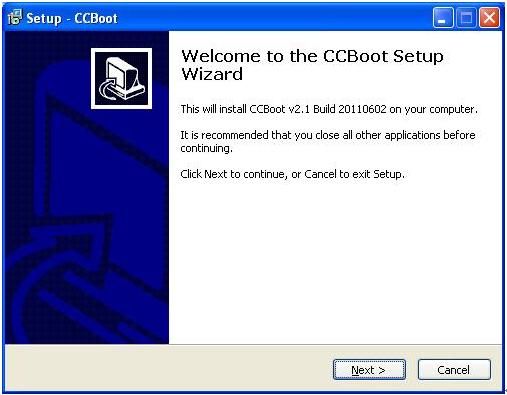
Download network boot software – CCBoot server installation package from www.ccboot.com/download.htm. Launch ccbootsetup.exe on the network boot server and keep pressing the Next button to the end.
CCBoot will use the following ports – 67 (DHCP), 69 (TFTP), 3260 (iSCSI), 1000 (Image Upload), 8001 (Service Control). You need to open these ports in the firewall of the network boot server. Since CCBoot v2.1, you also need to open port 66. V2.1 uses port 66 as DHCP backup.
Note: Please shut down the other DHCP services on the LAN, especially the DHCP service in the router.
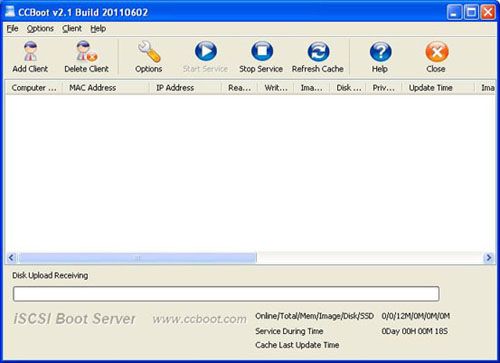
Launch CCBoot and you will get the main interface as below:
B. Initialize the Network Boot Server
Demo environment
- Server IP: 192.168.1.10
- Gateway: 192.168.1.1
- DNS address: 192.168.1.1
- IP mask: 255.255.255.0
- DHCP range: 192.168.1.101 – 192.168.1.254
Launch the network boot software – CCBoot, open the menu “Options” → “Options Wizard” and configure step by step as below:
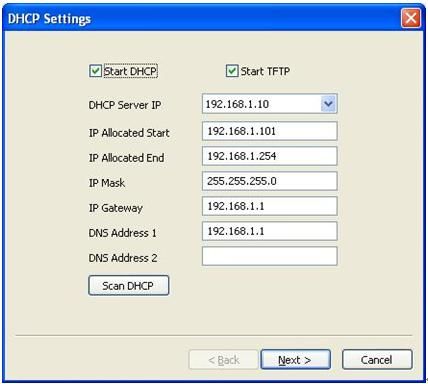
You need to select the correct local IP address as “DHCP Server IP”. Press “Scan DHCP” to check if there are other DHCP services on the LAN. You need to stop other DHCP services on the LAN.
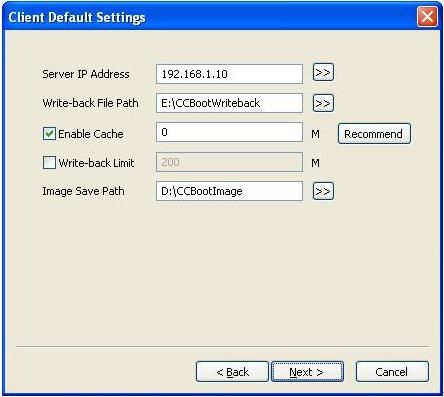
Set “Server IP Address”. Normally, it’s the same as “DHCP Server IP”. Set “Write-back File Path” and “Image Save Path” as you want.
“Write-back File Path” is used to store the network booted clients’ write-back data. You’d better use a big-volume hard disk as “Write-back File Path”. This disk should be formatted as NTFS with 64K bytes per cluster.
“Image Save Path” is used to store the images for network booting. This disk should also be formatted as NTFS with 64K bytes per cluster. You’d better use a fast hard disk as “Image Save Path”, for example an SAS hard disk.
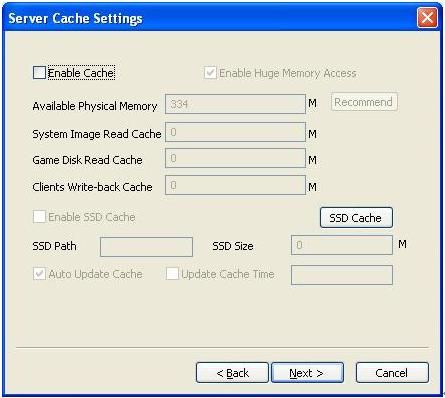
Keep the default values in “Server Cache Settings”.
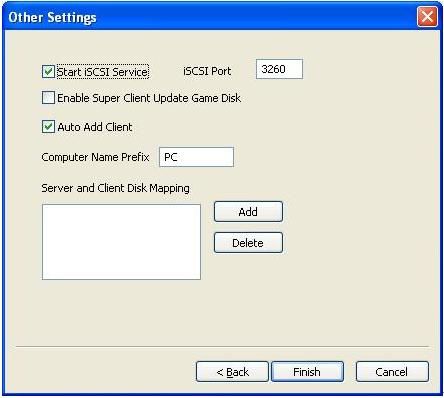
Keep the default values in “Other Settings”. Press the “Finish” button and confirm the popup dialog box.
C. Create an Image for Network Boot Windows XP
To network boot Windows XP with CCBoot, you first of all need to create a system image. Here are the steps:
- Choose one client PC as the master PC used to create the network boot image. Attach a hard disk to the PC.
- Delete all partitions first. Allocate a small MBR partition of about 40 GB and leave the rest unallocated. Format the 40 GB partition with NTFS. Install Windows XP and the latest SP into this partition.
- After completing the Windows installation, open the local area connection network properties and configure as below:
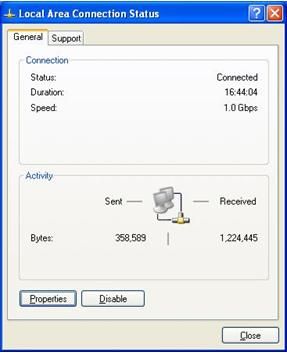
Figure 7 Click “Properties”.
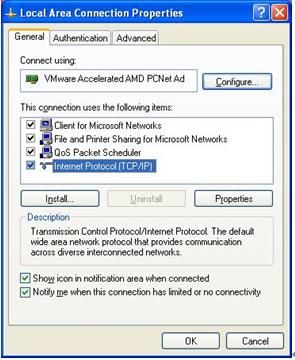
Figure 8 Select “Internet Protocol (TCP/IP)” and click “Properties”.
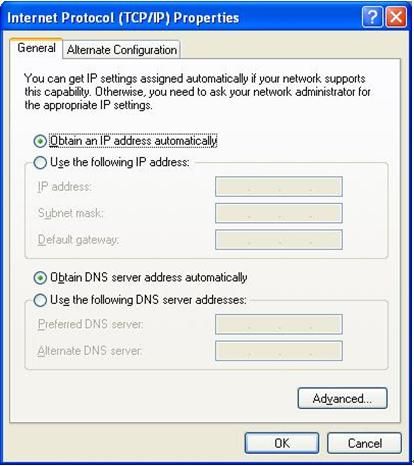
Figure 9 Select “Obtain an IP address automatically” and “Obtain DNS server address automatically”, then click “OK” to save.
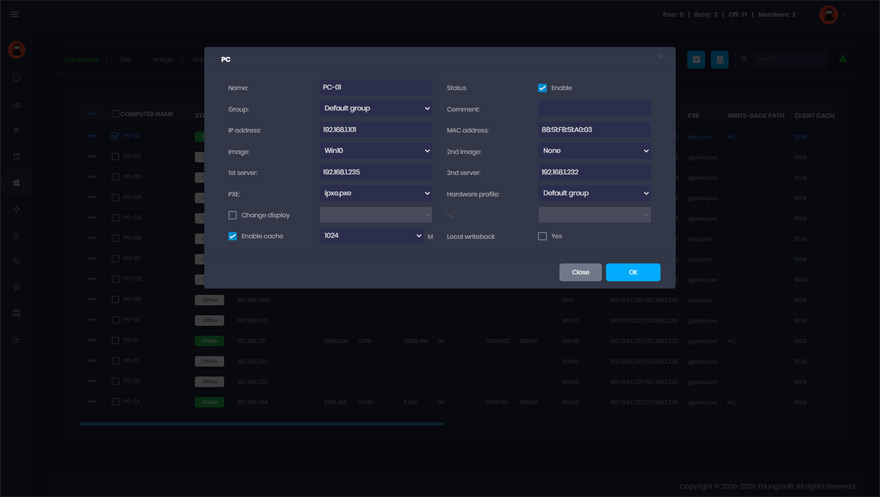
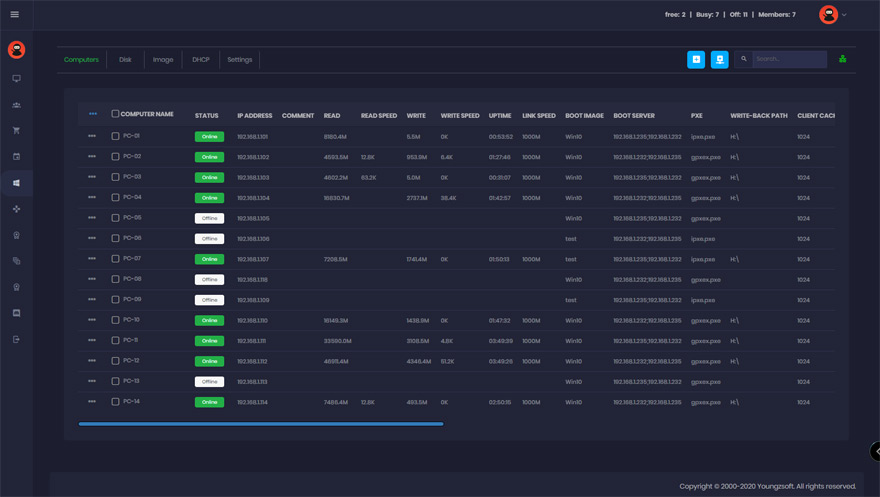
- On the CCBoot network boot server you will find a client in the client list (Figure 10) that was added by CCBoot automatically when the client PC got an IP address from the CCBoot DHCP service.
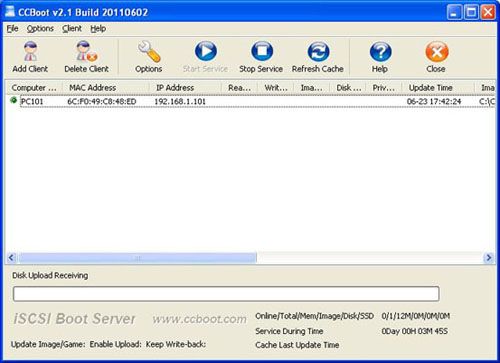
Figure 10 - Double-click the client to edit it and check both “Enable Upload Image” and “Keep Write-back File” (Figure 11). When you press the “Save” button it will ask “Are you sure to delete write-back file?” – just press “No”.
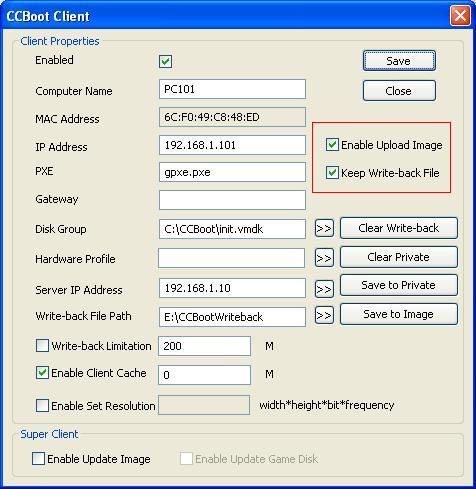
Figure 11 - Download the CCBoot client installation package from www.ccboot.com/download.htm. Launch
ccbootsetupclient.exeand keep pressing the Next button to the end. Then launch CCBoot client and you will see the main interface as below (Figure 12).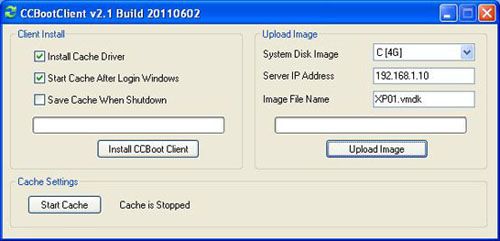
Figure 12 - Press the “Install CCBoot Client” button. After it has finished, it will require a system reboot. Reboot the client PC.
- After the reboot, launch CCBootClient again and input the correct “Server IP address” – it should be the IP address of the PC on which CCBoot server is located. Input the image file name you want in “Image File Name”. Press the “Upload Image” button to upload the image to the CCBoot server. CCBoot will then create an image in the server’s “Image Save Path”.
Note: CCBoot supports two image file formats. It supports VMDK if you are using Windows 2003 as the CCBoot server system, and both VMDK and VHD if you are using Windows 7 or Windows 2008. As you can see in Figure 12, the file format depends on what you have set for “Image File Name”, for example “XP01.vmdk” or “XP01.vhd”.
D. Network Boot Windows XP on the LAN
- On the CCBoot network boot server, double-click PC101 (Figure 10) to open the master PC’s properties dialog box, and uncheck “Enable Upload Image” and “Keep Write-back File”.
- Remove the HDD from the master PC and set it to boot from the network first (or LAN, PXE ROM, or a similar setting) in the BIOS so that it will start to network boot Windows XP (Figure 13).
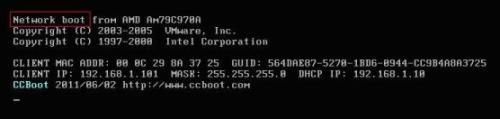
Figure 13 - The first time you network boot Windows XP on the master PC, you can modify its computer name (Figure 14).
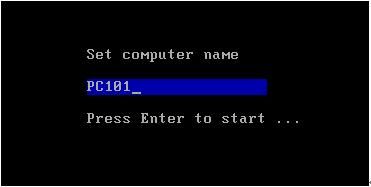
Figure 14 Set the computer name as you wish, then press the Enter key to boot it over the network (Figure 15).
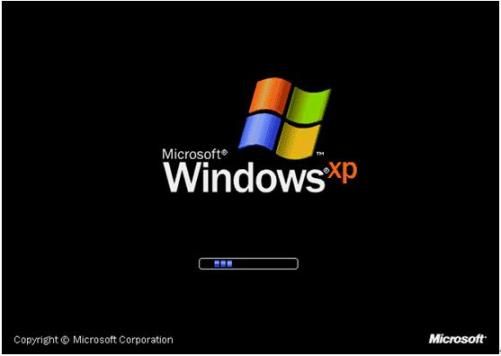
Figure 15 - On the CCBoot server, open “Options” → “Settings” → “Default Client Settings” → “Disk Group”, press the “>>” button and select “XP01.vmdk” as the default boot image in the “System Image Selection” section.
- Repeat Step 2 and Step 3 for the other client PCs with the same specifications as the master PC to network boot Windows XP on them.
E. Network Boot Windows 7 and Vista
Documentation
Step-by-step guides from the CCBoot wiki.
- Network requirementsSwitch, NIC and cabling checklist for a boot LAN.
- 2.5G and 10G networksFaster uplinks for bigger rooms and game disks.
- CCBoot network structureWhere the server, switches and clients sit.
- Multi-NIC load balanceSpread one server over several NICs.
- Multiple servers load balanceShare clients across two or more servers.
- Configure DHCPBuilt-in DHCP or DHCP proxy next to your router.
- Add NIC drivers to imageMake one image boot on every network card.
- 10G NIC low speed issuesFix a 10G link that is not delivering.
Common questions
What is the difference between network boot, PXE boot and diskless boot?
Do I need special switches for network boot?
Can the router keep running DHCP?
Does network boot work across VLANs or two LAN segments?
How fast is network boot compared to a local SSD?
Are You Ready To Give CCBoot A Try?
It only takes a few minutes to give CCBoot a try… (You’ll be glad you did)