

Diskless render farm
Every render node on the same image, the same plugin versions, every night
A render farm is a cluster of PCs built to render computer-generated imagery. CCBoot boots all of them from one diskless image: install 3ds Max, V-Ray or your renderer once, and every node runs exactly that — no drifting plugin versions, no local disks to fail mid-render.
- days of rendering, split over 15 nodes
- 15 → 1
- image for every node
- 1
- local disks in the farm
- 0
Why render farms go diskless
There is a huge amount of computation when 3D animation designers turn pictures and clips into animation. A queue manager (QM) distributes the processes across many computers: if one PC would need 15 days, 15 PCs working together finish in one.
Because these computers are used only for computing, giving each one a hard disk is a waste of money and resources — and if someone works on a node, it affects the computations. HDD nodes also fail: viruses, trojans, corrupted installs. That is where the CCBoot diskless boot solution comes to the 3D animation field.
- Identical renderer and plugin versions on every node, guaranteed
- Add a node: plug in, boot from network, it joins the queue
- Reboot wipes any accidental change; nothing to reinstall
- Spare CPU in the office at night can join the farm as diskless nodes
Deployment environment
The 3D animation studio deployment this solution was documented from.
- Edition
- CCBoot v3.0 Enterprise Edition, 40 PCs, June 2013
- Network
- Intel load balance; 2 × 26-port switches
- Server
- Windows Server 2008 R2, 16 GB RAM
- Clients
- Windows 7 x64, 16–24 GB RAM per node
- Storage
- NAS stores video resources and finished products
- Software
- 3ds Max and V-Ray (distributed rendering plugin); After Effects plugin
Work principle
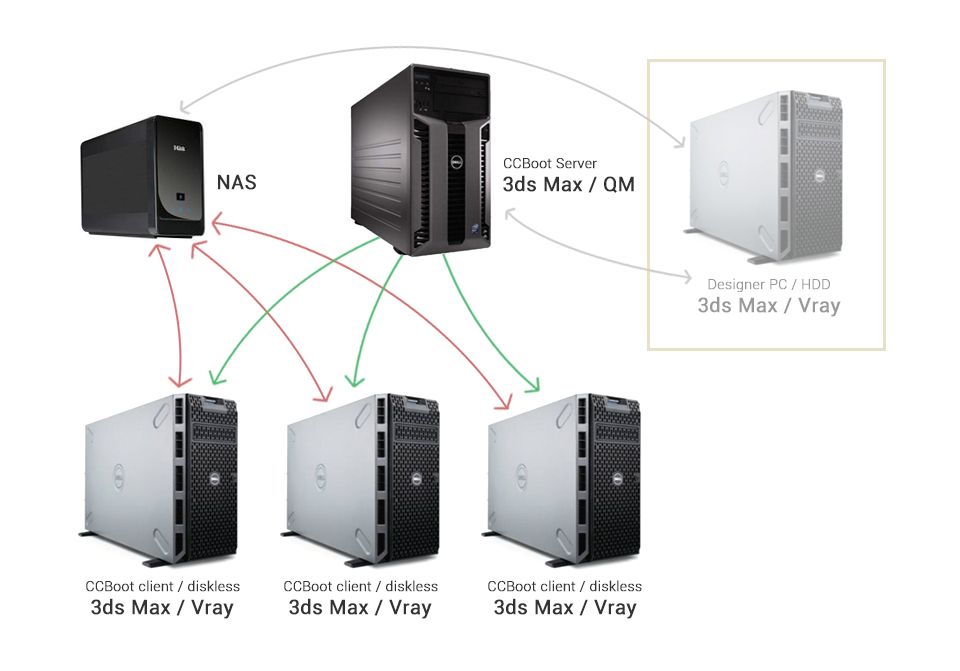
How the designer PC, queue manager, NAS and diskless render nodes fit together.
- 1
Install the server side
Install CCBoot server, 3ds Max and the queue manager (QM) on the server.
- 2
Build the render node image
Install CCBoot client, 3ds Max and V-Ray (the distributed rendering plugin) on a master node and upload the image. After the nodes diskless boot, V-Ray automatically monitors for and receives render tasks.
- 3
Store assets on the NAS
The NAS holds the video resources and finished products of the designer PC and the render nodes.
- 4
Submit and distribute
The designer works on a PC with an HDD and 3ds Max + V-Ray. When the animation is finished, the designer PC submits it to the QM; the QM finds the V-Ray instances and distributes the render tasks to the diskless nodes.
- 5
Render and collect
The render nodes process their tasks and save the finished product to the NAS.
Get Your FREE Trial Today
Boot two render nodes from one image on the trial and watch them pick up jobs from your queue manager.
Start Your FREE Trial TodayWhat the farm gains
The CCBoot features that matter most for compute nodes.
No More Buying Hard Drives
Client PCs don’t need a hard drive… this alone could save you THOUSANDS of dollars.
Easy Updates
When the “master” PC is updated, the rest of the PCs on the LAN will update with a simple reboot.
No More Viruses, Trojans, and Spyware
The system will be restored after every reboot, leaving your PCs in a clean state at all times.
Easy Restore Points
Set restore points such as create recovery, merge to last, and restore to last. This makes it easier to fix problems and maximize performance.
Efficient Cache Equipped
Equipped with good cache performance, physical memory, and SSD cache support.
Energy Conserving
Up to 40% energy could be saved, which is environmental and energy-saving.
Documentation
Step-by-step guides from the CCBoot wiki.
- Server requirementsRAM, NVMe cache and NICs for a node farm.
- Create boot imageInstall 3ds Max, V-Ray and plugins once on a master node.
- Super clientUpdate renderer or plugin versions on one node, roll out to all.
- Restore pointsTest a plugin update and roll back if renders break.
- Activating 3ds Max on clientsLicensing Autodesk software on diskless nodes.
- 2.5G and 10G networksBandwidth for scenes, textures and output to NAS.
- Client cacheRAM cache settings for memory-heavy render nodes.
- Multiple boot imagesSeparate images per renderer or project.
Common questions
Which renderers work on a CCBoot diskless render farm?
Does GPU rendering work?
How much RAM do render nodes need?
Where do scenes, textures and output live?
How do we update the renderer or a plugin on 40 nodes?
Are You Ready To Give CCBoot A Try?
It only takes a few minutes to give CCBoot a try… (You’ll be glad you did)