

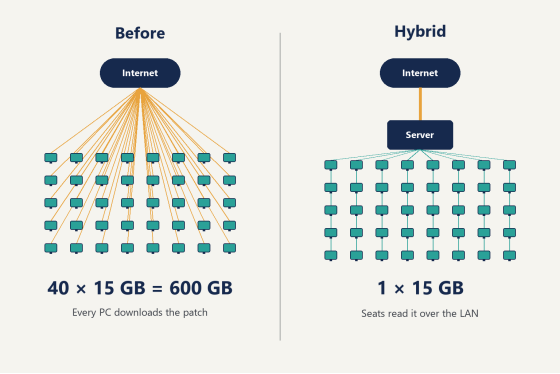
Patch day looks the same in every LAN center. A 14GB Valorant update drops overnight, you open at noon, and sixty machines all need it before the first group walks in. One person is on shift. Most of that morning goes into walking the rows, watching seat 41 stall at 84 percent, and rebooting the three PCs that quietly gave up.
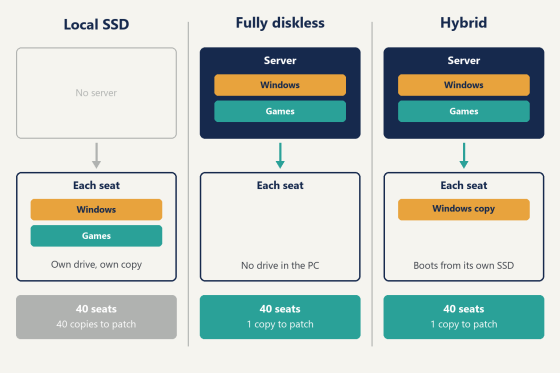
This PXE boot guide is about the setup that deletes that morning. Client PCs pull their operating system from a server over Ethernet, so you patch one image and reboot the floor.
Most PXE writeups stop long before that. They coax a single test machine into showing a boot menu, call it done, and never say a word about what happens when sixty clients hit the same server at 11:58. The distance between those two moments is where the actual work sits, and it turns out to be three things: how your DHCP is arranged, what firmware your clients report, and how fast your switch ports start forwarding.
None of it is exotic. It's just badly documented.
Four-step PXE boot sequence: the client NIC broadcasts, DHCP returns an IP plus options 66 and 67, TFTP delivers the network boot program, and the client loads its boot image.
If you want the handshake itself pulled apart packet by packet, we covered that separately in the step-by-step walkthrough of the PXE handshake. Here I'm going to assume you already know that DHCP answers first and TFTP answers second, and spend the space on the parts that break at scale.
What this PXE boot guide assumes you already have
Five things. Miss one and you'll lose an evening chasing a problem that was never in your config file.
- A server with far more RAM than you think it needs. Caching is what the floor actually feels, and every gigabyte you give the server is a read that sixty clients don't make over the wire.
- Gigabit to every seat as the floor, not the ceiling. New builds increasingly run 2.5GbE client links, and the uplink from your switch to the server is where you should spend first.
- A managed switch. You'll need per-port control later, and this comes back to bite people in the last section of this article.
- Client NICs that support network boot, with PXE enabled in firmware and the NIC moved to the top of the boot order.
- One clean master PC, built exactly the way you want every seat to look.
Sizing is less dramatic than people expect. A single modestly specced server comfortably carries around 70 diskless clients, so a sixty seat room is one box, not a rack. That number assumes you gave it the RAM.
Skip the temptation to test on the oldest machine in the building. Use a normal seat. Testing on the one PC with a dying NIC teaches you nothing except that the NIC is dying.
The master build deserves more attention than the server does. Install the games, the GPU drivers, the anti-cheat clients and every launcher on that one machine, sign into each launcher once so its profile actually exists on disk, run Windows Update until it stops finding things, and only then capture the image. In practice the step that gets forgotten is the launcher sign-in, and you find that out at 7pm on a Friday when sixty seats each present a fresh login screen to sixty customers who just paid for an hour.
Does PXE boot work over Wi-Fi?
No. PXE runs in firmware, before Windows and before any wireless driver exists, so the client needs a wired Ethernet link.
A handful of vendors ship UEFI wireless boot on specific laptop models, and it works in the way that a party trick works. Association and authentication add seconds before the first packet moves, and you are streaming an operating system image, not a config file. Sixty machines doing that at once over the air is not a deployment, it's an outage with extra steps.
The same reasoning kills USB Wi-Fi adapters for boot. Firmware doesn't know what they are.
Getting DHCP and the boot server to stop fighting
This is where most floors fail, and it fails in a way that reads as randomness. Half the room boots. The other half sits at a blinking cursor. Nothing in your config looks wrong because nothing in your config is wrong.
Option 60, 66, and 67, in plain terms
Three DHCP options carry the boot instructions, and they do different jobs.
Option 66 hands over the address of the machine holding the boot files. Option 67 hands over the filename to ask for once the client gets there. Option 60 is the one everybody forgets: it carries the vendor class identifier, and when a client sets it to PXEClient, that string is the signal your boot server watches for.
Every PXE boot guide covers 66 and 67. Far fewer mention 60, which is a shame, because 60 is the whole basis for letting your router and your boot server share a network without stepping on each other.
Two ways to avoid a DHCP race
You have exactly two clean arrangements, and mixing them is what produces the half-booting room.
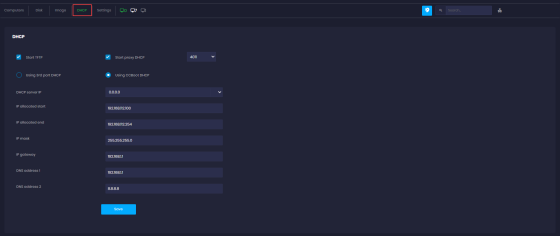
The first arrangement leaves your router in charge of addresses and runs the boot server in ProxyDHCP mode. The boot server ignores ordinary DHCP traffic and answers only requests carrying that PXEClient identifier, replying on UDP port 4011 with the boot filename while the router keeps handing out leases as it always did. Your reservations, your guest Wi-Fi, and the POS terminal behind the counter all stay exactly where they are.
The second arrangement switches the router's DHCP off and lets the boot server issue both addresses and boot instructions. One place to look when something is wrong, which counts for a lot at 11:40 in the morning.
For a sixty seat room, take the first one. You get the boot behavior you want without renumbering a network that already works, and the day you swap routers, nothing about the boot path changes.
But whichever you pick, pick it for the entire VLAN and write it down somewhere. A boot server and a router that both think they own option 67 will give you a room that boots differently every morning, which is the worst category of fault to inherit.
(And if you leave two plain DHCP servers running on the same VLAN because it seems easier, roughly half your clients will take a lease from the wrong box. That looks like a hardware fault and is not one.)
Serve UEFI and legacy clients from the same server
Buy machines over four years and you own a mixed floor whether you planned one or not. The firmware in those machines does not agree about what a boot file looks like, so a single filename in option 67 can only ever satisfy part of the room.
Clients tell you which kind they are. During the initial request they include DHCP option 93, the client architecture identifier, and your boot server reads it to decide which network boot program to send back.
Option 93 value | Client firmware | Boot file you send |
00:00 | Legacy BIOS, x86 | undionly.kpxe |
00:07 | UEFI x64 | ipxe.efi |
00:09 | UEFI x86-64 (EBC variant) | ipxe.efi |
Here is the part worth doing before you configure anything. Run a packet capture on the boot server during opening, filter on boot, and count the option 93 values that come past. Five minutes of capture tells you precisely how many of each firmware type you own, and it beats walking to sixty machines and pressing F2 on each of them. (Wireshark running on the boot server itself is enough here, no mirror port needed, since the broadcasts come to it anyway.)
Secure Boot needs one decision, made once, for the whole floor. Either sign your loader chain properly or turn Secure Boot off everywhere so a single firmware profile covers every seat. What causes grief is doing it per machine, because six months later nobody remembers which twelve PCs are the odd ones.
How the server reads DHCP option 93 and sends a legacy BIOS client a .kpxe file while a UEFI client gets a .efi file.
From one working client to sixty
A single machine reaching a login screen proves your DHCP and TFTP are correct. It proves nothing about the floor, and this is the part most PXE boot guides skip entirely.
Three things change when the count goes up.
The first is writing. Sixty machines cannot share one read-only image and each expect to write a temp file, a shader cache, or a game's config. Each client needs its own writable layer, which is what a write-back file gives you: reads come from the shared image, writes land in a per-client file, and a reboot throws that file away. The machine comes back identical to the master every single time, which is also why malware never survives the night.
The second is updating. You patch the master PC once, and every other seat picks the change up on its next reboot. Francis Tungpalan, who runs GetPoint Gaming in the Philippines, put the effect plainly: "We have about 5 online games that update every week, now we only update the server."
The third is cache and uplink. Server RAM absorbs the majority of reads, SSD cache catches the rest, and when a single NIC stops being enough you bond more of them or add a second server behind load balancing. That progression is normal and it's planned for.
CCBoot handles those three jobs as one system, which is why it shows up in around 30,000 deployments, and its PnP handling means one image serves clients with different motherboards and GPUs instead of forcing an image per hardware batch. Licensing is per PC, USD 2.50 per PC per month, dropping to USD 2.00 on annual billing. For a sixty seat room that lands between USD 120 and USD 150 a month, which is roughly what two replacement client SSDs cost.
Boot page of the web console listing client PCs with their boot image, write-back drive, client cache and 2500M link speed.
So convert the room in blocks rather than in one night. Move ten seats over, run them through a full evening with paying customers on them, then take the next twenty. None of that is required and it costs you a few days, but any surprise arrives while fifty machines are still on their old setup and the room keeps earning while you sort it out.
That screenshot is a live floor, and it's worth reading column by column. Every client carries its own write-back drive letter. Client cache sits at 2048MB per machine. Link speed reports 2500M. The PXE column shows the same ipxe.efi on every row, which tells you this room is standardized on UEFI. Look at the uptime column and you'll see most machines clustered within a few seconds of each other, because they were all switched on together when the doors opened. Billing and membership run in the same console through iCafeCloud, which is a separate job from booting and worth keeping separate in your head.
The failures you will actually hit
PXE-E61, media test failure. Physical, every time. Check the link light on the port before you touch a single config file, then try a different cable, then a different port.
PXE-E53, no boot filename received. The client got an address and then nothing useful. Either option 67 is empty, or your ProxyDHCP service is running but not answering, which usually means it isn't matching on that PXEClient vendor class. Check the boot server's log for a request it saw and declined.
PXE-E32, TFTP open timeout. Windows Firewall blocks UDP 69 by default, and it does it without logging anything you'd notice. Add the inbound rule. That one line accounts for more stuck deployments than every genuine config error put together, and I have watched a room rebuild an entire DHCP scope twice over before anybody thought to check whether the firewall was quietly dropping the transfer that would have proved the scope was correct the whole time.
After that come the failures with no error code attached, which are the ones that actually cost time.
If half the room boots and half sits there blinking, go back to option 93. One boot file, two firmware types.
If the boot menu appears and the screen then goes black, that client found its boot file, so PXE already did its part and the trouble is further down the chain. Check that the seat has a write-back target assigned before you go near your DHCP scope again.
And then there's the weekend-eater: one machine that works perfectly all afternoon, and a whole floor that times out at open. Spanning tree needs several seconds to move a port into forwarding after link-up, and PXE gives up well before that. Testing a single machine never surfaces it, because by the time you reach over and press the power button that port settled minutes ago. Power sixty machines on at once from cold and every port renegotiates in the same instant, so firmware broadcasts into a switch that isn't listening yet, and the room fails in a pattern that looks exactly like a server fault while having nothing whatsoever to do with the server. Turn on portfast, or edge port mode, on every client-facing port. It doesn't come back.
For anything past this list, the setup wiki goes deeper on the server-side configuration than a blog post reasonably can.
How to tell the floor is actually healthy
Working is not the same as healthy, and the difference shows up on a busy Saturday rather than a quiet Tuesday. Four checks tell you which one you have.
Time a cold boot with a stopwatch, from power button to login screen, and write the number on a sticky note by the server. That number is your baseline, and when someone says the floor "feels slow" in November you'll have something better than an opinion.
Honestly, that sticky note earns its keep. A baseline is the only thing that separates a real regression from a busy Saturday, and without one you are arguing about feelings.
Boot the same machine a second time. It should be visibly faster, because the server is now serving those blocks from cache instead of disk. If the second boot matches the first, your cache isn't doing its job and RAM is the answer.
Change one file on the master, reboot the floor, and confirm every seat has it. That's the whole promise of the setup, and you should verify it once deliberately rather than discovering it on a patch day.
Then do the only test that counts. Power on all sixty at once, cold, the way opening actually happens.
If that works, you're done. If it doesn't, go back and read the last paragraph of the previous section.
Start on two machines this week
Pick two seats, not one. One machine hides the timing problems and sixty of them at once is too much to debug, so two is the number that tells you something while still being easy to reason about.
Set your boot server to ProxyDHCP so the router keeps doing its job. Capture five minutes of DHCP traffic to learn what firmware you actually own. Send the right boot file to each type, add the UDP 69 firewall rule before you need it, and turn on portfast for both ports. Then boot them together, cold.
When those two come up clean, the remaining fifty-eight are a rollout rather than an experiment. That's the point this PXE boot guide has been walking toward, and it's a Tuesday afternoon of work, not a project.
You can try it on two machines first before touching the rest of the floor.