
Open the quote for your next build-out and find the storage line. One NVMe drive per machine, call it $90 after the current round of price hikes, times forty seats. That's $3,600 of hardware whose entire job is to hold a copy of Windows and a Steam library that's identical to the thirty-nine copies sitting next to it — and every one of those copies is something you'll be patching, cleaning, and eventually replacing.
A diskless gaming PC deletes that line item. The machine has no drive at all. It boots over the network from a central server, pulls its operating system and games from one master image, and forgets everything the moment it powers off.
This is standard practice in gaming centers across most of the world, and it's spreading fast among US esports lounges. But most of what's written about it stops at "here's why it's a good idea." This guide is the other half: what actually goes into a diskless gaming PC, what you can leave out, how to size the server behind it, and what the whole thing costs.
What a Diskless Gaming PC Actually Is
The one part you leave out
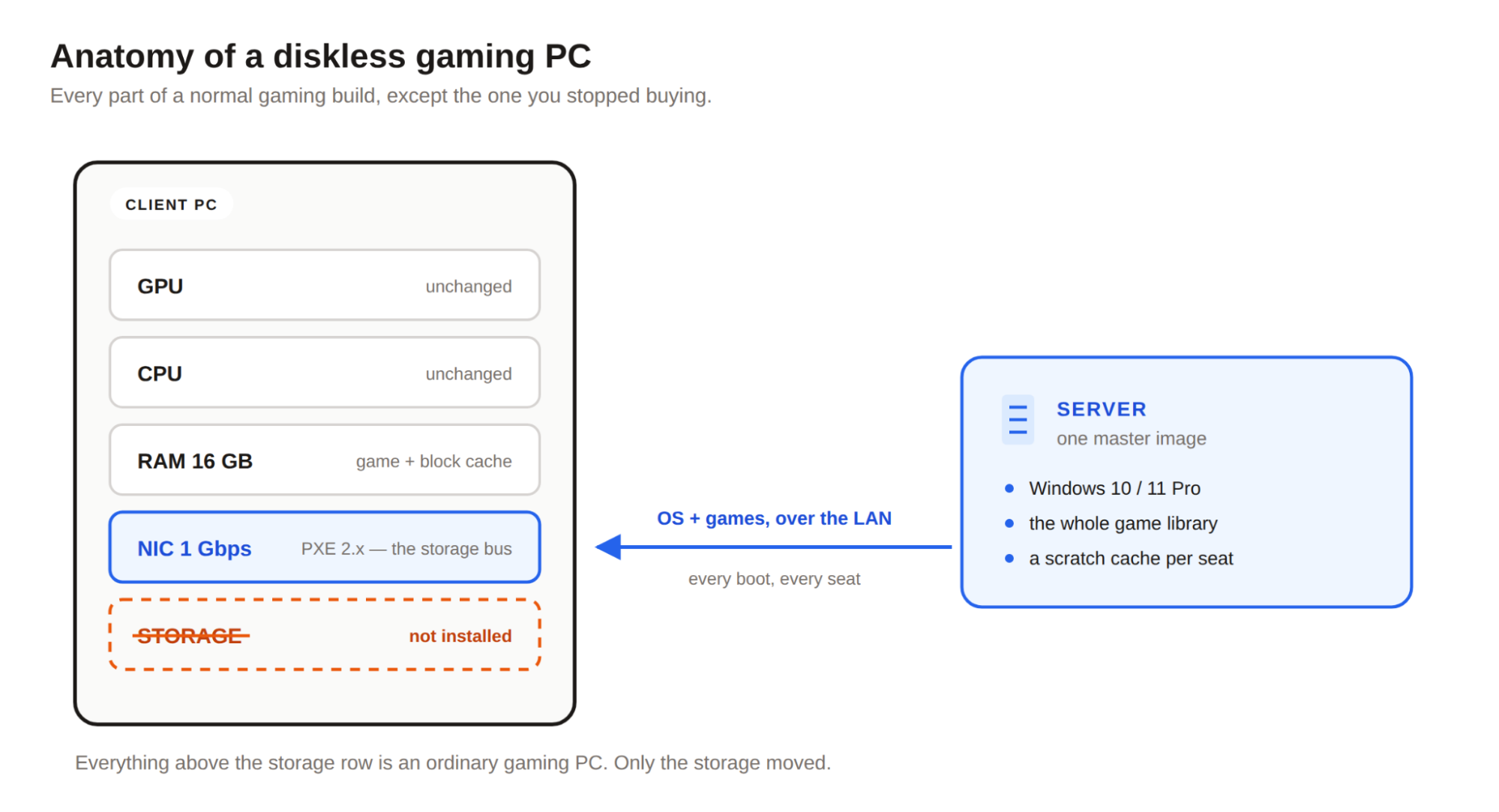
A diskless gaming PC is a normal gaming PC minus its storage. No SSD, no hard drive, no M.2 stick tucked under the heatsink. When it powers on, the firmware on its network card sends a boot request across the LAN, the server answers, and Windows streams down over the wire.
That's the whole trick. Everything else about the machine is ordinary.
What stays exactly the same
This is the part people get wrong when they first hear the term. Diskless is not cloud gaming, and it isn't thin-client computing. Nothing is being rendered somewhere else and streamed back as video.
The GPU in that machine is doing the same work it would in any other build. So is the CPU. So is the RAM. Games execute locally, on local silicon, at local frame rates. The only thing coming over the network is storage — the bytes that would otherwise be read off a drive six inches away.
Which means you spec the fun parts exactly as you always have. If your floor needs a 4070 to sell $6 an hour, it still needs a 4070.
Where the disk actually lives
The storage moves to a server in the back room. On it sits a master image: one Windows install, one set of drivers, one game library, maintained once. Every client boots from a copy of that image.
Nothing a customer does gets written back into it. Their session's writes — temp files, saves, whatever they downloaded — land in a scratch cache that's discarded at the next reboot. That's why a diskless machine is factory-fresh every single time someone sits down at it.
A diskless gaming PC is a normal build with one row deleted. The NIC quietly takes over the job the drive used to do.
Speccing the Client Machines
The network card is the part people get wrong
In a conventional build the NIC is an afterthought. Here it's the machine's storage bus, and treating it casually is the single most common way a diskless rollout goes badly.
What it needs:
- Gigabit minimum. 1 Gbps to each seat is the floor. Nothing less is worth attempting.
- PXE 2.x compatible. Network boot support has to be there in firmware. Nearly every current onboard NIC has it, but check before you buy forty of anything.
- Intel or Realtek. These are the chipsets diskless software is tested against, and they're what every vendor recommends. An unusual NIC is not the place to save four dollars.
- Wired only. Wi-Fi cannot network boot. Neither can USB-to-Ethernet adapters, reliably. Onboard or PCIe, nothing else.
Onboard gigabit on any decent motherboard covers all of this. You just have to confirm it rather than assume it.
RAM: more, not less
The published minimum for a diskless client is 4 GB, which tells you the software will run — not that your customers will enjoy it. Ignore that number and spec for the games.
Client RAM does double duty in a diskless setup: it holds the game like it always did, and it also caches blocks pulled from the server so they don't have to be fetched twice. On a floor running current AAA titles, 16 GB per seat is the sensible baseline and 32 GB is worth it on your premium machines. RAM is cheap next to what it does for perceived speed here.
BIOS and UEFI settings that trip people up
Three things to set, ideally before the machines leave the bench:
Network boot enabled, and first in the boot order. Obvious, but it's the step that gets skipped on machine 23 of 40 and costs you twenty minutes of confusion later.
TPM disabled. A TPM module can interfere with diskless booting. If a client hangs or refuses to boot and everything else looks right, this is where to look — Security tab, turn it off.
Secure Boot / UEFI handled deliberately. Modern diskless software works fine with UEFI and Secure Boot, but the image has to be built for the mode you're running. Pick one and keep the whole floor consistent.
Do all of this once, save the BIOS profile, and flash it to every machine. Consistency across seats is worth more than any individual setting.
A sample per-seat build
For a mid-tier US esports lounge seat, roughly:
Part | Spec |
CPU | Current-gen 6–8 core |
GPU | Whatever your pricing tier justifies |
RAM | 16 GB (32 GB on premium seats) |
Motherboard | Any board with onboard Intel/Realtek gigabit |
Storage | None |
OS | Windows 10 or 11 Pro x64 — on the server, not here |
That storage row is the whole point. Everything above it is a normal build.
Speccing the Server
The server is where a diskless floor is won or lost. Under-build it and every seat suffers at once; build it properly and nobody in the building ever thinks about it again.
RAM is your cache, and cache is your speed
This is the single most important sentence in this guide: the server caches frequently-read disk blocks in RAM, and that cache is why diskless feels fast.
When forty machines all boot Windows and launch the same game, they're reading overwhelmingly the same blocks. The first client pulls them from disk; everyone after that gets them out of memory at RAM speed. A server with enough RAM to hold your hot data — Windows itself plus the two or three games that account for most of your play hours — serves the entire floor without touching storage much at all.
So buy RAM generously. It is the cheapest performance you will ever purchase in this build.
NVMe for the image, capacity for the rest
Put the master image and your most-played titles on NVMe. Use larger SATA SSDs or spinning disks for the long tail of games nobody launches at 9pm on a Friday. Mirror what you can't afford to rebuild.
The network between them
Gigabit to each seat, and a fat uplink from the switch to the server — 10 Gbps once you're past a couple dozen machines, because that link carries every seat's disk traffic simultaneously. Use a managed switch from a brand you recognize. This is infrastructure now, not an accessory.
Rough sizing
Floor size | Server RAM | Image storage | Server uplink |
~20 seats | 32–64 GB | 1× NVMe | 1–10 Gbps |
~40 seats | 64–128 GB | NVMe + capacity tier | 10 Gbps |
80+ seats | 128 GB+ | NVMe array | 10 Gbps, second server for redundancy |
A single well-built server can carry a surprising number of clients — deployments in the range of 30 to 500+ seats per server are routine — but past roughly 80 seats you're buying the second server for failover, not for capacity.
Does a Diskless Gaming PC Feel Slower?
This is the first question every skeptical tech asks, and it deserves a straight answer: no, not on a properly built floor — and it is frequently faster than the mechanical drives it replaced.
The whole performance argument in one picture: after the first read, the floor is being served out of memory.
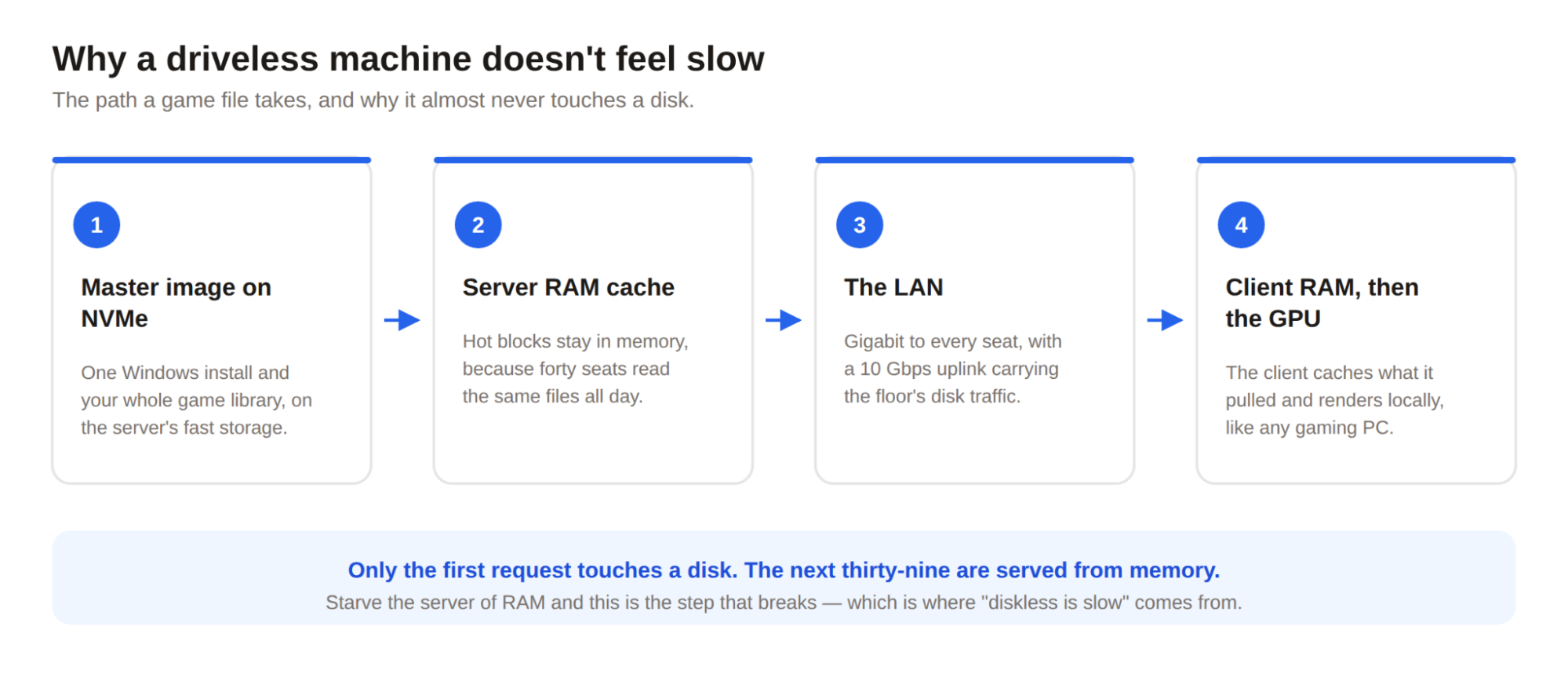
Follow a game file's path. The client asks for a block. If it's in the client's own RAM cache, that's the end of the story. If not, the request crosses a gigabit link to the server, which almost always has it in RAM already because thirty-nine other machines asked for the same block this morning. It comes back over the wire in about the time a local SATA drive would have taken to find it.
Vendors will tell you performance is comparable to — often better than — a local mechanical hard drive, and that matches what operators report in practice. Against a fast local NVMe, a diskless client can lose a second or two on a cold first load of an unusual title. Against the mixed reality of a real floor, where half the machines are running drives that have been thrashed by three years of continuous use, diskless usually wins.
Where you would notice a problem: an undersized server, a saturated uplink, or a cheap switch. All three are budget decisions, not limitations of the approach.
The Software Layer: CCBoot
Hardware alone doesn't make a diskless gaming PC work. Something has to answer the boot request, serve the image to forty machines without them corrupting each other, manage per-machine identity, and handle the caching described above. That's what CCBoot does, and it's been doing it in gaming centers for well over a decade.
The pieces that matter day to day:
One image across mixed hardware. Bought machines in two or three waves, from different suppliers, with different chipsets? They can share a single image. You are not maintaining a separate Windows install per hardware generation, which is exactly the trap that makes people give up on diskless.
Server-side caching. CCBoot keeps hot blocks in server RAM and on NVMe, which is the mechanism behind everything in the performance section above. Paired with 10 Gbps networking, this is what makes a driveless machine feel like it has a fast local drive.
The super client workflow. To update anything, you boot one designated machine in writable mode, install the patch the ordinary way, and save the changes back to the master image. Reboot the floor and every seat is current. A 60 GB update is downloaded once, by one machine, instead of forty times.
Restore on reboot. Every client's writes go to a temp cache that's wiped at restart. Malware, cheat clients, someone's "optimization" tweaks — all gone, automatically, with no imaging software and no cleanup routine.
Current Windows support. Windows 10 and 11, Secure Boot and UEFI, Windows Server 2019/2022 on the host side. Modern floors, not legacy ones.
What It Costs
Forty small savings on one side, one larger investment on the other — and the labor line is what actually settles it.
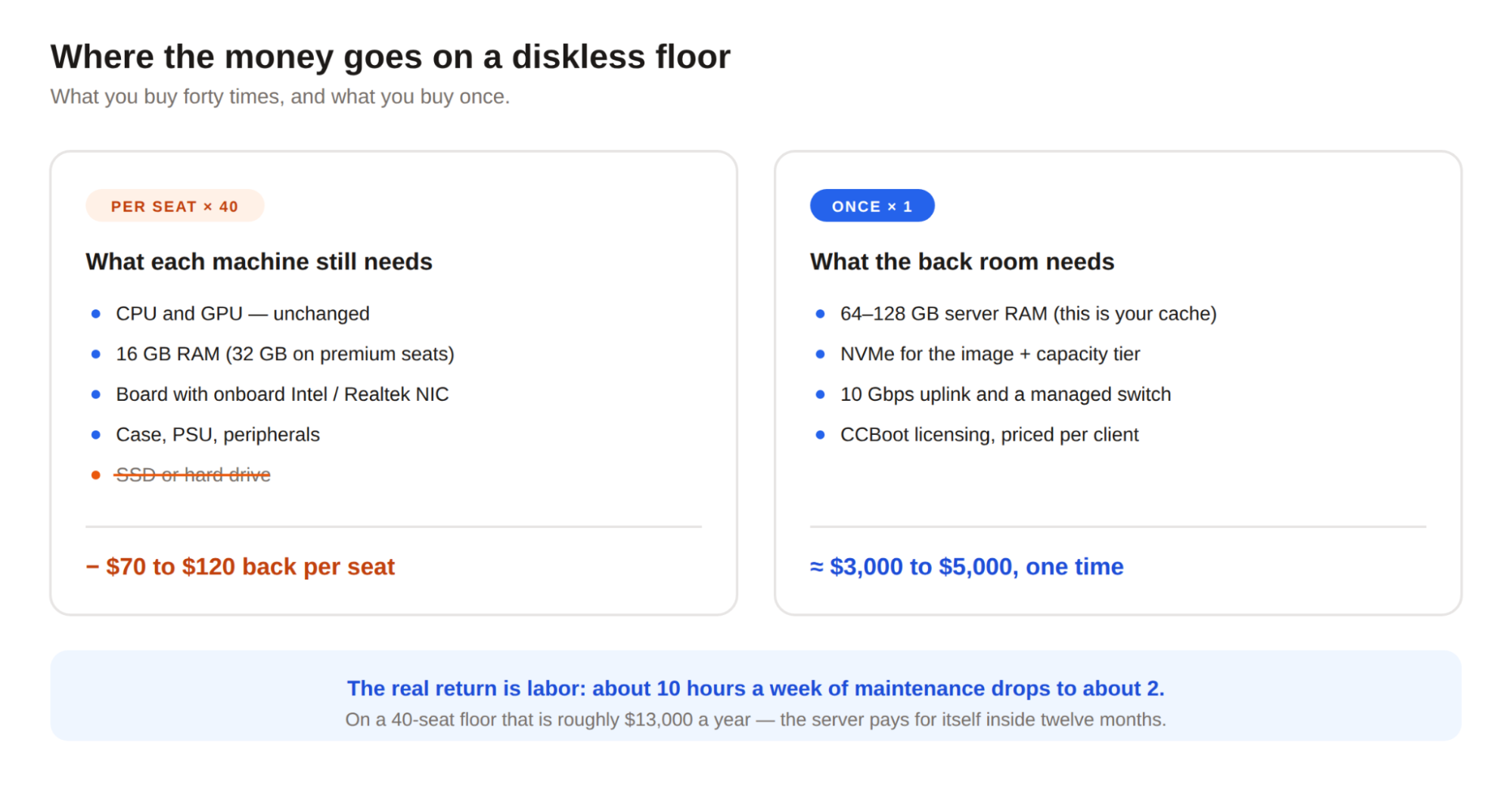
Per seat, you save. Dropping a drive from every client is $70–$120 back per machine at current prices. On forty seats that's roughly $3,000–$4,500 that never leaves your account.
Once, you spend. A properly specced server for a 40-seat floor lands somewhere around $3,000–$5,000 depending on how much RAM and NVMe you put in it, plus switching if your network was marginal, plus CCBoot licensing, which is priced per client PC.
Then it pays you back. The recurring return is labor. Say your floor currently eats ten hours a week of maintenance — patching, cleanup, the occasional rebuild — at $25/hour, that's about $13,000 a year, before counting a single hour of revenue lost to a seat sitting dark. Cut that to two hours a week and the server, the switch, and the licenses are paid for inside the first year. Everything after is margin.
Add the smaller line items that are easy to forget: forty fewer drives to warranty and replace, one download instead of forty on every patch day, and clients that run cooler with one less component in them.
Where Diskless Builds Go Wrong
The failure modes are consistent enough to hand you as a checklist.
Undersized server RAM. The number one cause of "diskless is slow" complaints. The cache is the performance. Starve it and you've built an expensive bottleneck.
A consumer switch. It was fine when it only carried web traffic. It is not fine now that it carries every machine's storage traffic.
Wireless or USB network adapters on clients. They can't network boot. Don't try.
No UPS on the server. A power blip that would have cost you one machine now costs you the floor. Buy the battery.
Converting all forty seats at once. Every smooth rollout I've heard about started with five or six machines running for a couple of weeks while the image and cache settings got tuned. Every rough one started on a Saturday with the whole floor.
None of these are arguments against diskless. They're the reasons to do it deliberately.
Start With Six Machines
A diskless gaming PC isn't an exotic build. It's a normal gaming PC with the storage moved somewhere more useful — somewhere you can maintain it once instead of forty times, where a customer can't break it, and where a patch takes minutes instead of a morning.
The sensible way in is small. Pull the drives from six machines, point them at a server, and download the CCBoot free trial to run them for two weeks alongside your existing floor. You'll know quickly whether the boot times and load times hold up on your network and your hardware — and if they do, the rest of the floor is just repetition.
Most owners who run that pilot end up wishing they'd done it a year earlier.