

Virtual game disk server
One shared game disk for every PC — keep the local SSD, lose the per-PC updates
CCDisk is the virtual disk mode of CCBoot. Each client PC installs and runs Windows locally on its own SSD, while games and shared data are stored and managed centrally on the server. Update a game once and every seat has it on the next session.
- server RAM for 100 PCs
- 32 GB
- game disk + write-back, no image disk
- 2 disks
- published to every PC
- 1 update
What CCDisk does
Everything CCBoot does for game disks, without taking over the system drive.
Virtual game disk on every PC
Clients mount the server’s game disk as a local drive letter. Steam, Epic, Battle.net and the rest see an ordinary disk.
Update once, publish everywhere
Patch or install a game on one super-client PC and publish the game disk; every other PC gets the new content without copying.
Keep Windows on the local SSD
The OS boots from each PC’s own drive, so CCDisk fits rooms that are not ready to go fully diskless or already own SSDs.
RAM and SSD cache on the server
Hot game files are served from server memory and SSD cache, so a full room loading the same title stays fast.
Write-back per client
Each PC writes to its own write-back space; the shared game disk never changes from the client side.
Managed from CCBootCloud
Switch between CCBoot and CCDisk mode, see every client and manage disks from the cloud panel at cp.icafecloud.com.
CCBoot vs CCDisk
CCBootCloud is a cloud-based diskless solution for your computers; CCDisk is a virtual game disk server application. CCDisk has similar functions but is limited to making the game disk diskless.
| CCBoot (diskless) | CCDisk (virtual disk) | |
|---|---|---|
| Windows system disk | Streamed from the server — no local drive needed | Installed locally on each PC’s SSD |
| Game disk | Shared from the server | Shared from the server |
| Server disks required | Image disk + game disk + write-back disk | Game disk + write-back disk only |
| Server RAM | Sized for image cache and game cache | Less — a 32 GB server is enough for 100 PCs |
| Restore on reboot | Whole PC returns to the clean image | Game disk stays clean; OS is managed locally |
| Best for | New rooms, schools, offices, full central control | Rooms that already own SSDs or want a gradual move |
How to switch a server to CCDisk mode
Summarised from the wiki guide “Work as CCDisk”. CCBootCloud has supported CCDisk since August 2023, and the CCBoot client has included the CCDisk client function since April 2024.
- 1
Enable CCDisk in the cloud panel
Open cp.icafecloud.com → Settings → Center settings → Diskless mode and select CCDisk. The server stops its TFTP, DHCP and DHCP-proxy services and the Boot page becomes Disks.
- 2
Install the server
Download the CCBootCloud setup from Settings → Install links, choose “CCBoot server installation”, keep the default C:\CCBoot folder, then enter your license and password to connect to the cloud.
- 3
Install the client
Give each PC a unique static IP and PC name, run the same setup and choose “CCBoot Client installation”. Disable UAC, confirm “Start Install Client”, and answer “No” to the image upload step — CCDisk boots from the local disk.
- 4
Add games and go
When the virtual disk is ready the client runs C:\CCBootClient\DiskIsReady.bat, so you can hook your own scripts. Install iCafeCloud on the same server to add billing and iCafeMenu.
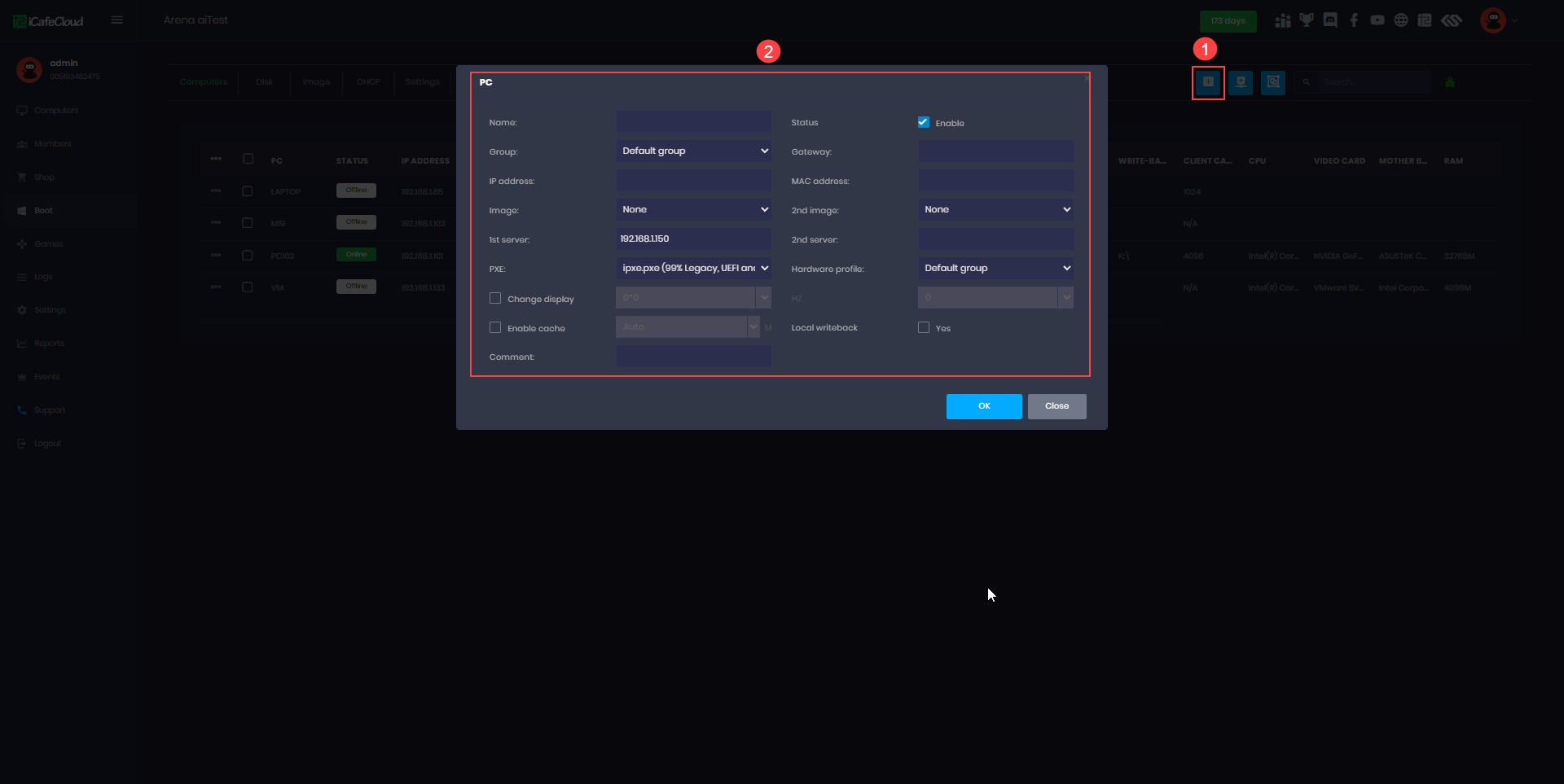
CCDisk + iCafeCloud: billing and game menu on the same server
Install iCafeCloud Server on the same PC as CCBoot (C:\iCafeCloudServer). In Settings → Game Settings pick the same drive letter as your game disk and iCafeMenu downloads itself onto that drive, so every client launches the branded game menu with one-click login.
Run iCafeMenu once in super-client mode, save the game disk, and the PC appears on the iCafeCloud Computers page. From then on members, time, balance and prizes are handled by iCafeCloud while CCDisk keeps the games in sync.
- One server: CCBootCloud for disks, iCafeCloud for billing
- iCafeMenu auto-downloads to the game drive
- Members log in on the client; sessions and top-ups are tracked in the cloud
- Works the same way in CCBoot diskless mode
Try CCDisk with your own PCs
The free trial includes the CCBootCloud server and client. Switch to CCDisk mode in the panel and share your first game disk today.
Start Your FREE Trial TodayDocumentation
Step-by-step guides from the CCBoot wiki.
- Work as CCDiskSwitch a CCBootCloud server into CCDisk mode and install the client.
- CCBoot vs CCDiskWhich mode fits your room: full diskless or virtual game disk.
- CCDisk and iCafeCloud setupRun iCafeCloud billing and iCafeMenu on a CCDisk room.
- CCBoot HybridLocal OS on SSD plus server-side game disks and super client.
- Game disk updatesUpdate one game disk and publish it to every PC.
- Disk cache settingsRAM and SSD cache for game disks on the server.
- Server requirementsA 32 GB CCDisk server is enough for 100 PCs.
- Upgrade to CCBootCloudMove an existing CCBoot install to the cloud console.
Common questions
What is the difference between CCBoot and CCDisk?
Do I need less server hardware for CCDisk?
Can I switch from CCDisk to full diskless later?
Is CCDisk a separate license?
Which games and launchers work on a CCDisk game disk?
Are You Ready To Give CCBoot A Try?
It only takes a few minutes to give CCBoot a try… (You’ll be glad you did)