

Local SSD boot, central image
Boot Windows from each PC’s own SSD — and still manage one image on the server
CCBoot Hybrid creates a VHD image from the server image and stores it directly on the client PC’s local SSD. The PC boots Windows from that local VHD, while games and shared data remain centrally managed on the CCBoot server.
- Windows boots from the PC’s own drive
- Local SSD
- image versions you can restore
- V0, V1, V2…
- both boot methods in one room
- Hybrid + PXE
What Hybrid mode does
The central image and super-client workflow of CCBoot, with Windows running from the drive inside each PC.
Windows on the local SSD
Each client gets a VHD image made from the server image, written to its SSD. Boot reads come from the local drive, not the network.
Games stay on the server
Configure a game disk next to the image and write-back disks. Games and shared data are still managed in one place for the whole room.
Update with super client
Switch one PC to super mode, install or patch, then keep the changes. They are saved into the image as a new version.
Versions you can roll back
Every super-client update creates the next version — V0, V1, V2 … Restore any earlier version, or merge them all into the main image.
Clean after every reboot
Changes and installs made outside super client are reverted on reboot, returning the PC to its clean state.
Mix Hybrid and PXE PCs
Choose per computer whether it boots the Local SSD image or a PXE image, so PCs with and without SSDs share one server.
Diskless, Hybrid or CCDisk?
All three run on the same CCBootCloud server and client. You pick the mode in the cloud panel under Center settings → Diskless mode.
| CCBoot (diskless) | CCBoot Hybrid | CCDisk (virtual disk) | |
|---|---|---|---|
| Where Windows runs | Streamed from the server image over the network | From a VHD of the server image on the PC’s local SSD | Installed locally on each PC’s SSD |
| Game disk | Shared from the server | Shared from the server | Shared from the server |
| System image updates | Super client, once for every PC | Super client, saved as a new image version | Each PC’s Windows is maintained locally |
| On reboot | Whole PC returns to the clean image | Local image returns to its clean state | Game disk stays clean; OS is managed locally |
| Client PC needs | Network boot (PXE) — no local drive | A local SSD or NVMe drive | A local SSD with Windows installed |
| Best for | New rooms and full central control | Rooms with SSDs that want one central image | Rooms that want to keep their own Windows install |
How to set up Hybrid mode
Summarised from the wiki guide “CCBoot hybrid setup”.
- 1
Enable Hybrid in the cloud panel
Go to Settings → Center settings → Diskless mode, select Hybrid and save. On Disks, pick the disk that holds the image, then set the write-back disk and, if you have one, the game disk. TFTP, DHCP and DHCP-proxy services stop.
- 2
Install the server
Download CCBootCloud from Settings → Install links, choose “CCBoot server installation”, keep the default C:\CCBoot folder, then enter your license and password to connect to the cloud.
- 3
Prepare an install USB
On the server run C:\CCBoot\CCBootUSB.exe and choose Install VHD to USB. Pick the Super image or your own VHD, select UEFI Image and the server image disk. A USB drive with 300 MB/s or faster read/write speeds up setup.
- 4
Install the image to each SSD
Boot the client from the USB, run CCBootUSB.exe from the CCBootDisk drive and choose Install VHD to SSD. The SSD is split into a 100 GB C: drive and a CCBootDisk drive with the remaining space.
Update once with super client, keep every version
Enable Super Client for a PC on the Disks page and choose “Set the Local Image as Super Mode”. The PC reboots by itself into super mode, and its name turns red in the panel. Install or update what you need.
Then disable super client, choose “Exit the Local Super Image Mode” and “Keep the Changes”. The client copies the changes into the image in two stages, reboots, and the image list shows a new version.
- One version per update: V0, V1, V2 …
- Restore any earlier version from the image list
- Merge All folds every restore point into the main image — after that you cannot roll back
- Changes made outside super client are gone after a reboot
Hybrid and PXE in the same room
Disk → Images has two sections: Local SSD Images and PXE Images. In Computers, open Edit PC and choose under Image either Local — the SSD image — or any PXE image.
So PC1 can boot from its SSD while PC2 boots over the network, from the same server. PCs that already have an SSD use the Hybrid image; the rest use PXE boot.
- Set the boot method per computer
- Add PXE images next to the Local SSD image
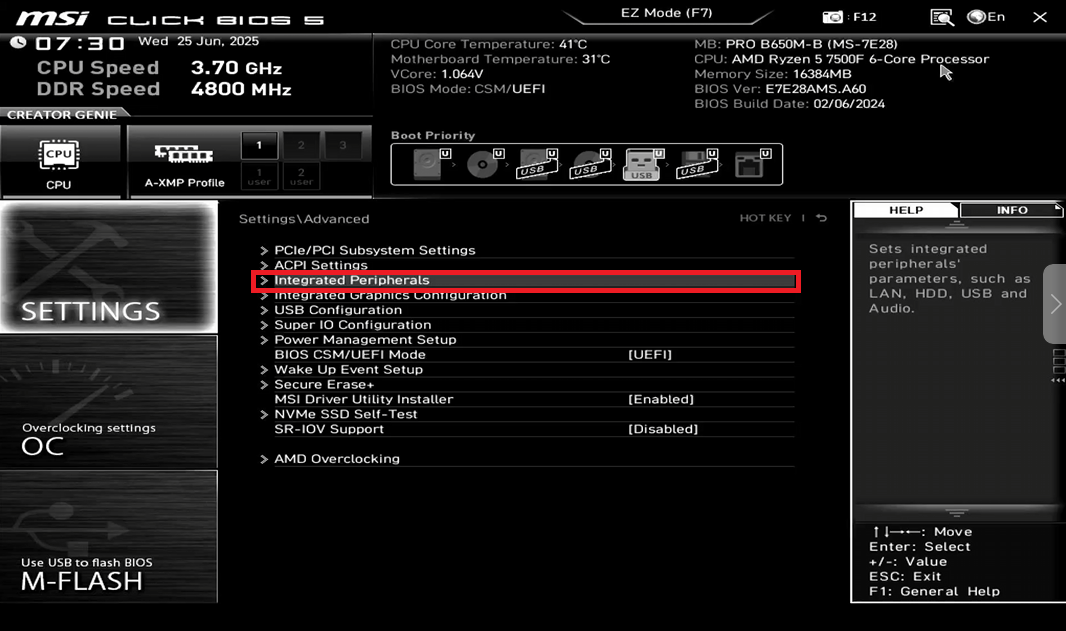
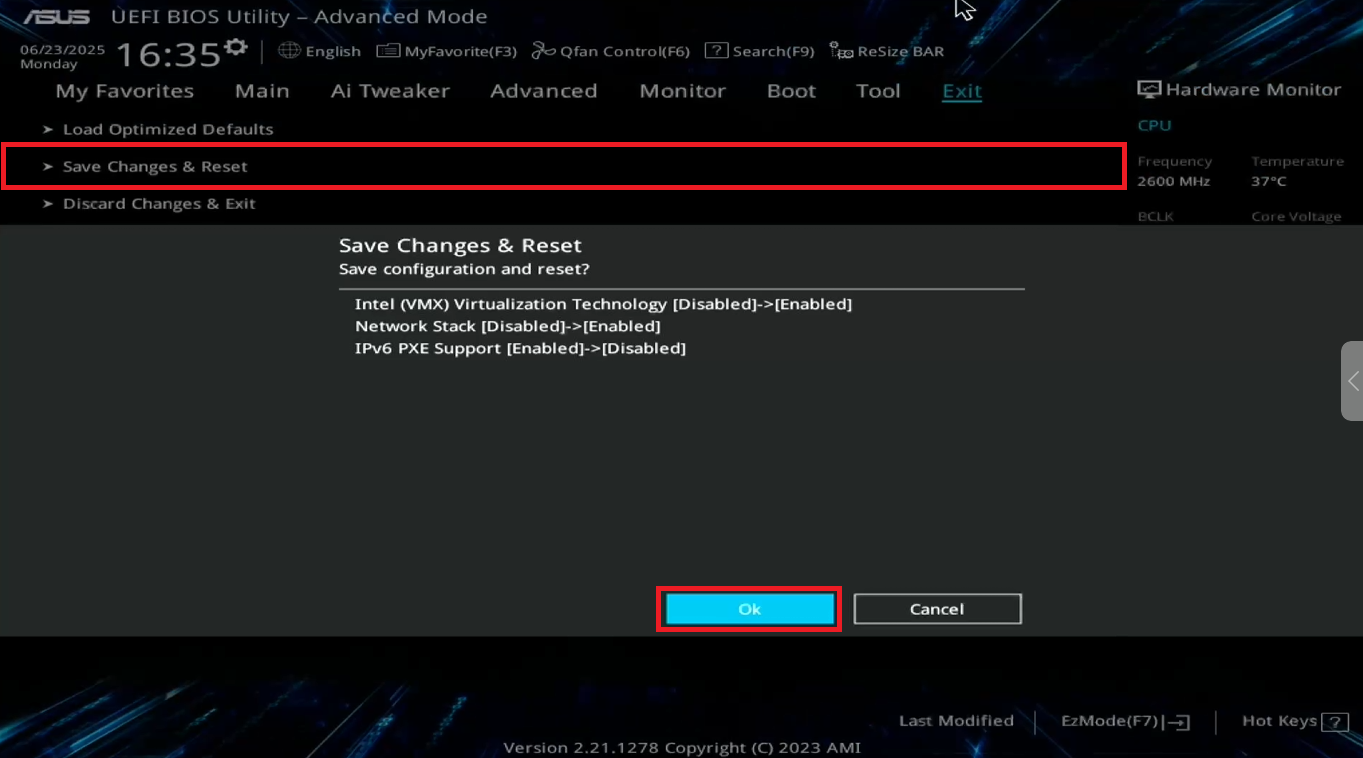
- Moving a Hybrid PC to PXE? Change its BIOS boot priority to network
Try Hybrid mode with your own PCs
The free trial includes the CCBootCloud server and client. Select Hybrid in Center settings and put your first image on a client SSD today.
Start Your FREE Trial TodayDocumentation
Step-by-step guides from the CCBoot wiki.
- CCBoot hybrid setupEnable Hybrid, install the server and put the image on each SSD.
- Hybrid super clientInitialize disk boot and save updates as a new image version.
- Hybrid restore imageRoll the local image back to an earlier version.
- Hybrid merge allFold every restore point into the main image.
- CCBoot Hybrid and PXEBoot some PCs from local SSD and others over PXE.
- CCBoot vs CCDiskHow the full diskless and virtual disk modes compare.
- Server requirementsServer sizing for the room you are building.
- All Hybrid articlesThe complete CCBoot Hybrid section of the wiki.
Common questions
What is CCBoot Hybrid mode?
How is Hybrid different from diskless CCBoot and from CCDisk?
What does each client PC need?
Can Hybrid and PXE diskless PCs share one server?
How do I undo a bad update?
How is Hybrid licensed?
Are You Ready To Give CCBoot A Try?
It only takes a few minutes to give CCBoot a try… (You’ll be glad you did)