
2026-09-27
ccboot, hybrid, super client
The following guide explains how to start and use Super Client in Hybrid Mode, as well as how to save your changes and apply them to other PCs.
- Enable Super Client on the Disk page. The client PC does not need to be shut down manually once Super Client is enabled, the PC will automatically reboot. (Figure 6)
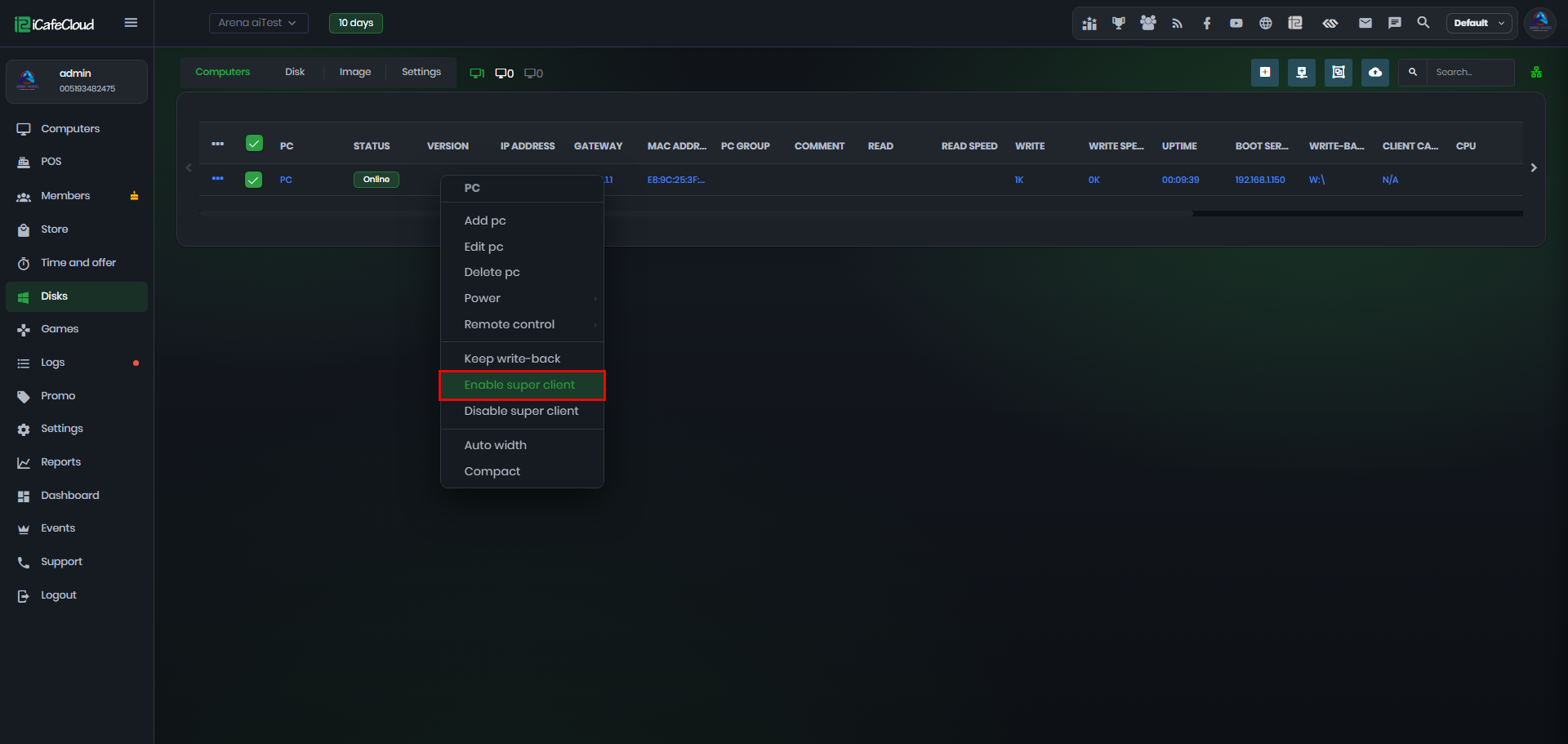
Figure 6
- Select Set the Local Image as Super Mode, then click OK. (Figure 7)
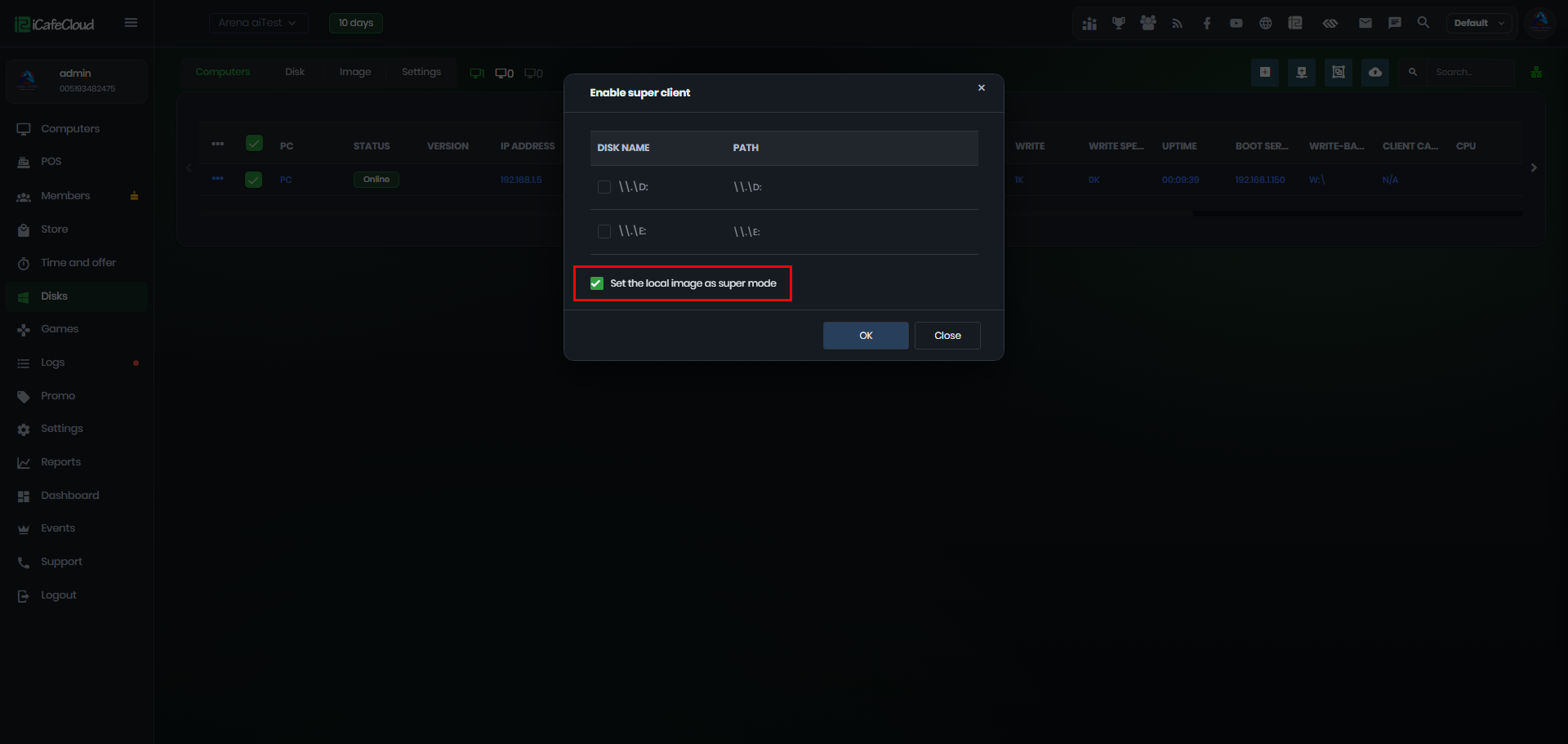
Figure 7
- Once Super Client is enabled, the client PC will automatically reboot and start in Super Client mode. A PC running in Super Client mode will display its PC name in red. (Figure 8)
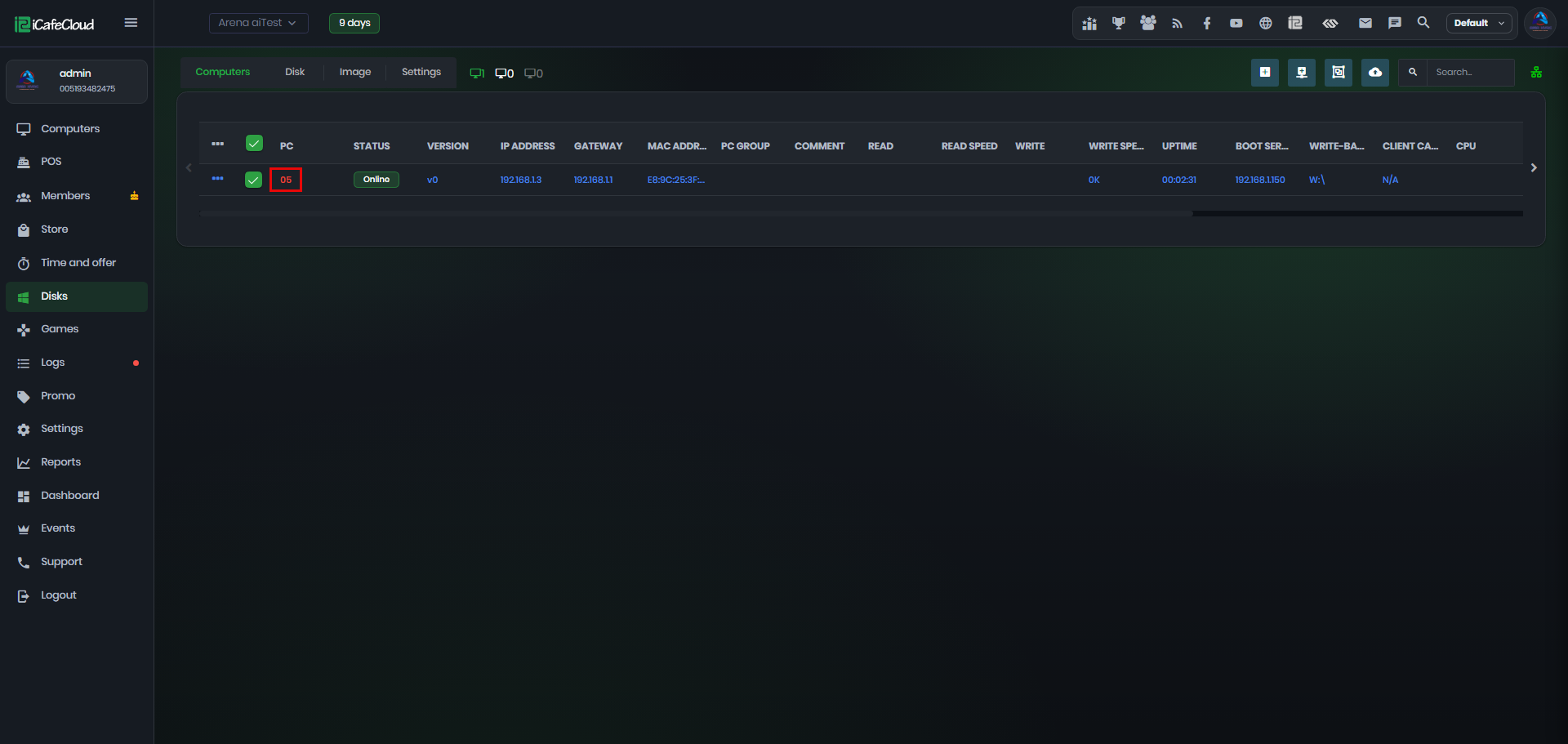
Figure 8
- Locate CCBootClient.exe in C:\CCBootClient and run the application. (Figure 9)
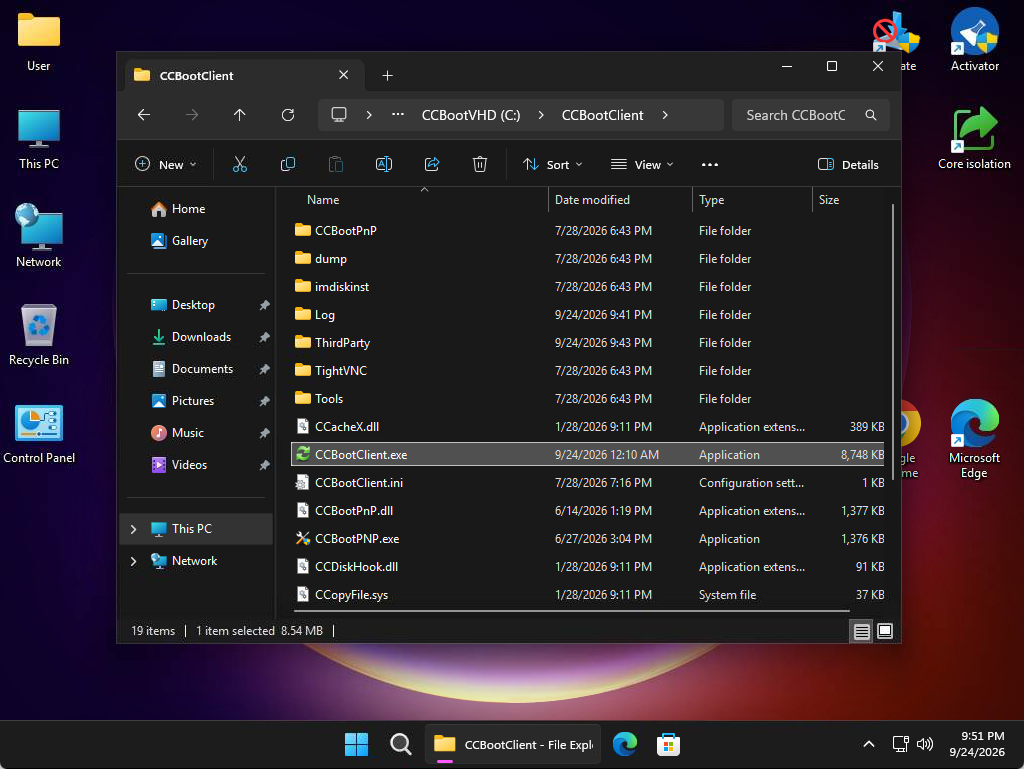
Figure 9
- Click Initialize Disk Boot to complete the configuration. (Figure 10)
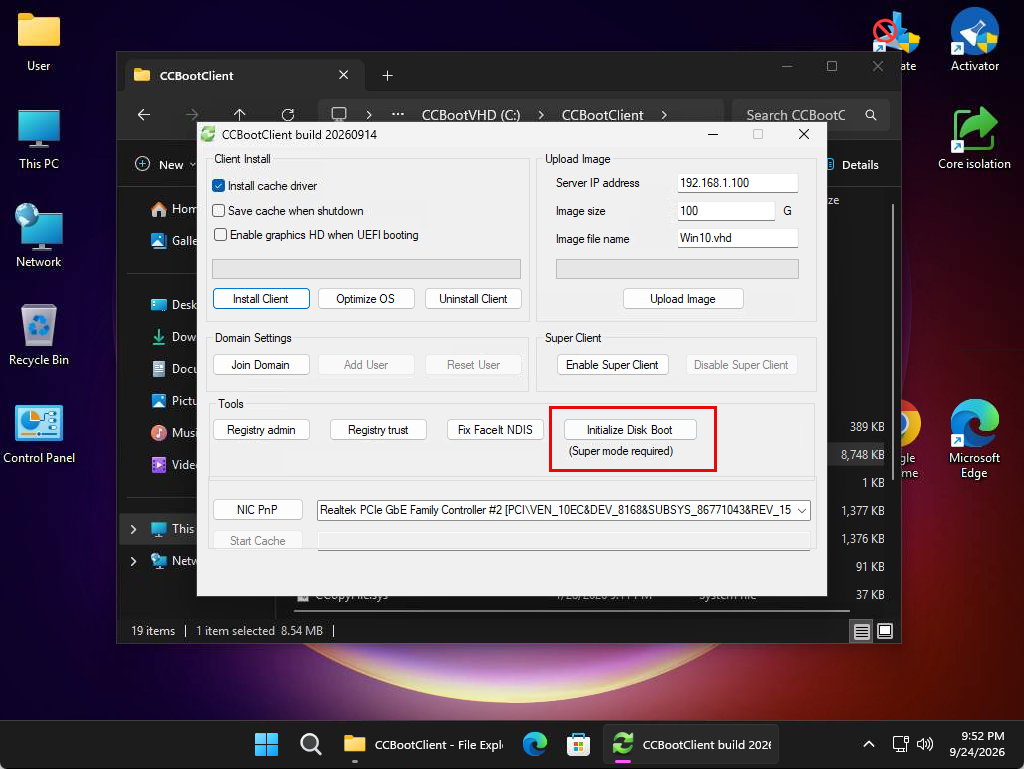
Figure 10
- Set a password and enter it again to confirm. Make sure to remember this password, as it will be required to unlock Windows for the user account.
- In the BCD Menu, select the lowest available timeout so the menu does not remain visible during the boot process. (Figure 11)
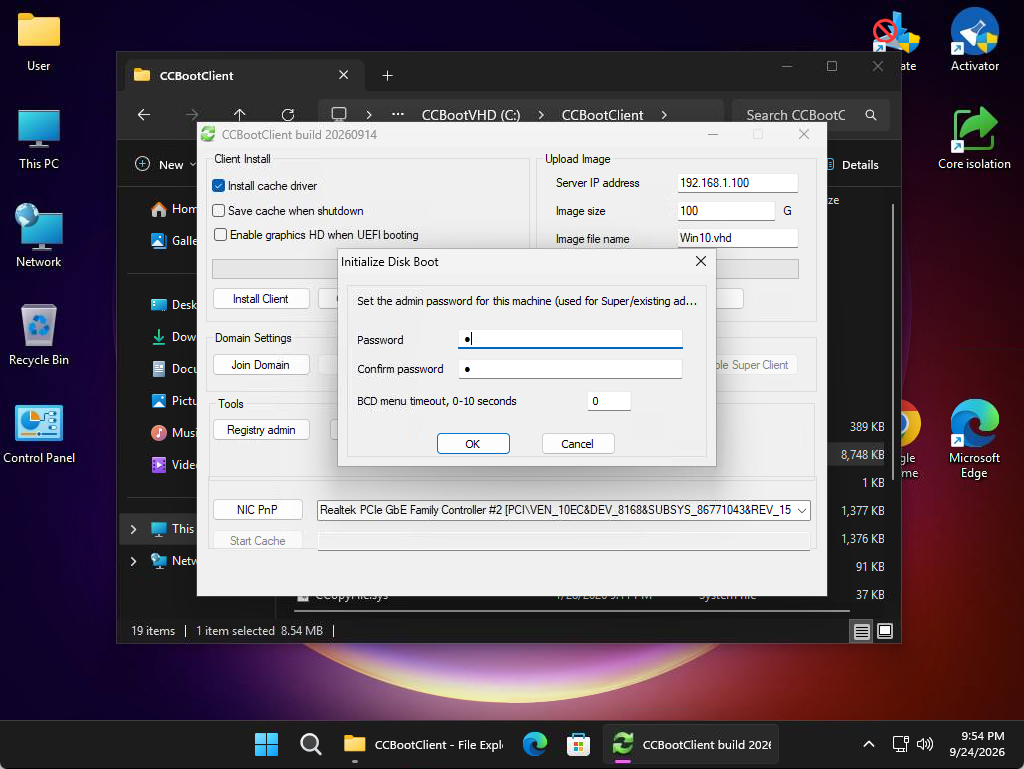
Figure 11
- Click Complete to finish the process. The Boot Disk Initialize Results will then be displayed.(Figure 12)
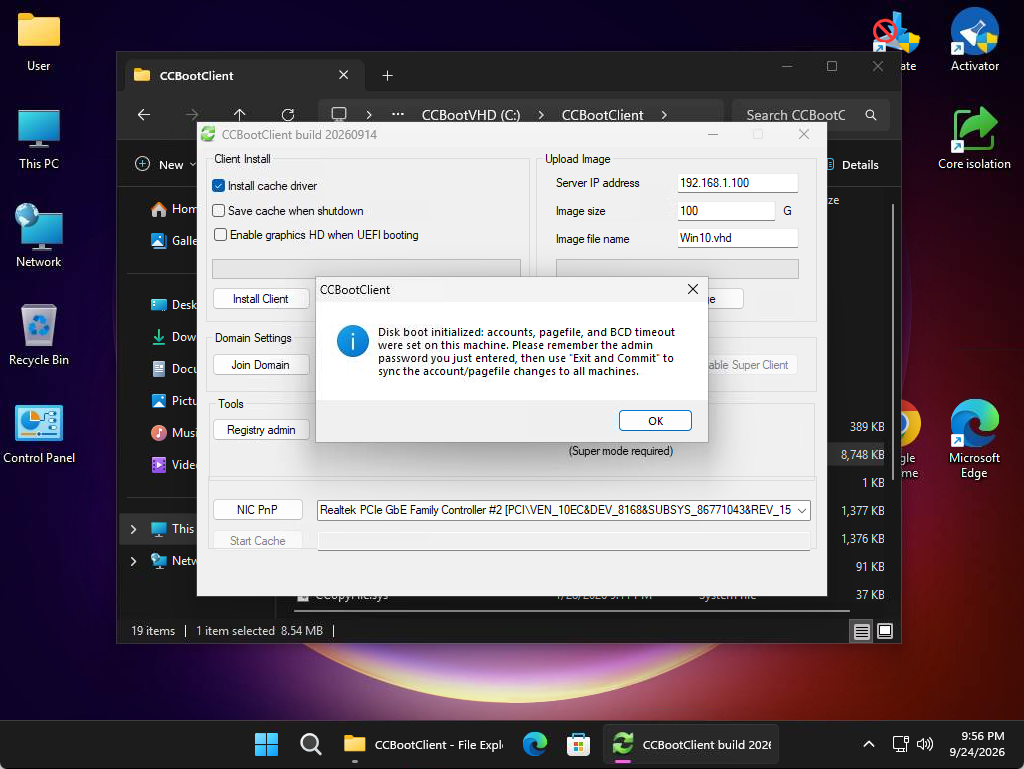
Figure 12
- Click OK to close the results window. Then, return to the Boot page, select the PC, and disable Super Client. (Figure 13)
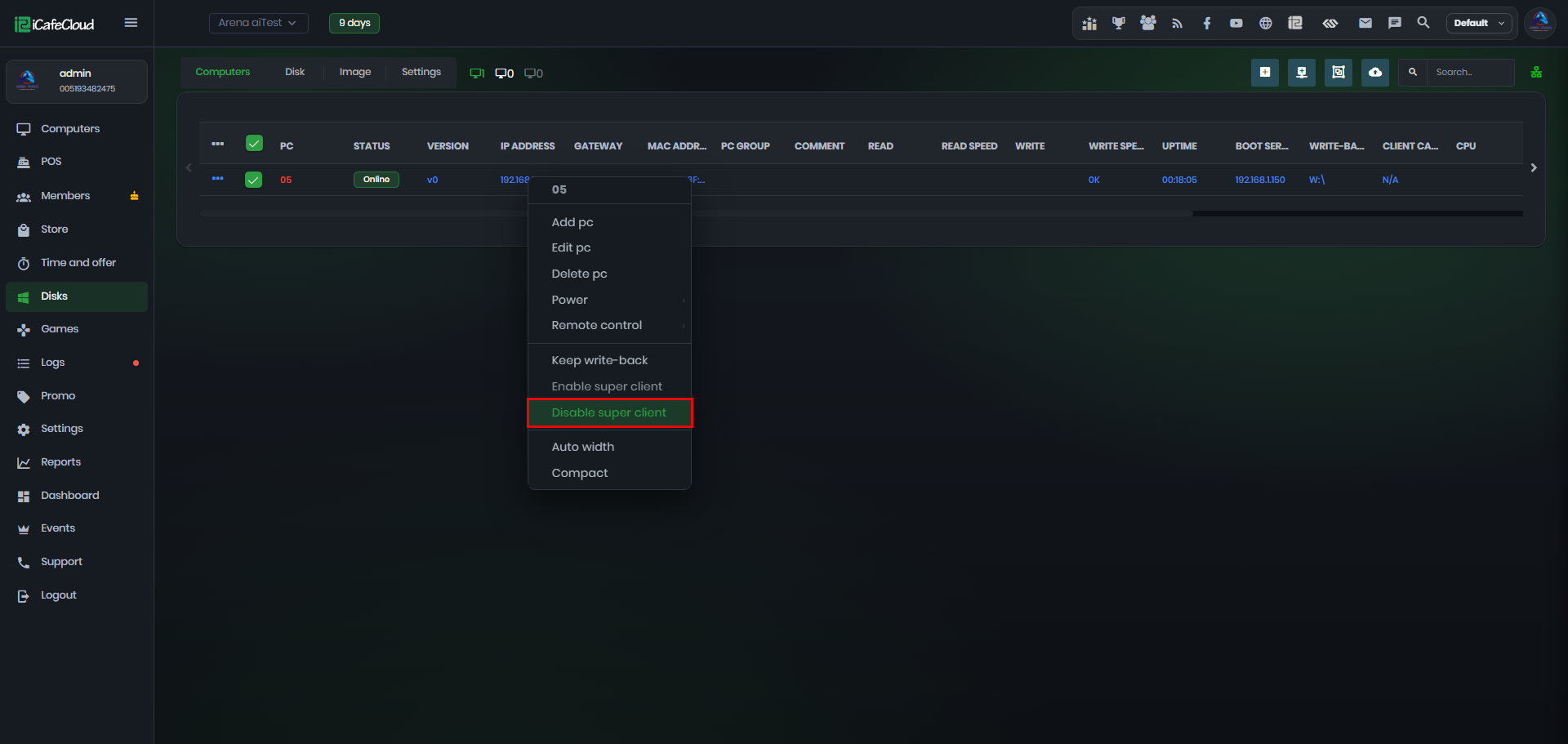
Figure 13
- Click Exit the Local Super Image Mode, then select Keep the Changes to save all changes made so far. Click OK to confirm. (Figure 14)
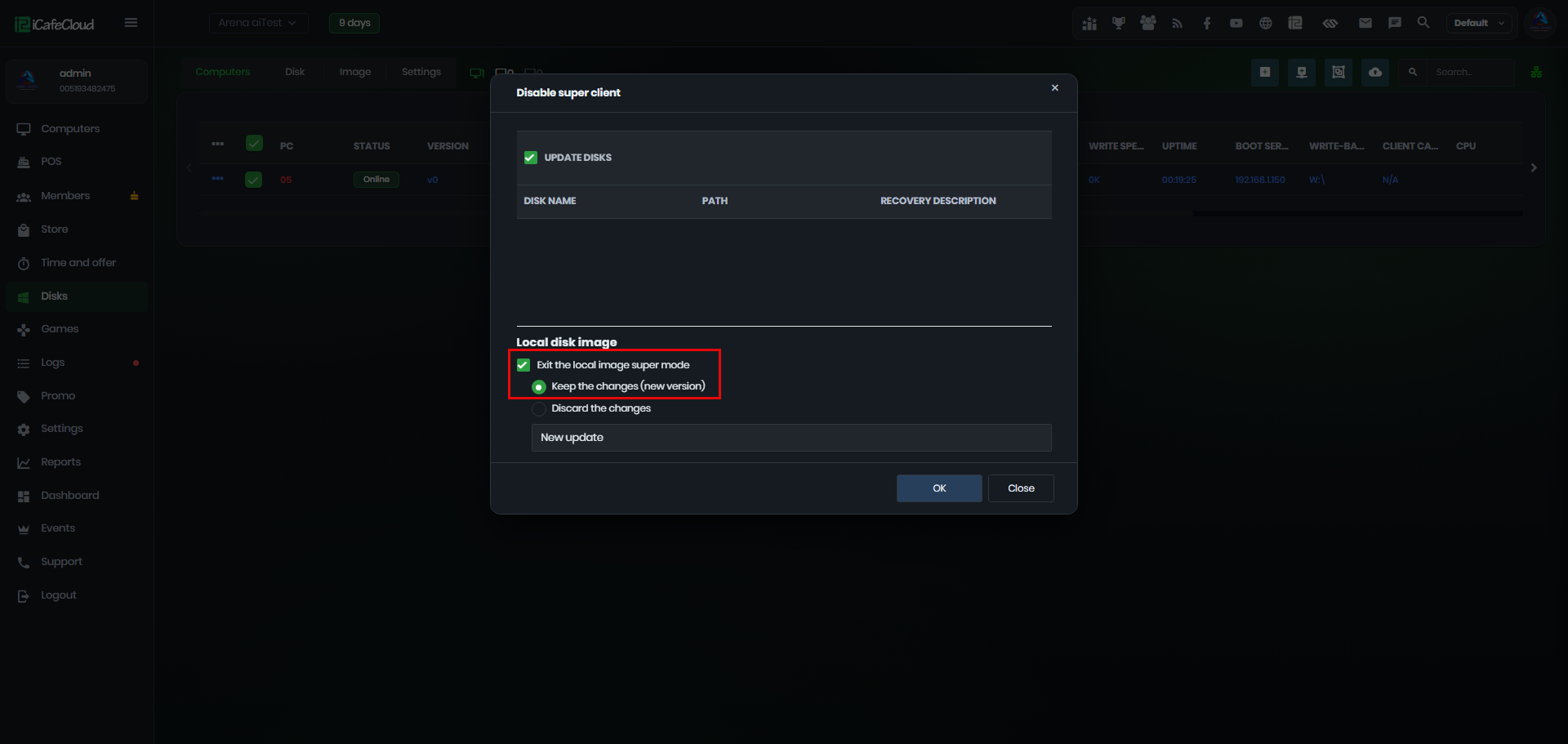
Figure 14
- The client PC will automatically reboot. Once it starts again, you will notice a loading percentage displayed on the Boot page. Allow the process to finish, as the system is copying the changes to the image. (Figure 15)
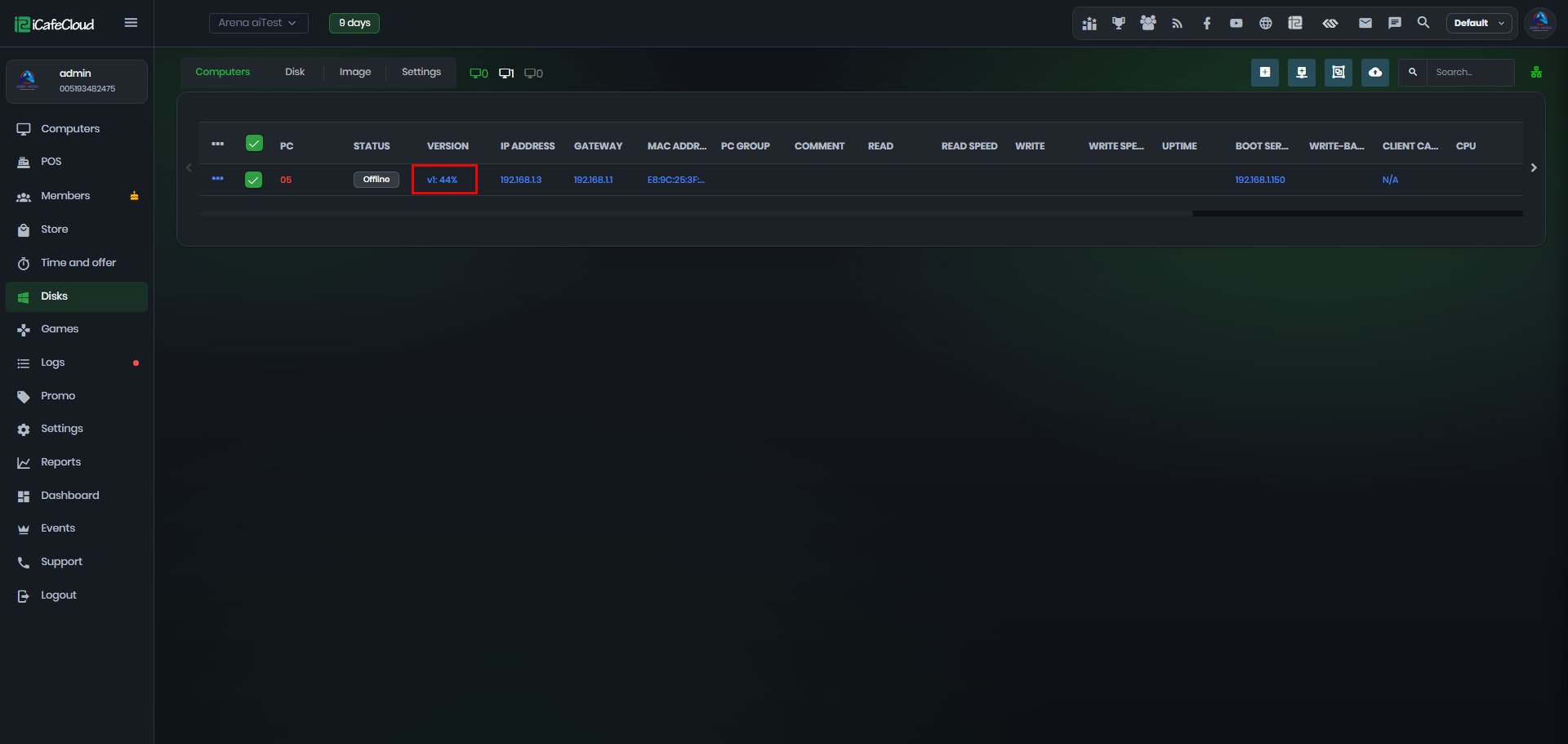
Figure 15
- The progress percentage will reach 100% twice, as the process consists of two stages. Once the final stage is complete, the client PC will reboot again.
- After the reboot, the image will be displayed as v1 in the version list, indicating that a new version of the image has been created with the changes you made.(Figure 16)
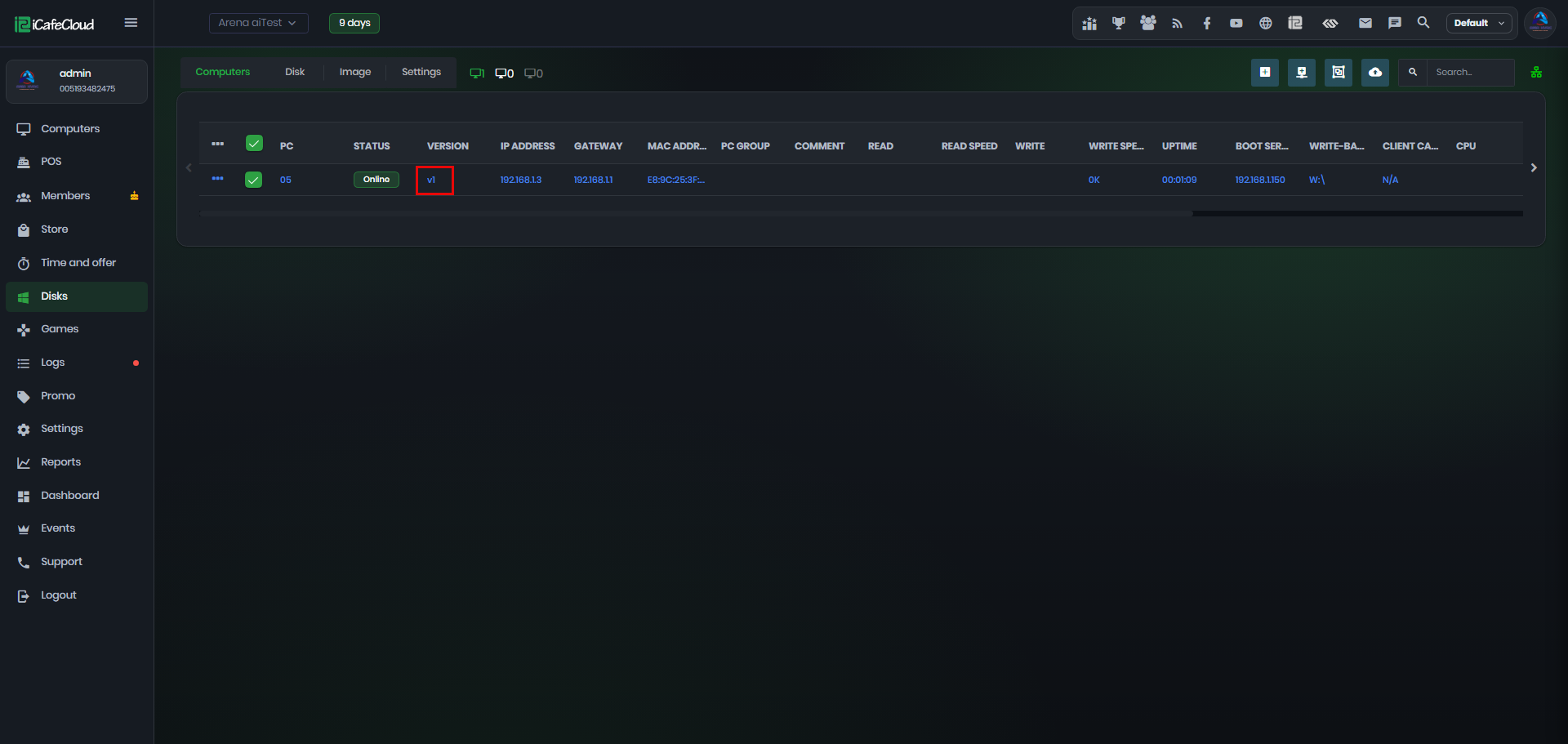
Figure 16