
A PXE boot server is the machine that answers when a computer with nothing on its drive asks the network what it is supposed to run. That's the whole idea. A PC powers on, finds no bootable disk, shouts a question onto the LAN, and something on the other end replies with an operating system.
Most explanations stop there. Which is why plenty of people stand one up, watch it work, and still couldn't tell you what happened in the four seconds between pressing power and seeing a boot menu. Those four seconds are worth knowing, because nearly every failure you will ever hit lives inside them.
Those four seconds look the same everywhere. What happens immediately afterwards does not, and that fork is the interesting part, because it decides whether the client PCs in your room need hard drives at all.
What a PXE boot server does in the first four seconds
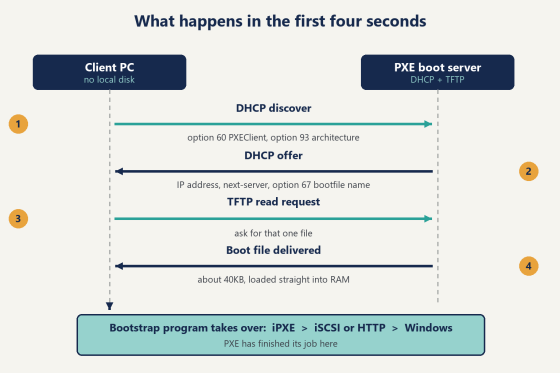
Power on a machine with an empty drive bay and its network card starts talking before anything else on the board has formed an opinion. Four exchanges follow, always in the same order.
First, the client broadcasts a DHCP discover packet, and it tags that packet with two fields an ordinary PC wouldn't bother sending: option 60, carrying the string PXEClient, and option 93, which announces what kind of machine is asking (legacy BIOS, 32-bit UEFI, 64-bit UEFI). That second field matters more than it looks, and we'll come back to it when things go wrong.
Second, the answer comes back. A normal DHCP offer carries an IP address, a subnet mask and a gateway. A PXE-aware offer carries two more things: the address to fetch the boot file from (the next-server field, often configured as option 66) and the name of the file itself (option 67).
Third, the client opens a TFTP session to that address and downloads exactly one file. It's tiny. pxelinux.0 is roughly 40KB and a typical bootx64.efi comes in under a megabyte, which is why nobody loses sleep over TFTP being a slow protocol at this stage.
Fourth, that file lands in RAM and takes over. This is the network bootstrap program. From the instant it starts executing, the firmware's part is done.
Four seconds, give or take, on a quiet gigabit LAN.
One thing to settle before you touch any of it: turn off the DHCP server on your router. If the router and your PXE boot server both answer that first broadcast, the client takes whichever offer reaches it first, and on consumer gear that's almost always the router. The symptom is maddening precisely because nothing looks broken. The machine gets an IP. It shows a sensible gateway. Then it sits there with no boot file to ask for, and you start suspecting your cabling. (If you don't have admin rights on the main DHCP server, run yours in proxyDHCP mode instead, where it answers only the boot-file half of the question and leaves addressing alone.) Everyone arrives at this eventually. Arriving at it first saves an evening.
Boot chain from a client PC through DHCP and TFTP to a PXE boot server
The handoff most guides skip
Here's where the story usually ends, and it shouldn't. PXE's entire job is to get one small program into memory. It has no opinion whatsoever about operating systems.
What that program does next is a separate design decision, and it's the one that actually shapes your room.
The plain version keeps using TFTP for everything. It works. It's also slow, because TFTP acknowledges every single block and has no windowing, which is fine for a 40KB bootstrap and painful for a 5GB image.
Almost everyone chainloads instead. The file TFTP hands over is iPXE, a small open-source boot firmware that speaks protocols the network card itself never learned: HTTP, iSCSI, NFS, a SAN target. iPXE comes up, reads its config, and pulls the real payload over something built for moving gigabytes.
That payload can be two very different animals. It can be an installer, in which case the machine writes Windows onto its own disk and never speaks to the PXE boot server again until the day you reimage it. Or it can be a live disk: an iSCSI target sitting on the server that the client mounts and treats as its C: drive, for the whole session, every session, indefinitely.
The second one is stranger than it sounds the first time you watch it. There is no installation step, no progress bar, no "preparing Windows." The machine reaches the login screen in about the time a local SSD would have taken, and the drive it's running from is a file on a server one rack away.
Identical first four seconds. Completely different building afterwards.
Two very different jobs get called the same thing
Search for PXE boot server software and the results arrive from both camps mixed together on one page, as though they were rival products. They aren't rivals. They answer different questions.
One camp installs. WDS, FOG, MDT, Cobbler: the job is to put an operating system onto a local disk quickly and correctly, at scale, and then step back. A data center bringing up a fresh rack wants exactly this. So does an IT department that images 200 laptops in August and would rather not think about it again until next August.
The other camp runs. The client either has no drive or has one nobody uses. Every morning it loads Windows from the server across the LAN, and every reboot puts it back the way it started. Gaming venues, school labs, corporate training rooms and render farms live in this column.
| Install once | Run every day |
Client hard drive | Required, it's the target | Not needed at all |
Where the OS lives | On each client, after | One image on the server |
Updating 40 machines | Reimage all 40 | Update one master, |
A client dies at 7pm | Swap drive, reimage, an | Swap the box, it boots |
Best fit | Provisioning, labs on a | Rooms that must be |
Both are legitimate engineering. If you're still working out which column your room belongs in, how the imaging tools and the diskless ones actually differ deserves its own read. The rest of this page follows the right-hand column, because that's where a PXE boot server stops being a deployment tool and becomes part of how the site operates.
What the diskless version looks like on a real floor
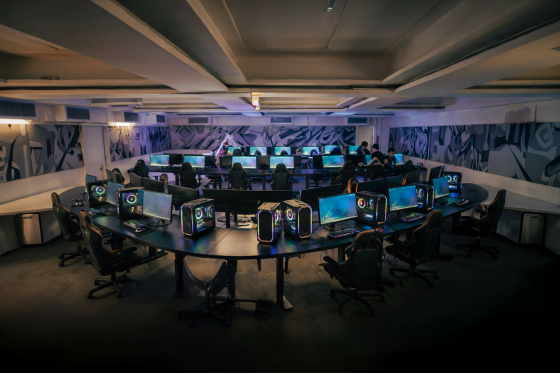
Picture a 44-seat esports lounge. Forty-four towers on the floor, GPUs and RAM and monitors in all of them, and not one hard drive in the building outside the server room.
The saving people notice first is the drives. The saving that actually shows up on the P&L is labor. US venues run lean, often one person on a weekday shift, and that person's hours cost more than any component they could have bought instead. A patch night that used to mean walking the rows until 2am becomes one download and a reboot, and it becomes that permanently, not just the first time.
CCBoot is a diskless boot system built around this second job, in use at more than 30,000 customer sites. Everything happens on one designated master PC. Install a game there, change a Windows setting there, reboot the floor, and the floor has it.
Each client still gets somewhere to write, because Windows expects to write constantly. That write area is temporary and gets discarded at reboot, which is the mechanism behind a promise that sounds too good on paper: whatever a customer installed at 9pm is simply gone by opening time, along with any virus or spyware that came with it. No scanning. No reimaging. A restart.
Mixed hardware doesn't force you into multiple images either. The PnP function lets one image serve client PCs with different specifications, which is what saves a venue that grew in waves from turning into three small venues sharing a roof. For data that genuinely has to survive a reboot, personal disk support keeps it out of the discard path.
One opinion, since configuration guides rarely commit to one: put your budget into server RAM before anything else. Cache is what the floor feels. Physical memory plus SSD cache is what turns "the network boots the PCs" into "the PCs feel local," and at 7pm on a Friday that distinction is the entire customer experience.
The reason operators go looking for this in the first place is usually more mundane than any of it:
"I opened my shop around 6 years ago, and had 35 PCs. I checked my harddisk and 20 out of 35 harddisks had bad sectors and other issues. I had two ways to fix this, buy 20 new hard disks or use a diskless server. And I chose the latter." — Olcay Taylan, TAY-NET Cafe, Turkey
Rows of identical PCs in a US esports venue booting from one server image
Do you need special hardware for a PXE boot server?
Not on the client side. Any PC whose network card supports PXE can boot this way, which covers virtually every motherboard sold in the last fifteen years. The server is the machine you actually have to specify.
Specify it around three things, in this order: memory, then storage, then the network path between the server and the floor.
Memory comes first because it's the cache, and the arithmetic here is friendlier than it looks. Every client is reading the same image, so the blocks that machine number three pulls at 4pm are the blocks machines four through forty want too. Once the hot parts of Windows are sitting in server RAM, most of the floor's reads never touch a disk at all, which is why cache hit rate, not raw disk throughput, is the number worth watching.
Storage matters next, and NVMe rather than spinning disks, since dozens of machines reading their operating system at the same moment is a random-read workload, not a sequential one. The network path comes third and is usually the least dramatic: gigabit to each seat is plenty, while the uplink between server and switch is where a busy floor can genuinely saturate a single link, which is when a 10GbE port or a couple of bonded NICs earns its price. In practice that uplink is the first thing to check when a room feels slow at peak and fine at noon.
For a sense of scale at the low end, the education reference build is a useful yardstick. A thin client at around USD 200 a seat (in batches of 50, before monitors, keyboards, mice, tax and shipping), and one server carrying roughly 70 diskless PCs. Schools running this setup also report cutting power draw by as much as 40%, which nobody expects until they see a term's electricity bill next to the previous year's.
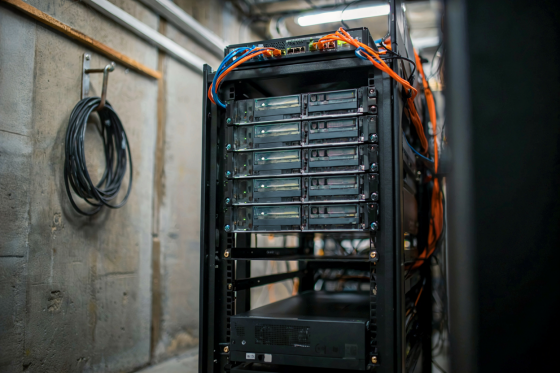
Rack server and 10GbE switch in the back room of a gaming venue
Reading the error codes when a boot stalls
PXE failures are unusually polite about telling you which of the four exchanges broke. Learn three codes and you've covered most of what a room will throw at you.
PXE-E51: No DHCP or proxyDHCP offers were received means exchange one or two never completed. Nothing answered. Check whether the client landed on the right VLAN, whether port security or MAC filtering on the switch is quietly dropping it, and whether the DHCP scope still has free addresses left (a room that grew from 30 seats to 48 has run out of scope before, more than once).
There's a subtler version of this one that wastes whole afternoons. If a managed switch runs spanning tree without portfast on the access ports, the port stays in listening and learning state for something like thirty seconds after link-up, and the client's DHCP broadcast goes out into a port that isn't forwarding yet. Same error code, nothing wrong with your server. The tell is that the machine boots fine on the second attempt and fails on cold starts, and the fix is enabling portfast, or edge-port mode, on every port a client sits behind.
PXE-E32: TFTP open timeout is a friendlier failure, because it proves exchanges one and two worked. The client has an IP, knows where the boot file lives, and can't get it. Three things cause almost all of these: the TFTP service isn't actually running, a firewall is blocking UDP port 69, or the filename in option 67 doesn't match the file on disk. That last one bites Linux-hosted servers constantly, since pxelinux.0 and PXELinux.0 are two different files there and only one of them exists.
Then there's the boot that gets further and dies at a security wall. Secure Boot only executes cryptographically signed code, so an unsigned bootloader gets stopped cold. Two ways forward: switch Secure Boot off in the client's UEFI setup, or load a Microsoft-signed shim that vouches for your bootloader and keeps the chain intact. The second one is the answer for anything managed centrally.
And if a machine downloads a boot file but the firmware refuses it outright, look at option 93 again. A UEFI client handed a BIOS bootloader will fail this way every time, which is why DHCP servers are configured to read the architecture the client reported and hand back a matching file. Mixed-age floors hit this the week they add new machines. The setup wiki walks through the DHCP options screen by screen if you'd rather compare against a known-good configuration than guess.
What running one actually costs
Two lines, and one of them is smaller than people expect.
The server is a real purchase, sized as above. After that, a PXE boot server running the diskless model is licensed per client PC: as of September 2026 the per-PC pricing runs USD 2.50 per PC per month, or USD 2.00 if you pay annually. For a 44-seat floor on the annual plan that's USD 88 a month.
Set against that, the drives you stop buying. Forty-four SSDs at even USD 45 each is close to USD 2,000 of hardware that never enters the building, and it stays out of the building at every refresh, not just once. Honestly, though, the drives are the small half. The maintenance hours are the larger number and the harder one to put on an invoice, which is exactly why they get ignored until someone actually tracks them for a month and finds a day and a half of walking the rows hiding in there.
Whichever way that arithmetic lands for your room, run it with your own seat count rather than the one in this example. Forty-four seats and one shift attendant is a specific shape of venue, and the maintenance line moves a lot faster than the license line as the room grows.
Point it at one machine tonight
You don't have to commit to a room to find out whether this fits. Three steps, one evening.
Take one machine off the floor, ideally a spare. Turn off DHCP on the router, or configure proxyDHCP if you can't. Then download it and point that one spare machine at the server, and time the boot yourself.
If it comes up clean, you've proved the interesting half. Everything after that is repetition, which is the part a PXE boot server was built to handle.