

Most of the budget in a diskless build goes to one machine in the back room. Most of the builds that stall on the first morning die on a part that costs eleven dollars and is already sitting inside the client PCs.
Diskless server requirements get published as if the server were the whole question. It is the expensive part of the question. It is not the part that decides whether forty stations come up on opening day, and that gap is where a build sheet usually goes wrong: the memory gets sized correctly, the drives get ordered correctly, and then the network chip on the client boards turns out to be one of the ones that will not answer a boot request.
Four layers, not one spec sheet
A diskless floor has requirements at four levels, and all four have to be met on the same day.
The server is the layer everybody researches. The network is the layer that quietly decides how well the server performs. The client PCs carry exactly one hard requirement plus a couple of firmware settings. Then there is software: which Windows versions boot this way, and how the licensing counts.
Satisfy three of the four and you get a room that boots beautifully for the first three machines.
Written out properly, diskless server requirements are four lists rather than one, and only the first of them costs real money.
What follows is each layer with real numbers, taken from the current documentation for CCBoot's diskless boot system rather than from a forum thread written in 2016. More than 30,000 venues run their floors this way, and the published requirements are specific enough to build a purchase order from.
Four layers of a diskless deployment: server, network, client PCs and software

What the server itself needs
Memory before anything else
Buy memories first. A Core i5 or better satisfies the processor requirement, and that stays true well past the seat count where owners expect it to stop being true, because the server spends its evening shuttling blocks between drives and network cards instead of computing anything.
Memory scales with seats: 32GB for 10 to 30 clients, 64GB for 30 to 70, and 128GB or more once you pass 70. The jumps are big for a reason. RAM is where the hot blocks live, so when thirty people launch Valorant between 6:45 and 7:00, the difference between a floor that feels instant and one that feels like it is thinking about it is whether those blocks came out of memory or off a drive.
The motherboard requirement follows from that. You want a server board that takes 16GB or more, with six to eight SATA ports and at least two NVMe slots. Count the ports before you order, because this build uses more of them than any desktop you have put together.
How many drives, and how big
Four storage roles, and each one wants its own device.
- Windows OS disk, holding the software and the shared folders: SSD, 512GB or larger.
- Image disk, holding the master image the clients boot from: SSD, 512GB or larger.
- Game disk: SSD or NVMe, 2TB or larger, initialized as GPT rather than MBR once it crosses 2TB.
- Write-back disks, catching what every client writes: two or more SSD or NVMe drives of roughly 512GB, always GPT.
That adds up to a seven-drive machine in a typical build, and the write-back line is the one that gets cut when the quote comes back high. Leave it alone. Past twenty seats, two write-back drives are the starting point rather than an upgrade, and they belong in the machine as separate volumes instead of going into a RAID set. If you want the reasoning behind each role, this walkthrough of what each drive does during an evening rush covers it, along with full example builds for each room size.
One thing you can cross off: if the game disk is already a decent NVMe, you do not need to add a separate SSD cache. That extra drive earns its slot when the library sits on slower SATA storage.
Three settings that cost nothing and still get skipped
Format every non-Windows disk with a 32K allocation unit. Set SATA mode to AHCI in the BIOS. Leave antivirus off the server.
All three take about four minutes at build time and are genuinely annoying to change later, especially the allocation unit, which means reformatting a drive you have already filled with 300GB of games. The antivirus surprises people every time. A scanner on the server adds disk activity that arrives on the floor as a stutter, and the clients are wiped back to the master image on every reboot anyway, so it is guarding nothing and costing frames.
Power and airflow belong on the same list
Two more lines that never make it onto a published spec sheet, and both of them are cheap.
Put the server and the core switch on a UPS together. A switch that reboots during a brownout takes the floor down just as completely as a server that does, which is a lesson venues normally learn once and never again. Then give the server a case with real airflow and drives you can reach from the front, because a seven-drive machine running from noon to midnight is warmer than any desktop in the building and a drive swap should take two minutes rather than an evening.
Open server chassis showing multiple SSDs and a 10GbE network card
Minimum requirements by room size
Published diskless server requirements give you minimums, not recommendations. The table below marks the point underneath which a room starts to feel it at 8pm.
Seats | Server RAM | Write-back drives | Server-side network | Cable |
10 to 20 | 32 GB | 1 | 1GbE, teamed | CAT5e is |
20 to 30 | 32 GB | 2 | 5 × 1GbE or 2 | CAT6 |
30 to 70 | 64 GB | 2 | One 10GbE | CAT6 |
70 to 100 | 128 GB or | 3 | 10GbE, often | CAT6 |
Round the memory up one row if your catalog leans on large installs, or if you run leagues where every seat loads the same map in the same minute. Memory is the single upgrade that the whole floor notices on the same night.
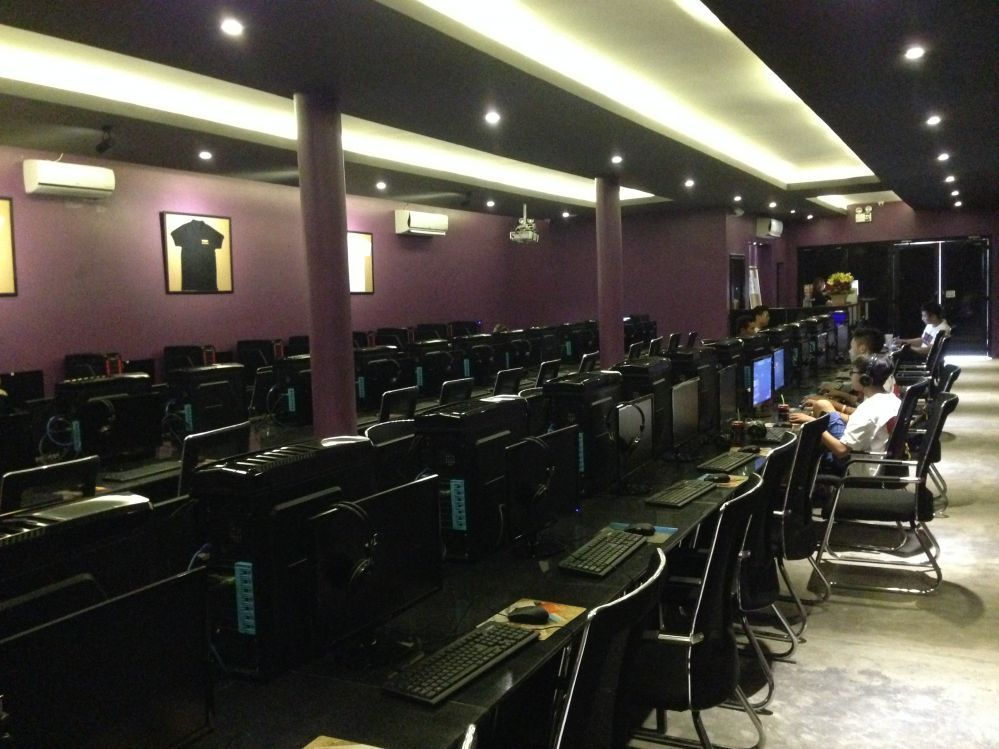
Most American gaming centers sit somewhere between 20 and 60 stations, so the middle two rows cover the majority of rooms being built this year. Past 100 seats the layout question opens up, since one heavier server and two servers sharing the load are both normal, and the choice usually comes down to rack space and how you prefer to schedule maintenance.
The network is half of the server spec
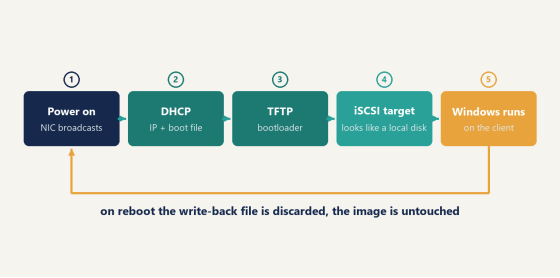
Turn DHCP off on the router before anything else.
That single setting is the most consequential item in any list of diskless server requirements, and it costs nothing at all. The CCBoot server hands out addresses along with the boot information the clients need, and when the router answers as well, some stations take the router's reply, never learn where the boot file lives, and sit on a black screen while the row next to them comes up normally. It looks like a server fault and it is a two-click fix on the router. The DHCP settings reference covers the third-party DHCP case too, for venues that have a reason to keep the router in charge.
The router itself has no real requirement beyond that. It only affects internet speed. The switch is the piece that matters, and the bar is lower than people assume: 1Gbps or better, with 10/100/1000, 2.5Gb or 10Gb ports. Avoid anything with 100Mb ports. Managed and unmanaged both work, and if nobody on staff enjoys switch menus, an unmanaged gigabit switch is a fine choice with nothing to configure. On a smart switch, go in and disable flow control, which drags diskless boot speed down noticeably.
Cabling is CAT5e or CAT6. Plain CAT5 has a far-end crosstalk problem that shows up as packet loss, which on a diskless floor means a station that stalls partway through boot for no visible reason. (If the room was wired by a previous tenant, assume nothing about what is behind the wall plates until you have read a label on the cable itself.)
Three things about network cards, all of them learned the hard way by somebody:
A 10GbE card goes in the first full-length PCIe slot, the x16 one. Lower slots on consumer boards are frequently wired x4, and honestly the card will run there without complaining, just slower than the box you paid for. Stick to Intel or Realtek. And use PCIe gigabit cards rather than the old PCI ones still floating around in parts bins.
Will the client PCs you already own boot this way?
The NIC is the only part that can veto the plan
Client machines almost never appear in a published list of diskless server requirements, which is how a floor full of perfectly good gaming PCs ends up being the reason a rollout slips a week.
Good news on the expensive components. Client CPU can be AMD or Intel with no specific requirement, and the GPU is entirely your call, since a diskless client renders games the way any other gaming PC does. Memory follows the games rather than the boot method, which is why the current example client builds pair an i5-14600KF and an RTX 4060 with 32GB of dual-channel RAM. No local drive is needed at all.
The network card is where the requirement bites.
It has to be a PXE 2.x compatible adapter running at 1Gbps or better. 100M parts are not worth trying. Realtek and Intel 1000M series are the ones to buy and the ones to look for on a board you already own, since those are the chips with mature PXE firmware behind them. NVIDIA network chips and the budget Atheros parts are where trouble starts. Wireless is simply not part of this conversation, because a station boots over a cable and there is nothing on a Wi-Fi card for it to boot from.
The fastest way to settle this beats cross-referencing chip model numbers against a compatibility list. Pull one machine off the floor, enter the BIOS, enable network boot, and restart it. If it reaches a PXE prompt and starts asking the LAN for an address, that model is fine, and so are the thirty-nine identical boxes sitting next to it. Five minutes, one machine, and the biggest unknown on the build sheet is gone.
UEFI, Secure Boot and the TPM switch
Legacy BIOS and UEFI Secure Boot both work, so there is no need to flatten a modern board back into CSM mode to get a station booting.
One firmware setting does need your attention. If the motherboard has a TPM, disable it in the BIOS, otherwise the boot stops partway and the screen gives you very little to work with. (This turns up constantly on boards bought in the last two years, where the TPM is enabled by default.) It is the first thing to check when one batch of otherwise identical machines refuses to come up.
Mixed hardware across the floor is normal and does not call for separate images. PnP boots different motherboards and chipsets from a single master image, which matters when six replacement machines arrive two years after the original build with a different board than the rest of the room.
Back of a LAN center gaming PC with only a network cable connected
Windows versions, server software and licensing
Client stations boot Windows 10 and Windows 11, which covers any gaming floor built in the last few years. Windows 7 x64, 8 and 8.1 are on the supported list as well, for labs and offices still standardized on them.
Licensing counts stations, not servers. Forty seats means a forty-PC license, and a license key belongs to one server, so moving to new hardware means resetting the license and activating it on the new box. Per-PC pricing runs USD 2.50 per PC per month, or USD 2.00 per PC per month on annual billing, and that is the line that lands on your operating budget rather than the build sheet.
Billing, memberships and game license pooling are a different job, handled by iCafeCloud, and the two can be bought together.
Run the diskless server requirements check before you buy
Half of this checklist costs nothing. Do it in the order below, because the free parts can change what you order.
1. Take one client machine, enable network boot in BIOS, confirm it reaches a PXE prompt. This is the only test that can send the whole plan back to the drawing board, so it goes first.
2. Check whether those client boards have a TPM, and turn it off.
3. Count seats and read the memory figure off the table above. Round up if the library is heavy.
4. Count drive bays and NVMe slots on the server board you are considering. Seven devices need somewhere to live.
5. Look at the switch you already own. 100Mb ports mean it is getting replaced.
6. Turn DHCP off on the router.
The order matters more than it looks. Steps one and two cost an afternoon of nobody's time and decide whether the rest of the diskless server requirements are worth calculating at all.
Then prove it on real hardware before the real hardware arrives. Take a spare desktop with an NVMe slot and whatever memory you can scrounge, download the free trial, give it separate drives for Windows, the image and the games, and point three or four stations at it. Time a cold boot with a stopwatch. Load a map in whatever your regulars play most, then do it again with all four stations launching at once, and write the numbers down on paper. In practice a stopwatch and a notebook tell you more here than any synthetic benchmark, because what you are measuring is what the player at station 22 feels when the whole row clicks Play together.
Those numbers, next to the table above, are what turn diskless server requirements from a spec sheet into a purchase order you are willing to sign.