
The best NIC for diskless server duty is not a model number, and any guide that hands you one is telling you what was on the shelf the month it was written. Cards turn over. The four things that decide whether an adapter works on a diskless floor have not changed in years: how fast the port is, how many ports the server needs, whether a driver exists for the operating system you actually run, and how many PCIe lanes the slot underneath it is wired for.
Get those four right and an ordinary card from a mainstream brand will run your whole room.
Get the last one wrong and the most expensive card in the listing will not.
Three cards have to agree
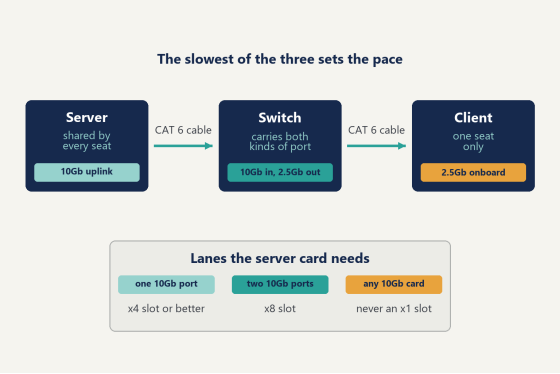
Every byte a seat reads crosses three pieces of hardware. The port on the server, the port on the switch, the port on the client. Whichever is slowest sets the pace, and it makes no difference which one it happens to be.
That much is obvious. What trips people is that the three are sized by completely different math, so the cards at either end of the cable should not match.
The server port is shared. Every seat in the building pulls through it at the same time, so it scales with seat count and with nothing else. The client port is not shared at all. It carries exactly one machine's traffic, which is far less than most people assume, and it stops mattering the moment it is fast enough for one player. The switch is the piece that has to speak both languages, a fast uplink facing the server and ordinary access ports facing the floor.
So the right build is lopsided on purpose. Put the money on the server side, take whatever the motherboard already gives you at the seats, and buy a switch that carries both kinds of port. A room that installs identical adapters at both ends has usually overspent across forty desks and underspent on the one port that was actually full.
There is a second reason the server side gets the budget. Your floor has two traffic patterns, and they peak at different times. Opening, when everyone powers on within the same few minutes and the uplink carries the same boot data to every seat at once. And patch day, when a big title updates and the whole room reboots into the new version together. Those two moments are the ones the room judges you on, and both of them land squarely on the server's port.
Diagram lining up server uplink, switch ports and client ports in one path
How much uplink each room size needs
The official tiers are unromantic and worth following literally.
For 20 to 30 seats, put 3 to 5 Gb of aggregate uplink on the server. That can be several gigabit ports or a pair of 2.5Gb ports, whatever the board already carries. At 30 seats and up, move to a single 10Gb port. Past 50 seats, use two. Those numbers come from the network pages in the wiki, and they match what rooms report once they are full on a Friday.
Aggregate is the word doing the work in that first tier. A 26-seat room does not need one fat pipe, it needs about four gigabits of total path, and four onboard gigabit ports get there for nothing if the board has them. Once you pass thirty seats, spreading traffic over that many small ports becomes more configuration than it is worth, and one 10Gb port replaces the lot.
Work a real room through it. A 44-seat lounge lands in the 30-and-up tier, so one 10Gb port on the server, 2.5Gb at every seat, and a switch with one 10Gb uplink port and enough 2.5Gb access ports to land the floor. Notice what is not on that list. No card purchases for the seats, no second server, no managed switch. The entire network decision for a room that size is one adapter and one switch, and the adapter is the cheaper half.
Rooms that expect to grow should buy the switch with the growth in mind rather than the card. Adapters are twenty minutes to swap. Switches get mounted, cabled and forgotten, and replacing one means an afternoon with the floor closed.
Brand is the right level of specificity to shop at. CCBoot names Intel and Realtek, and stopping there is deliberate on our part as well, because whichever model is current the day you read this will not be the model you replace it with.
Then one genuine decision: 10GBASE-T or SFP+.
10GBASE-T runs on ordinary twisted pair, the same cable as everything else in the building, and it plugs into a switch port that looks like every other switch port. SFP+ needs a transceiver module or a direct-attach cable, and the module has to match what the switch accepts. For one room with the server sitting near the rack, 10GBASE-T is simply less to get wrong. For a long run between floors, or a venue that already standardized on fiber, SFP+ earns its place. Your players cannot tell the two apart.
The slot decides whether you get what you paid for
This is where the money leaks out of an otherwise correct build.
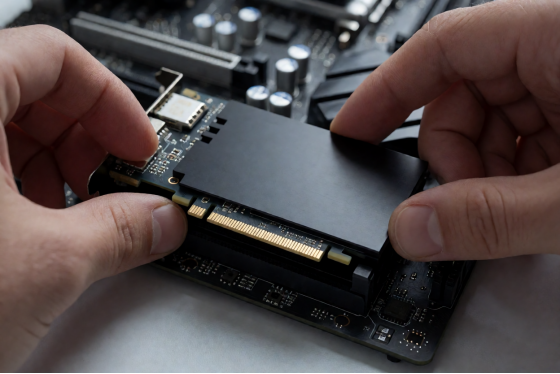
A 10Gb card needs lanes, and not every slot on the board has them to give. A single-port 10Gb adapter wants an x4 slot or better. A dual-port card wants x8. Seat either one in an x1 slot and it installs without complaint, reports a full 10Gb link, and hands over a fraction of it, and nothing in Windows raises a flag.
The safe default is the long slot nearest the CPU.
Check the motherboard manual rather than judging by eye, because slot length and slot wiring are two different things. A slot can be physically long enough for any card and wired for a single lane underneath. Board makers do this on the lower slots so the lanes can go to storage instead, and the manual spells it out in one line that nobody reads on build day. Read it on build day.
One more from the same family. PCIe, not PCI. If you are adding a gigabit port to an older chassis and the slot you are looking at is the short pale one, that is the legacy bus and its ceiling sits below what a diskless floor will ask for.
A network card being seated into a motherboard PCIe slot
Do the clients need cards of their own?
Most rooms do not need to buy client adapters at all, which tends to surprise owners who had braced for a line item across every seat.
The hard requirement is PXE 2.x. A diskless client has to ask the network for a boot file before it has an operating system to ask with, and that ability lives in the network adapter's own firmware rather than in Windows. Mainstream boards have carried it for years, so on anything you would put in a gaming seat today, the onboard port already qualifies.
Speed is the second question and it has a clean answer. A gigabit port moves roughly 120 MB/s in practice. A 2.5Gb port moves roughly 300. Boards with 2.5Gb onboard are now the default rather than the premium tier, and the step from 1Gb to 2.5Gb at the seat shows up in read and write speed where players actually notice it, on the boot wave and on the first launch of a large title after an update.
You do not need 10Gb at the seat. Nobody plays at 10Gb.
Two things to set in BIOS before the first boot, both of them one-minute jobs that cost an evening when you don't know about them. Network boot has to be switched on (it ships off on most boards, and it is not always called network boot in the menu). And where the board carries a TPM module, that module can stand in the way of diskless boot, so turn it off there.
Buying a batch of identical boards is worth a little more than it seems for this reason alone. One BIOS pass, one driver, one image, forty seats.
Buy the driver, not just the card
An adapter with no driver for the server release you run is a paperweight, and checking this before ordering is the highest-value ten minutes in the whole process.
Driver support for 10Gb adapters varies by Windows Server release, so a card and an operating system bought in the same week can still refuse to work together. The best NIC for diskless server builds, in the plainest sense, is whichever current card has a driver you can download for the system already installed on your server. If you are unsure which adapters are current for a build you are pricing right now, ask support which adapters are current instead of reconstructing it from a forum thread written three years ago.
Client drivers need a step that has no equivalent in a normal build. The boot image has to carry the network driver itself, because the machine reaches the network before it has anything local to load a driver from. You add the driver to the image once and collect it, and from then on every seat with that adapter comes up clean.
Now the one that costs people an evening. Some 10Gb adapters sit behind a bus interface of their own, so the image needs two drivers, the network driver and the bus driver underneath it. Add only the network driver and the client boots to an image that cannot see a network card at all, which looks exactly like a dead port or a dead card. It is neither. It is a missing bus driver, and it is a ten-minute fix once you know that is the shape of the problem.
Current-generation onboard 2.5Gb controllers can also want one particular driver version rather than any recent one before they will boot diskless. That is worth knowing before you blame the hardware, and the wiki keeps the current requirement listed.
While the image is open, run the NIC optimization step on the server and on the clients. It is the same short procedure at both ends, done once each, and it improves throughput on every read a seat makes for the rest of the machine's life.
Test the new adapter on one seat before the batch order lands. Put the card in the server, add its driver to the image, boot a single machine, and watch it come up. Fifteen minutes of that tells you more than any specification sheet, and it happens while the order is still cancellable.
What to skip
A short list, and it is about categories rather than naming and shaming.
Skip any 10Gb card you cannot find a current driver for. That rules out a good share of the cheapest listings, and it rules them out for the right reason rather than on price.
Skip PCI gigabit cards. PCIe only (the short pale slot is the giveaway).
Skip the unbranded 10Gb SFP+ adapters that undercut the mainstream ones by a wide margin. Sticking to Intel or Realtek at both ends is the official guidance, and the cards outside that range are where the strange throughput reports tend to originate.
Take used enterprise cards carefully. Plenty of rooms run them happily, and plenty of listings are honest, but you are accepting two risks in one purchase: whether the card is what the listing says it is, and whether it will hold its clock in a desktop chassis that provides none of the front-to-back airflow the card was designed around. If you go that route, point a fan at it and check the temperature under load before the room opens.
Best NIC for diskless server builds, by room size
Everything above collapses into one table. Read it as specifications to shop against rather than a parts list, and note that the best NIC for diskless server duty changes row by row only on the server column. The client and cable columns barely move at all.
Seats | Server uplink | Client port | Switch | Cable |
up to 20 | 1Gb, or 2.5Gb | onboard, 1Gb | plain unmanaged | CAT 5e is fine |
20 to 30 | 3 to 5 Gb | onboard 2.5Gb | 2.5Gb access | CAT 6 |
30 to 50 | one 10Gb port | onboard 2.5Gb | 10Gb uplink, | CAT 6 |
50 to 100 | two 10Gb | onboard 2.5Gb | two 10Gb | CAT 6 |
over 100 | two 10Gb | onboard 2.5Gb | two 10Gb | CAT 6 |
Unmanaged switches are fine on every line of that table. If nobody on staff has configured a managed switch before, the unmanaged one is the better purchase, and the floor will never know the difference.
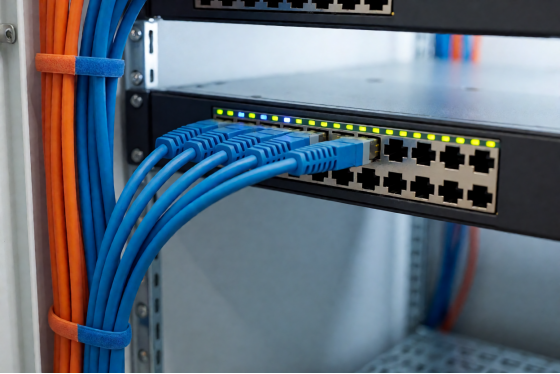
Patch cables running into a rack-mounted switch in a gaming center
Two ports: team them or split them
Once the server has more than one port, there are two ways to use them, and they suit different rooms rather than different budgets.
Teaming joins them into a single logical link. Build it in Windows and choose Adaptive Load Balancing, so the full bandwidth of both ports is in play instead of one sitting as a standby. One ordering detail decides whether this goes smoothly: disable flow control on the adapters before you create the team. Do those two steps in the other order and you will be taking the team apart to redo it.
Splitting is the alternative. CCBoot can balance clients across several NICs in the same server, so part of the floor arrives on one port and part on the other with no teaming configuration at all. For a venue where the person maintaining it would rather not open Windows networking, that is the gentler path to the same destination, and it has the side benefit of making it obvious in the client list which port a seat came in on.
Neither choice touches licensing. That stays per PC per month no matter how many ports end up in the server.
Start with the card already in the machine
Before ordering anything, measure what you have.
Power the floor on all at once and watch the server's network graph. If the uplink climbs to its ceiling and sits there flat while the last seats are still loading, the port is your limit and the table above says what comes next. If it spikes and falls back while seats are still slow, the card is not the problem and a new one buys you nothing at all.
That test takes twenty minutes and settles the question better than any recommendation can.
Then buy at the level this article has been working at: the right port speed, the right number of ports, a driver you have already confirmed, and a slot with the lanes. For the model that fits those four this quarter, the fastest route is to ask rather than guess, since the people on live chat see what rooms are ordering and what is arriving without trouble. Download CCBoot and run it on the card you already own, then buy against what you measured. The best NIC for diskless server work is the one that clears your seat count, has a driver for the system on your server, and sits in a slot wired for the lanes it needs, and that sentence will still be true long after every model number in this year's listings has been discontinued.