
Ask how many PCs can a diskless server handle and most answers stop at "it depends on your hardware," which is true and gets you nowhere. A more useful answer: one properly built server runs 100 to 200 seats. Plenty of rooms never get near that. They start feeling heavy somewhere around 40, and nine times out of ten the part that ran out was not the part the owner had been worrying about.
Not the CPU.
Your seat count is decided by whichever component gives out first, and there is a fairly predictable order to which one goes.
The short answer, by seat count
CCBoot publishes reference server builds by room size, kept current in the wiki, and they are specific down to the drive count. Stripped to the four parts that decide capacity:
Seats | Server RAM | Server network | Write-back drives | Reference CPU |
up to 20 | 32 GB | one 10Gb port | 1 SATA SSD 500 GB | current entry |
30 to 40 | 32 GB | one 10Gb port | 2 × NVMe 500 GB | current |
40 to 60 | 64 to 128 GB | one 10Gb port | 2 × SATA SSD 500 GB | current mainstream i5 |
60 to 100 | 128 GB | 2 × 10Gb | 3 × NVMe 1 TB | current upper |
100 to 200 | 128 GB DDR5 | 2 × 10Gb | 3 × NVMe 1 TB | current flagship i9 or |
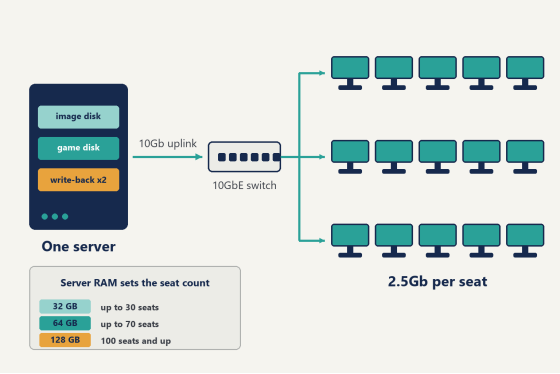
Those builds sit next to a separate RAM guideline that says the same thing from a different angle: 32 GB covers 10 to 30 clients, 64 GB covers 30 to 70, and a room of 70 to 100 wants 128 GB or more. Both sets live in the server hardware pages in the wiki.
Read the table down the columns instead of across the rows, because that is where the useful pattern is. Between a 40-seat room and a 100-seat room the CPU line moves a single tier. The RAM line doubles. The write-back line goes from two drives to three. The network line doubles. Those last three are where seats actually come from.
Two things are missing from the table on purpose. The image disk (512 GB SSD or larger) and the game disk (2 TB or more, initialized as GPT once it passes 2 TB) scale with your library, not your seat count. A 24-seat lounge and a 120-seat room can carry the same Valorant, CS2 and Fortnite installs on identical game drives. Seats don't change what the library weighs.
Put a real room against it. A 42-seat lounge sits between two rows of the table, so it inherits the stricter one: an i5-class processor is plenty, 64 GB of memory rather than 32, a single 10Gb uplink, and two NVMe drives taking the write traffic instead of one. That box still has headroom for another dozen seats when the back wall opens up. The build that fails at 42 is almost always the one that bought the fastest processor on the shelf and left the server on a 1Gb onboard port.
Diagram of one diskless server feeding rows of client PCs through a 10Gb switch uplink
Why the ceiling is almost never the CPU
Most of the arguments about how many PCs can a diskless server handle are really arguments about one number: how many small random writes the box can absorb at eight on a Friday.
A diskless server has two completely different workdays.
The first is the opening wave. Everyone arrives, the floor powers on more or less at once, and every machine asks for roughly the same boot blocks inside the same three minutes. That sounds brutal and isn't, because after the first handful of clients those blocks are sitting in RAM cache and every machine behind them gets served from memory at memory speed. Reads are the easy half. This is the whole reason a single image can feed a room at all.
The second workday starts once people are playing, and it never lets up until closing. Now every seat is writing. Shader caches, game logs, temp files, Windows doing Windows things in the background, an anti-cheat updating itself mid-session. Those writes all land on the server's write-back drives, and they are small and random and relentless, sixty seats' worth arriving at once.
That second load is what sets your ceiling.
In practice the parts run out in this order: write-back IOPS first, then network bandwidth, then RAM cache, and then, a long way back, the processor. CCBoot spreads client write traffic across every write-back drive you give it, which means the answer to the first bottleneck is usually one more drive rather than a bigger anything. An i5 that looked underpowered on paper will happily run 60 seats if the drives and the NIC underneath it are right.
The one ceiling that isn't hardware
Before anyone prices a drive, check what the server is running.
Windows 10 Pro shares out to a maximum of 20 PCs, and it allows only 8 disks or LUNs on a single iSCSI target session. For a 16-seat room that is invisible. For a 45-seat room it is the entire problem, and it shows up as strange partial failures rather than an honest error message, usually on the seats that happen to boot last. Windows Server, Standard or Datacenter, carries no such limit and handles far more LUNs per connection.
Pick the server OS and the network card together, not one and then the other. Driver support for 10Gb adapters varies by Windows Server release, so a card and an operating system bought in the same week can still disagree with each other, and the wiki's server pages are where the current pairings are listed.
Also, don't install antivirus on the diskless server. It drives disk activity up, and on a box whose whole job is disk activity you feel that on the floor as slow game loads.
Count the network before you count anything else
Do the arithmetic on the wire first. It's the one limit you can calculate before you buy a single part.
A 1Gb port moves about 120 MB/s in the real world. A 2.5Gb port moves about 300 MB/s. Mid-session, no individual seat needs much of that. The opening wave and the reboot after a patch day are a different story, and those two moments are when the floor forms its opinion of your room.
The official guidance is blunt about the tiers. For 20 to 30 seats, put 3 to 5 Gb of aggregate uplink on the server, either five 1Gb ports or two 2.5Gb ports. At 30 seats and up, use a 10Gb port. Past 50, use two of them. Intel or Realtek on both ends, and if you are adding NICs, PCIe cards rather than the old PCI ones.
Here is the detail that costs people a tier of capacity without ever announcing itself: count the lanes on the slot before you seat the card. A single-port 10Gb adapter wants an x4 slot or better, and a dual-port one wants x8. Drop either into an x1 slot and it installs cleanly, reports the right link speed, and quietly caps what the room can do. The top slot nearest the CPU is the safe default. Check the slot before you blame the software.
Client side, 2.5Gb ports on the motherboards and matching ports on the switch are the cheapest upgrade in this whole article, and boards with 2.5Gb built in are now the default rather than the premium option. CAT 6 cable for anything above 20 seats. CAT 5e is fine in a 10 to 20 seat room and nobody needs to rewire a small shop to prove a point. Unmanaged switches are perfectly good here, and if nobody on staff has configured a managed switch before, the unmanaged one is the better call.
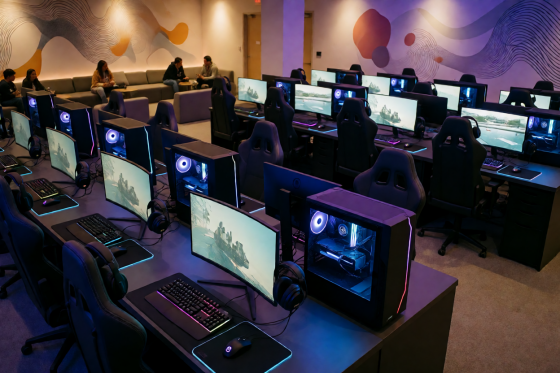
Rows of gaming PCs in a US esports lounge during an evening session
RAM is what the floor actually feels
Cache hit rate is the difference between a room that feels like local NVMe and a room that feels like a network drive, and RAM is what buys you that hit rate.
The allocation is not automatic, and the defaults are not the recommendation. On a 32 GB server the suggested split is 2048 MB of RAM cache for the image disk, 20480 MB for the game disk, and 2048 MB for write-back. On a 64 GB server it becomes 4096 / 40960 / 4096. On a 128 GB server the game disk takes 102400 MB while image and write-back stay at 4096 MB each. The game disk gets the lion's share every time, because that's where the bytes your players are waiting on actually live. If you run more than one game disk, split the cache between them by how much each gets played, something like 60/40 rather than down the middle.
Leave 8 to 10 GB of RAM free for the server's own operating system. Always.
One more setting worth knowing before you go shopping for a bigger processor. If the CPU is pinned at 100% while CCBoot cache is doing the caching, switch to System Cache mode, which means setting those values to 0 and letting Windows manage it. On NVMe and good SSDs that is the simpler configuration anyway. The cache then shows up under Memory > Cached in Task Manager rather than on the server chart, which throws people the first time.
Clients have their own cache setting, and it follows the RAM in the seat: 1024 MB on an 8 GB client, 2048 to 4096 MB on 16 GB, 4096 MB or Auto on 32 GB.
Write-back drives decide your peak hour
Two or more, once you are past 20 seats. That one rule carries more of your capacity than any other line in the build.
Don't put them in a RAID array. RAID 0 across SSDs improves sequential throughput, and sequential throughput is not what a full room generates. The write-back load is small and random. CCBoot already balances writes across every write-back drive you add, which gives better write performance than the array would, and it keeps a single drive from taking the whole set down with it. Adding a third 1 TB NVMe is a twenty-minute job and, honestly, it moves the ceiling more than a CPU upgrade ever will.
Set SATA mode to AHCI in the BIOS. If you do want RAID 0 somewhere, build it in Windows disk management rather than in the BIOS.
Then the part that separates a room that feels fine at 50 seats from one that stutters at 35: format every disk except the Windows partition with a 32K allocation unit, not the 4K default. It costs nothing if you do it before the games go on and it is a long afternoon if you do it afterward. GPT, never MBR, while you're there. If the game disk is NVMe or a decent SSD, skip SSD cache entirely, it isn't doing anything for you at that point.
There's a matching lever on the client side too. The local writeback cache settings let seats that do have a drive absorb part of their own write traffic, which takes load off the server drives and off the switch at the same time.
How many PCs can a diskless server handle on your floor?
Estimating is fine for budgeting. For a room that's already running, four things tell you where you actually stand.
Time the opening wave. Power the whole floor on at once and watch the last machine, not the first. If your slowest seat reaches the desktop inside about 90 seconds, there's headroom in the build. If the wave drags past three or four minutes and the stragglers are in the same seats every morning, the server is rationing something.
Watch the write band on the server chart during peak hours, not at noon on a Tuesday. Write traffic that sits high and flat for the whole evening is the signal to add a write-back drive, and it usually shows up weeks before anyone at the counter starts complaining.
Check CPU at peak. Pinned at 100% while CCBoot cache is running means try System Cache first.
And ask the floor, because a room at its limit doesn't fall over, it gets sticky. A map load that takes a beat longer than the seat next to it. A shader stutter the first time someone picks a new agent. Regulars notice this well before any chart does, and they express it by drifting to the room down the street.
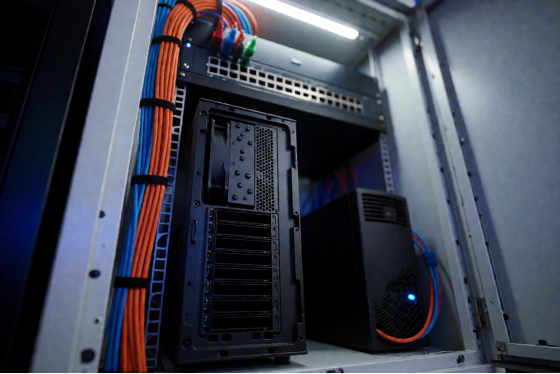
Tower server, switch and UPS in the back-room rack of a gaming center
Past one box: two NICs, then two servers
There are two roads out of a single-server build, and they stack.
The first is more network on the same machine. One server with several NICs can load-balance client traffic across them, which is the cheaper move when the drives still have room and it's the wire that filled up. Adding a second 10Gb card to a 60-seat build is a common step and it doesn't touch anything else in the room.
The second is a second server. Both get static IPs, both go into the admin panel, and from there you can split the floor down the middle so half the seats boot from one and half from the other. If the first server is offline for any reason, a client will go to the second on its own. That failover behavior is worth setting up even in rooms that aren't short on capacity, and it's how a 160-seat venue gets built without asking any one machine to carry all of it.
Each server runs on its own license. CCBoot is priced per PC per month, USD 2.50 on monthly billing and USD 2.00 on annual, so a second box is a licensing step rather than a new pricing model to learn. Chains do this across locations as well, same image, same routine, different building.
Billing, member time and game license pooling are a separate job from booting, and that's what iCafeCloud handles on top.
Find your own number
The honest way to size this is to stop estimating. Take the server you already have, or the one you're about to buy, download CCBoot and point one row of machines at it, then add seats and watch the opening wave. Fifteen seats will tell you almost nothing, which is the point of starting there, because the first tier is where you confirm the image and the boot chain are right before load enters the picture.
Somewhere above that, one of four things will start to move: write latency, link utilization, cache hit rate, CPU. Whichever moves first is your ceiling, and now you know which part to buy. That's a more useful thing to own than a generic answer to how many PCs can a diskless server handle, and it's the reason the 30,000+ rooms running this are sized so differently from one another.