
A diskless system server has one job, and it's a strange one: convince 36 gaming PCs that each of them owns a private SSD. None of them do. The drive every seat boots from lives in a box in the back office, and that box keeps the story straight for the whole floor, all day, without any player noticing.
Most of what turns up when you search the term is written for Linux labs, with kernels, initrd files and an NFS root. A gaming center running Windows uses a different stack, and this piece walks through that stack one layer at a time, from the moment a client asks for an address to the moment it forgets everything it did.
Same idea, different parts.
One box, five jobs
A diskless system is three things: one server, one switch, and a room of PCs with no drives in them. The clients keep the GPU and CPU, and the memory that feeds them. Everything else lives on the server.
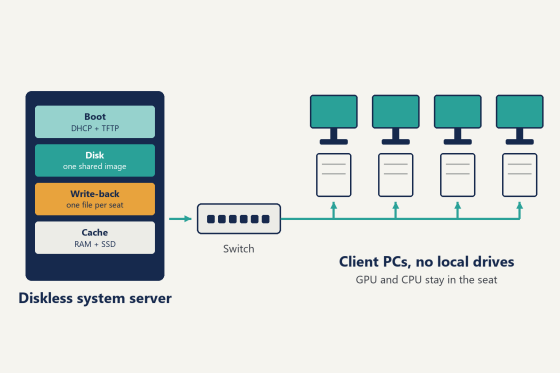
A diskless system server is really five services that happen to ship in one installer. One hands out addresses and the first few hundred kilobytes of boot code. One presents a disk over the network. One catches every write each seat makes. One keeps the hottest data in memory. And one manages the image those seats boot from, including the versions you roll back to when a driver misbehaves.
In the diskless boot software from CCBoot, which more than 30,000 customers run their floors on, all five sit behind one console. Knowing which one is doing what is the difference between reading a status page and understanding it.
Handing out addresses and the first few hundred kilobytes
Press the power button on a diskless station and the only intelligent thing on board is the network card. It broadcasts a request: give me an IP, and tell me where to find something to boot. That request is DHCP, and on a diskless system server the reply has to contain two things a normal home router never sends, the address of a boot server and the name of a boot file.
The client then pulls that file over TFTP. It's tiny. It's enough to bring up a loader that knows how to talk to the next layer down.
CCBoot gives you three ways to run this part, and which one you pick depends on who else is handing out addresses in the building.
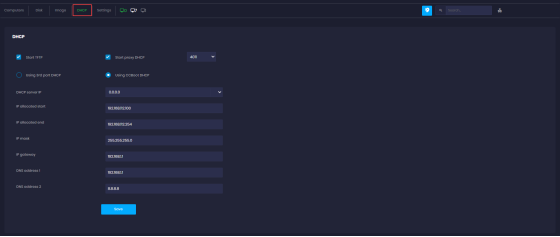
The simplest is "Using CCBoot DHCP". The server hands out everything a client needs: address and mask, gateway and DNS, plus the boot information. You fill in "DHCP server IP", "IP allocated start", "IP allocated end", "IP mask", "IP gateway", "DNS address 1" and "DNS address 2", tick "Start TFTP", and that's the whole layer. The one thing you must do first is turn DHCP off on the router (and yes, that includes the little combo box the ISP left behind). If the router keeps answering, some clients take its reply, never learn where the boot file is, and sit at a black screen while the seat next to them boots fine. Every first-time install runs into this. Running into it on a Tuesday afternoon costs ten minutes. Running into it on opening night costs the night.
CCBoot Cloud DHCP settings page with Start TFTP, Start proxy DHCP and the IP range fields
The second option is "Using 3rd part DHCP", for buildings where a firewall or a business router already owns the address space and the IT person wants to keep it that way. CCBoot stops handing out IPs and the boot options get configured on that device instead.
The third one is the one worth knowing about: "Start proxy DHCP". A venue with a front desk, a point-of-sale terminal and an office PC often needs the firewall to stay in charge of addresses, and nobody wants to touch its config. Proxy DHCP lets the firewall keep giving out IPs while CCBoot answers only the boot half of the question, on its own port (4011 in the screenshot above). Two servers, two halves of one reply, no fight. The DHCP settings reference in the wiki covers each field.
Does Windows know the drive isn't there?
No. That's the whole trick.
Once the loader is running, it opens an iSCSI session to the server and attaches a virtual disk. To the client's BIOS and to Windows, that disk looks like a local drive, with a partition table, a boot sector and a C: drive. Windows loads its kernel from it, reads drivers from it, pages to it, and never asks where the blocks are physically stored. They're on the diskless system server's image drive, and the same image is mounted read-only by every seat in the room at once.
That read-only part matters. Forty stations booting from one image are forty readers of one file, so the image never gets modified by a client, and the operating system every player sees at 11am is byte for byte the one you built.
The server does not run the game. It ships blocks. When station 22 loads a Valorant map, the map data comes across the switch and the rendering happens on station 22's own GPU, the physics on its own CPU, the audio through its own sound chip. Frame rates are decided by the parts in the seat. A diskless floor plays like a floor of local machines because, apart from where the bytes come from, it is one.
Diagram of the services inside a diskless system server feeding client PCs through a switch
The write layer: every seat gets its own scratch file
Windows never stops writing. Event logs, shader caches, the browser profile, the temp folder, the moment someone changes their mouse sensitivity in CS2 (which, on a busy night, is roughly every ten minutes). If the image is read-only, where does all of that go?
Into a write-back file. Each client gets its own on the server's write-back drive, and every write the seat makes lands there instead of on the image. Station 14 sees its own changes. The other 39 seats never do. On reboot the file is discarded and the station comes up from the clean image again, which is why a diskless room has no antivirus schedule, no reimaging queue and no "PC 7 is acting weird" ticket that survives past the next restart.
The workload on that drive is small random writes from every seat at once, all evening. CCBoot expects two or more separate SSDs for write-back once you pass 20 seats, not one big drive and not a RAID set. The software spreads client write-back files across the drives on its own, and since the traffic is tiny scattered writes rather than one long stream, two independent drives handle it better than the same two drives striped together. Honestly, this one surprises people who've built RAID for everything else.
There is a second place the write layer can live: in the client. CCBoot's local write-back cache puts each seat's write file on a small SSD inside that seat, so the server's write-back drives see less traffic and the station gets a local landing spot for its scratch data. The rules are specific. The drive has to be an SSD or NVMe, formatted with a 32K allocation unit, one partition only, and it should be the only drive in the machine, because the client uses the first disk it detects. You turn it on in the client's edit settings. Once it's working, two files appear on that drive, C.CCachex and D.CCachex, one per cached drive letter. If you open the drive and they're there, local write-back is live. If they haven't shown up yet, the client hasn't picked up the setting, so reboot it and look again. The local write-back cache page has the full requirements.
Data that should survive a reboot has its own home, called a personal disk. The front-desk PC's spreadsheets, a coach's practice recordings, a regular's config files: assign them a personal disk and they persist while everything else still resets.
Cache is why forty launches at 7pm feel like one
Look at what the room actually reads. At opening, 40 seats boot Windows, and they all read the same boot files, the same drivers, the same shell. At 7pm a Valorant lobby fills and 30 of them load the same client, the same maps, the same shaders. The requests differ by seat. The blocks don't.
A diskless system server keeps those hot blocks in physical memory. The first seat to ask for a block reads it from disk, and the next 39 get it from RAM. The disk is asked once. The room feels like every seat has its own NVMe, which is exactly the illusion the server exists to maintain.
CCBoot layers an SSD cache under the memory cache. It earns its slot when the bulk of the game library sits on slower, larger drives: the memory holds today's hot set and the SSD cache holds this month's, and the big drives only see requests neither cache could answer. On a floor whose whole library already lives on NVMe, the memory cache does most of the work by itself in practice.
Memory is the upgrade the floor feels first, not the CPU.
The image is a version, not a file you copy around
Every seat boots from one image, so where does the image come from? From one ordinary PC.
You take a machine with the same kind of hardware as the floor, install Windows, drivers, the game launchers and the games, log into each platform once so the first-run updates are done, and upload that disk to the diskless system server. That's the master.
From then on, the master is the only machine you ever update.
Francis Tungpalan at GetPoint Gaming in the Philippines described the change in one line: "We have about 5 online games that update every week, now we only update the server. Imagine the bandwidth we've saved!" For a US venue bandwidth is rarely the pinch. Hours are. One person updates one machine on a Tuesday afternoon and the whole floor has the patch by the time the after-school crowd arrives.
The image is versioned. Before you install a GPU driver, you create a recovery point. If the driver makes one title crash on launch, you restore to last and the floor is back on Monday's image after a reboot. If it's fine, you merge to last and move on. No reimaging, no walking the rows.
Two more things live in this layer. PnP lets a single image boot machines with different motherboards and network cards, so the six new seats that arrive with a different board join the existing image instead of needing one of their own. And the graphic boot menu can offer more than one operating system per seat, which is how a venue runs a tournament image and a general-play image from the same server. For business setups the image works with Windows domain logins, so people sign in with their domain account and their personal disk follows them.
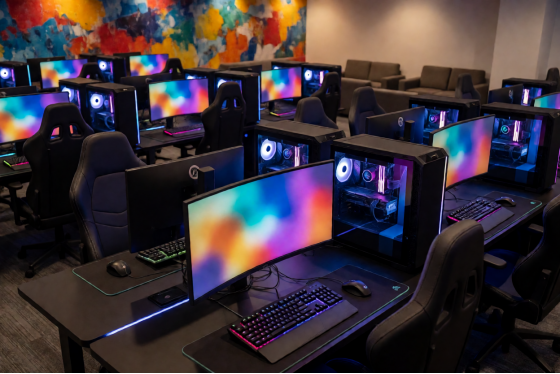
Rows of gaming PCs in a US esports lounge during an evening session
Grow past one NIC, one segment, one server
The layers above run fine on one diskless system server with one network port. A paying floor usually outgrows that arrangement in a specific order, and each step has a matching feature.
The first is bandwidth into the server. CCBoot balances load across multiple network cards on one server, so a second 10GbE port doubles the pipe without touching the clients.
The second is segmentation. A venue that hosts leagues often wants the stage machines on their own VLAN, isolated from the open floor and the front desk. CCBoot boots across VLANs, dual NICs and dual LAN segments, so the stage and the floor can start from the same server and still sit on separate networks.
The third is a second server. Past a certain size, or once the room is booked every night and you want a spare in the rack, two servers share the load. Boot storms split across two sets of drives, and maintenance on one doesn't take the room down.
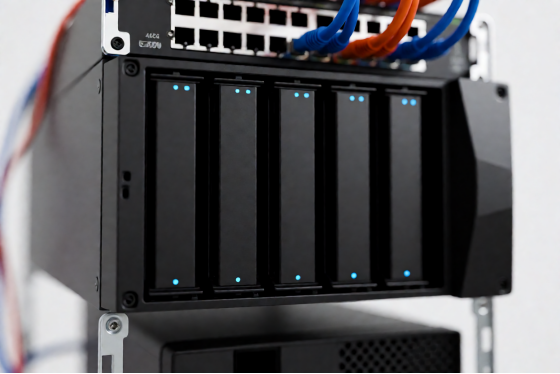
Server with open drive bays and a network switch in a gaming center back room
What a healthy diskless system server looks like from the floor
You don't need a monitoring dashboard to know each layer is doing its job. Every one of them shows up in something you can see from a seat.
Layer | What it's doing | What you see from the |
Boot (DHCP + TFTP) | Hands out an address | A powered-on station |
Disk (iSCSI) | Presents the shared | Windows reaches the |
Write-back | Catches each seat's | A file left on the desktop |
Cache | Serves hot blocks from | The second seat to |
Image | One master, versioned | A patch installed on the |
The bottom row is the one owners notice first. The third row is the one they stop thinking about, which is the point.
Seeing it for yourself takes an afternoon and a spare desktop. Download the free trial, give the machine a separate drive for the image and one for write-back, turn off DHCP on the router, and point one client at it. Then run down the table. Boot menu, desktop, the desktop file that vanishes, the second launch that's faster than the first, then a change on the master that shows up on the client after a reboot. When all five happen, you've watched every layer of a diskless system server do its job.
Licensing follows the seats. A 40-station floor needs a 40-PC license, and per-PC pricing is USD 2.50 per PC per month, or USD 2.00 per PC per month billed annually, with one key tied to one server. Billing and memberships are a separate job, handled by iCafeCloud along with game license pooling, and the two products can be bought as a bundle.
A diskless system server doesn't do anything a player would ever see. That's the measure of a good one. Thirty-six seats booting from one drive, and nobody on the floor able to tell.