
Short version: put two images on the server, assign both to the PC in Edit PC, and the client asks which one to load each time it powers on. That is the whole method to diskless boot multiple operating systems on one machine. Nothing is installed on the client and no partition is involved. All of the work happens in the server panel, in four settings.
The procedure below assumes a gaming center or esports lounge that already runs one image and now needs a second system on some of the same seats. Typical cases are a tournament built beside the daily one, a newer Windows release under test, or a class environment in a school esports room.
Diagram of one diskless server holding two OS images and a shared game disk, with client PCs choosing an image at boot
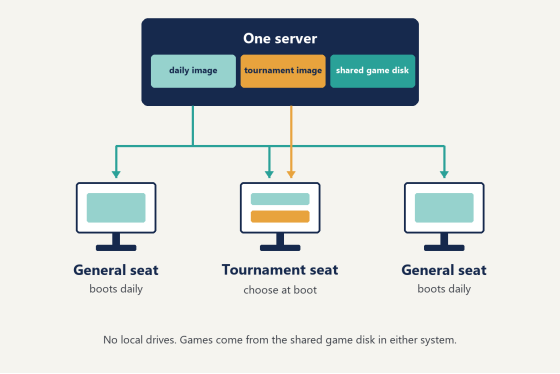
How multi-OS boot works on a diskless client
A diskless client has no local drive. It powers on, requests an address over PXE, and loads Windows from an image stored on the server. Everything the seat runs arrives over the network cable.
Multi-OS boot adds one decision to that sequence. When a PC has two images assigned, the server presents a boot menu before any system loads. The person at the seat picks an entry, and the client mounts that image and starts it. At the next power-on the menu appears again. CCBoot lists this as its Multiple OS Boot option. It is configured per PC, so one row can show the menu while the next row boots straight through.
Three things get confused with each other here. Separate them before adding anything.
- A second image is a different system. It can be another Windows release, or the same release built for another purpose with different software in it. The boot menu chooses between images.
- An image version is a restore point inside one image. Each saved update creates one. Versions exist so a system can be rolled back, and they do not appear on the boot menu.
- PnP lets one image start on PCs with different motherboards, network cards and GPUs. Mixed hardware is not a reason to build a second image.
The rule that follows is short. Add a second image only when the software environment has to differ. If the seats differ and the software does not, one image with PnP covers the floor.
A tournament image is the clearest example of a software difference. Organizers usually ask for a system with the competition client, its anti-cheat, voice software and nothing else: no extra launchers signed in, no overlays, no background updaters. The daily image is the opposite, with every launcher the venue supports. Trying to serve both needs from one image means stripping and rebuilding it around every event. Two images turn that into a menu choice.
On a server set up to diskless boot multiple operating systems, each system behaves like any other diskless session once loaded. Changes made during a session are discarded at reboot, and the image on the server stays as it was last saved.
Prerequisites
- A server and at least one client that already boot diskless from the first image.
- A second image, built and uploaded. The procedure is the same as for the first.
- Free space on the image disk for the second image and its restore points.
- Network boot set first in the BIOS boot order on every client that will show the menu.
- One spare client for testing, kept out of customer use until the checklist at the end is complete.
The Windows releases worth building on change over time, and the matching drivers change with them. Before building the second image, ask support which Windows releases they are building images for now.
Diskless boot multiple operating systems in five steps
The official reference is the wiki page on configuring multiple boot images. The steps here follow it and add a check after each one. Work on the single test client through Step 4. Step 5 is the only step that touches a group.
Step 1. Add the second image
1. Open the Boot page in the control panel.
2. Select the Image tab.
3. Click the "+" button.
4. Enter an image name, browse to the image file, and click OK.
Check: the image list shows two rows, each with a name and a file path.
Name each image for its purpose, not its build. daily and tournament work. win-a and win-b do not. The name is what the boot menu displays, and the person choosing from that menu on event day is usually part-time floor staff who never saw the image being built. If the first image still carries a build-style name, rename it now, before any PC points at two images.
Step 2. Assign both images to one PC
1. Open the Boot page, or the Computers page.
2. Right-click the test client and choose Edit PC.
3. Set Image to the system the seat runs on most days. This is the primary image.
4. Set the 2nd Image to the other system.
5. Click OK.
Check: reopen Edit PC on the same client. Both fields hold the values just set.
Decide the primary image by frequency of use, not by which image is newer. On a tournament seat the daily image is still primary, because the seat sells walk-in hours on far more days than it hosts brackets.
Step 3. Set the boot menu timeout
Boot menu Timeout is in the boot settings. The value is in seconds and applies to every PC that has more than one image assigned.
Choose the value by who sits at the seat:
- Self-service seats, where a customer powers on and expects to play: 10 seconds.
- Staff-operated seats, where an employee walks the row and sets each PC before an event: 30 seconds.
- A room with both kinds: use the longer value. A slow menu costs a customer a few seconds. A menu that expires while staff are two seats away costs a restart.
After saving, restart the test client, leave the keyboard alone, and let the timer run out. Record which system loads. That is what an unattended seat will run, so confirm it is the intended one before continuing.
Step 4. Boot the client and select
1. Power on the test client.
2. Wait for the boot menu. Both image names are listed.
3. Move to an entry with the arrow keys and press Enter.
Check: the system that loads matches the entry selected.
Restart and choose the other entry. Both systems must be started once from this client before the configuration goes anywhere else. Inside each system, open Device Manager and confirm that no device is listed as unknown. A second image built on a different PC model sometimes needs its network or GPU driver added through PnP, and one test client is the place to find that out.
Three more things are worth a look while each system is up:
- The game disk is present under the same drive letter in both systems.
- The display runs at the monitor's native resolution and refresh rate.
- One game starts from its launcher and reaches the main menu.
Step 5. Apply to a group of PCs
1. On the Boot page, tick each PC that needs the menu. The checkbox at the top selects all of them.
2. Right-click the selection and choose Edit PC.
3. Tick only the function being changed, which here is the second image.
4. Click OK.
Check: open Edit PC on two PCs from the group, one from each end of the row. Both show the same primary and second image as the test client.
Leave every other function unticked in the group dialog. Only ticked functions are written to the selected PCs, so an untouched box leaves each PC's existing value in place.
The assignment is read when a client starts. Seats that are in use keep running the system they loaded and pick up the menu at their next power-on, so the group change can be made during opening hours. Schedule the first restart of the row for a quiet period and watch one full pass of the menu on every seat.
Setting | Where it is set | What to enter |
Image name | Boot page, Image tab, "+" | A purpose name such as |
Image | Edit PC | The system the seat runs |
2nd Image | Edit PC | The other system |
Boot menu Timeout | Boot settings | 10 seconds for |
Boot order | Client BIOS | Network boot first |
Five-step flow for multi-OS diskless boot, from adding a second image to applying it to a group of PCs
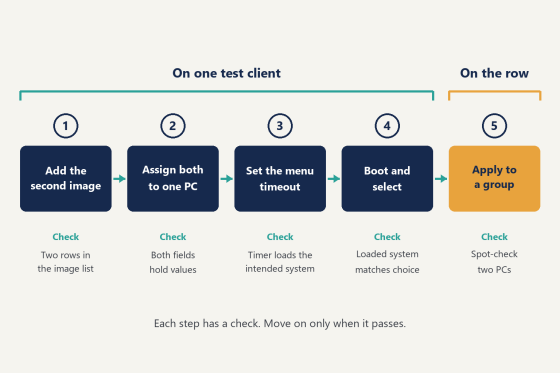
Image maintenance with two systems
Two images do not mean two of everything. What decides the workload is where each kind of data is stored.
Keep games off both system images. Game files belong on the game disk, and both images mount the same game disk. A game patch is then downloaded to the server once, and a seat sees the patched files whichever system it starts. The images themselves stay small: Windows, drivers, launchers, anti-cheat services and runtimes. Data that has to survive a reboot, such as a coach's saved configs in a school room, goes on a personal disk.
That leaves system-level changes, which are made per image. The procedure is the same one used with a single image:
1. Enable Super Client for one PC.
2. Start that PC and choose the image to be changed from the boot menu.
3. Make the change: a Windows update, a driver, a launcher update, a new anti-cheat component.
4. Shut the PC down, turn Super Client off, and save the change.
5. Restart the other seats. They load the updated image.
Each saved change is a restore point on that image only. The other image is unaffected and keeps its own history. If an update misbehaves, restore that image to its last point and the second system never notices. Once a run of updates has proved stable, merge the restore points so the list stays short and readable.
Some changes belong in both images: a new GPU driver for a hardware refresh, or a peripheral driver for new headsets. Apply these to the primary image, run the floor on it for a day, then repeat the same change on the second image from the same installer file. Keeping the installer on the server share guarantees both systems receive an identical version.
Technician working at a laptop beside a rack server in a small server room
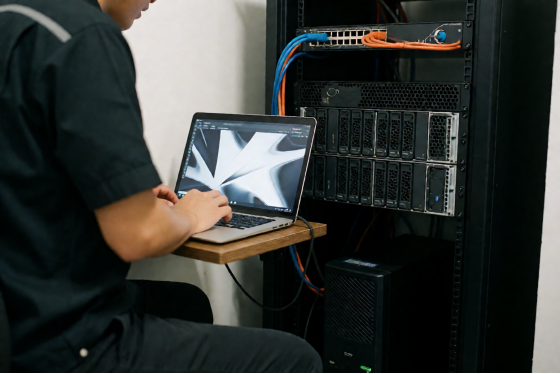
Three working rules keep this predictable.
Change one image per maintenance session. If a seat behaves differently afterward, there is exactly one change to examine.
Update the primary image first. It carries most of the floor's hours, so it gets the first test pass and the most attention. Run the second image's update in a later session, after the primary has been through a full day of normal use.
Keep a log. One line per change is enough: date, image name, what was done. With two images the question "which system got that driver?" comes up within a month, and the restore point list alone does not answer it.
The tournament image deserves one extra habit. Start it a few days before each event, run its pending Windows and launcher updates in Super Client, and save. An image that has been idle for six weeks will otherwise try to update itself on every seat at the moment the bracket starts. Seat-level changes are discarded at reboot as usual, so the fix has to go into the image.
To rehearse the full cycle before touching the production server, download the trial build onto a spare machine and run it with one client.
Menu assignment by seat type
A venue does not need to diskless boot multiple operating systems on every seat. A PC with only Image set starts that system directly, with no menu and no wait. Assign 2nd Image only where a second system is used.
Seat type | Image (primary) | 2nd Image | Boot menu Timeout |
Tournament row | daily | tournament | 30 seconds |
General floor | daily | None | Not shown |
Pilot seats for a | Current production | The new build | 10 seconds |
School esports | class | practice | 30 seconds |
Boot menu Timeout is one value for the server, so the table shows the value each seat type would prefer. Where seat types are mixed, set the longer one.
The tournament row is common in US venues. Ten seats near the stage host brackets, school league matches and private bookings. The remaining seats sell walk-in hours and never need the stripped-down build. Giving the menu to those ten seats only keeps the general floor at its normal startup time and removes a choice that walk-in customers have no use for.
Event day then needs no technician. Staff restart the row, select a tournament on each seat, and hand the row to the organizer. When the event ends, a restart brings the menu back, and each seat goes to daily by selection. Write those two lines on the event runbook next to the Wi-Fi password and the stage audio notes. Nothing is changed on the server on the day itself.
Pilot seats work the same way with a different purpose. Two or three PCs get the new Windows build as a second image. Staff and regulars use it for a few weeks on real titles such as Valorant and Fortnite, with the production image one restart away on the same seat. When the new build has held up, it becomes the primary image for the floor and the old one is retired.
For the school room, the class image carries the coursework software and the practice image carries the competition clients. The teacher or coach chooses at power-on.
Put the PCs that show the menu in their own group in the client list. Group selection makes Step 5 a single action, and it is equally quick to clear 2nd Image on the same group when a season ends.
Licensing is counted per client PC, with monthly and annual terms. For the figures, see the current per-PC pricing.
Gaming PCs on a stage platform beside a row of players in an esports lounge, seen from behind
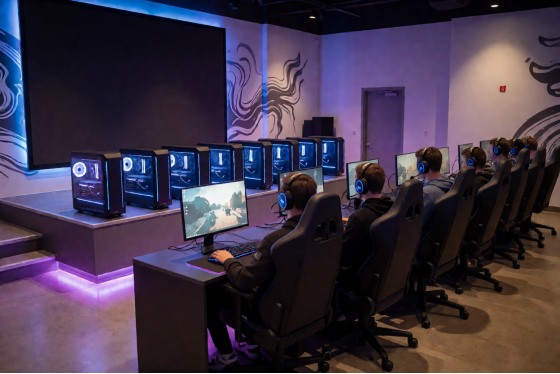
Rollout checklist
Run this list on the test client before Step 5, and again on one PC from the group after it.
- Both boot menu entries have names that floor staff understand without explanation.
- Each system has been started once from this PC, and Device Manager shows no unknown device in either.
- A program installed in the first system is absent after restarting into the second, and is gone from the first as well after another restart. This confirms that the two images are separate and that seat changes are discarded at reboot.
- Both systems show the same game disk with the same titles.
- With the keyboard untouched, the menu times out and loads the intended system.
- The second image has at least one restore point saved.
- PCs that need only one system have no value in 2nd Image.
Seven passes on the test client and seven on a PC from the group mean the row is ready for customers. From that point the venue can diskless boot multiple operating systems from one server, and day-to-day work returns to the usual routine: games are patched once on the game disk, and each image is updated in its own session.