
Why does a PC that starts fine from its power button stay dark when the server sends it a wake-up packet? On a wake on the LAN diskless floor, the answer is almost never the server. The command went out. Either the network port lost power when the PC shut down, or the adapter was never told it may respond.
Five settings cover both cases. Two are in the BIOS, two are on the network adapter in Windows, and the last is a merge step that carries the adapter settings to every other seat.
What Power on does on a diskless floor
In CCBoot, the command is on the Boot page. Select the Computers tab, right-click a PC, hover over Power control, and choose Power on. To start several seats, select the PCs first and use the same command.
The server then sends a wake packet addressed to each PC's network adapter. A PC that is shut down but still plugged in keeps a small amount of standby power on that adapter. The adapter sees its own address in the packet and signals the motherboard to start. From there the seat does what it does every morning: it boots from the network and loads its image from the server.
Nothing in that chain needs a local drive. A diskless seat that wakes is ready for a customer as soon as Windows is up, which is why the opener at a gaming center can start the whole floor from the front desk and a teacher can bring up an esports classroom before the bell.
Which layer is not answering?
Start with the PC shut down and look at the back of the case. The link light on the network port tells you where to go next, and it takes ten seconds to check.
What you see | Where to look first |
Link light is off when the PC is shut | BIOS power-saving option |
Link light is on, the PC still does not | BIOS wake event, then the adapter's |
Only one PC model fails to start | That model's adapter settings have not |
PCs with Intel adapters fail to start | The Intel section below |
It worked, then stopped after a driver or | Redo the adapter settings in the image |
The first row is the case we see most often. Many current motherboards ship with a power-saving option turned on, and it cuts power to the network port at shutdown. No packet can wake an adapter that has no power.
Test one PC at a time, and shut it down from Windows before each attempt. A seat that lost mains power, for example from a power strip switched off at closing, may need one start by hand and one normal shutdown before its adapter listens again. Venues that cut power to the rows overnight should leave the strips on if the opener is going to start the floor from the server.
If a PC wakes but stops before Windows loads, wake is working and the boot order is the thing to fix. Set network boot first in the BIOS.
Diagram of a server sending a wake packet through a switch to a powered-off diskless PC whose network card stays on standby
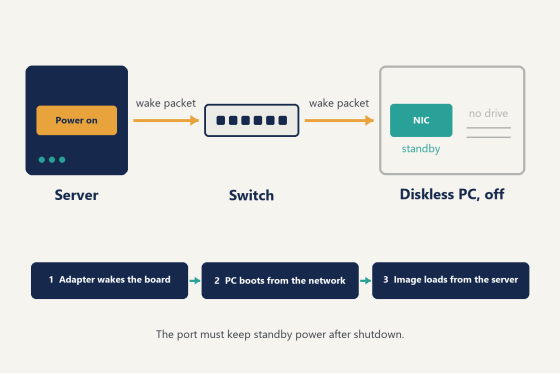
BIOS: keep the network port powered when the PC is off
Two options decide this. The names vary a little between board makers, so search the BIOS for the terms below.
The ErP / EuP option. Set it to Disabled. On most boards it sits under Advanced, in the power management settings. When it is enabled, the board switches off the LAN port after shutdown to save standby power. Disabled keeps the port powered while the PC is off.
Resume By PCI-E Device. Set it to Enabled. Some boards call it Wake on PCI-E, and it usually sits in the wake-up event settings. If the board has neither name, look for an option called PME and enable that instead. Wake on LAN does not work without one of them.
How do you know it took? Shut the PC down and look at the port again. The link light should now stay on.
BIOS settings are per machine, so each PC needs them once. The practical time to do it is when new PCs are unboxed, along with setting network boot first in the boot order. If your boards use UEFI with Secure Boot, complete the boot setup for your board brand before testing wake, because the wake options depend on it. Support can point you to the guide for your brand.
Windows: the adapter's wake settings live in the image
This is where diskless differs from a room of PCs with local drives, and the difference works in your favor. The adapter's wake settings are stored in Windows. On a diskless floor Windows is the image, so you set them once and every seat with that adapter gets them at its next restart.
Do the work on one PC with Super Client enabled, so the changes are written to the image:
1. Install the current driver for the motherboard's network adapter. Do not skip this, even if the adapter already works.
2. Open the adapter's properties and go to the Power Management tab. Tick every box. The newest option on that tab is unticked by default with most drivers, and it is the one people miss.
3. Go to the Advanced tab and enable three properties: Wake on Magic Packet, Wake on Pattern Match, and Shutdown Wake-On-Lan.
4. On the same tab, disable Green Ethernet or Energy Efficient Ethernet if either is listed.
5. Run CCBootPNP. Click Collect local NIC, then Merge Collected NIC.
6. Shut the PC down, disable Super Client, and save the changes.
Step 5 is the one that makes the fix travel, and in a wake on LAN diskless rollout it saves the most time. Without the merge, the settings apply to the PC you worked on and nowhere else. With it, every PC that has the same adapter picks them up from the image. A common follow-up ticket reads "it works on the PC I configured and on no other", and the merge is the answer every time.
Two more things to know. If the floor has more than one PC model, repeat the steps once on each model, since each adapter has its own driver and its own settings. If you run more than one image, repeat them in each image. The full walkthrough with screenshots is on the wiki page on making Wake on LAN work.
Intel adapters
PCs with Intel network adapters need one thing beyond the steps above: the current CCBoot client built in the image. Update the client in Super Client, save, and restart the seats. If you run several images, update each one. Support can confirm which build is current.
Still dark after all five?
Then it is worth a ticket, and four details let us answer on the first reply:
- The motherboard model.
- The network adapter model.
- Whether the link light stays on after shutdown.
- Which image the PC boots.
Add whether the PC ever woke successfully, and what changed since. You can send these four details to support through live chat.
Empty esports lounge before opening with rows of gaming PCs powering on
Wake on LAN diskless questions we get most
Does Wake on LAN need a hard drive on the PC?
No. Waking depends on the network adapter and the motherboard's standby power. Booting depends on the network. A diskless PC has both, so it wakes and loads its image with no drive installed.
Do I have to fix this on every PC?
Partly. The two BIOS options are set on each PC. The adapter settings are done once per PC model in each image, and the PnP merge delivers them to the rest.
Can the server shut the floor down as well?
Yes. The same Power control menu lists Shutdown, Reboot, Logoff and Hibernate next to Power on. Closing staff can shut down the seats from the server, and the opener can start them the next day the same way.
What does it take to try this on my own hardware?
One server and one client. You can download the trial build, boot a single PC from it, and run through the five settings on that machine before touching the rest. Licensing is counted per client PC, with monthly and annual terms, and the current per-PC pricing is on the purchase page. Once that first seat starts from the Power on command, the wake on LAN diskless setup for the remaining seats is the BIOS pass and one merge per model.