
Saturday, 2pm, a birthday party has the back row. Twelve kids sit down, twelve copies of Call of Duty open, and twelve monitors show the same line of text with a percentage next to it. Compiling shaders. The parents paid for two hours and the clock started when the PCs unlocked.
The same twelve PCs compiled those same shaders yesterday. And the day before. That's the puzzle behind the game shader cache diskless PCs build and then lose: the work gets done, it just doesn't get kept. Once you know what the cache is and where it's written, keeping it turns out to be one setting.
What a shader cache actually is
A shader is a small program that tells the graphics card how to draw something. How light falls on a wet road, how smoke fades at the edges, how a character's armor reflects an explosion. A modern shooter ships with tens of thousands of them.
They don't ship ready to run. The game carries its shaders in a generic form, because the studio has no idea which graphics card you own, and the driver on each PC has to translate that generic form into instructions for the exact card and driver version sitting in that case. Translation takes real time. A big title on a mid-range card can spend several minutes on it.
So the result gets saved. That saved pile of translated shaders is the cache, and its whole job is to make sure the slow step happens once.
With a cache in place, the game starts, finds the finished shaders, loads them and goes. Without one, you get one of two things. Some games stop you at the menu with a progress bar. Others let you in and compile as they go, which is worse, because every new effect that appears on screen for the first time costs a hitch. That's the stutter people describe as "the first match always runs badly."
Where does it live?
Not in one place. It helps to think of three layers, each writing its own files.
The graphics driver keeps a cache of its own, under the Windows user profile, in the local application data folder. Every game that draws through that driver feeds it, whether the game knows or not.
The game keeps one too. Depending on the title, that folder sits in the user's profile, in ProgramData, or in a "saved" directory the game creates for itself the first time it runs.
Then there's the launcher. Steam holds per-user data for each title, including the video settings a player picked, and a game that reopens with its settings reset will often decide it has to rebuild shaders for the new settings.
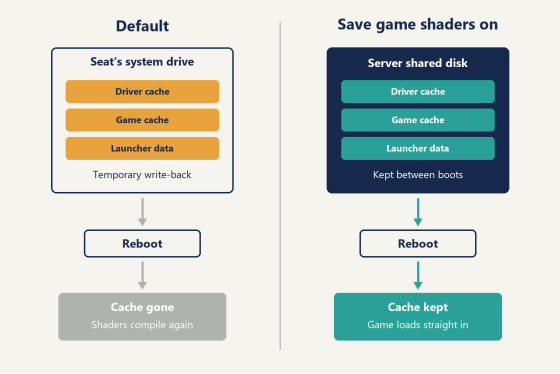
Look at where those three point. The user profile, ProgramData, per-user launcher data. On a typical install almost all of it lands on the Windows system drive, and very little of it is in the folder where you installed the game.
Diagram of where shader caches sit on a diskless seat and how they move to the server's shared disk
Why a diskless reboot wipes it
On a diskless floor the system drive isn't a drive in the PC. It's one Windows image on the server, shared by every seat. Anything a seat writes to that image during the day goes into a temporary write-back file, and when the seat reboots, the file is discarded.
That's the point of the design. A customer can install a cheat loader, change the wallpaper, fill the desktop with downloads, and the next boot hands the following customer a clean machine. No scanning, no reimaging.
The shader cache just happens to live in the same neighborhood as all the things you want gone. The seat compiles for five minutes, writes the result to the profile, the customer leaves, the PC restarts, and the write-back file takes the cache with it. Tomorrow the game opens on a machine that has, as far as Windows can tell, never run it.
Nobody did anything wrong here. The restore is working and the game is working. They're just not talking to each other. Put plainly, the game shader cache diskless seats keep losing was never broken, it was parked in the one part of the system that's meant to forget.
The answer isn't to turn the restore off, which would give you back every problem it solves. The answer is to pull those few folders out of the throwaway area and keep them on the server instead, so the rest of the system still resets and the shaders don't. CCBoot has a setting for exactly that.
How to keep the game shader cache diskless seats build
The setting is called Save game shaders. Before you switch it on, three things should already be true.
Your games are installed on the game disk, the shared disk every seat reads its games from. If you carry Steam titles, Steam itself is on that disk as well.
The Game fix for each launcher or game you care about is enabled. For shaders that means Steam, and Call of Duty if you run it, since Call of Duty has its own entry in the list. If you haven't set those up yet, the Game fixes page in the wiki covers it.
And the server's shared disk has room. The guidance is at least 100GB free. Shader caches aren't small, you'll be holding them for several games at once, and you want headroom for the next season's update.
Then it's short:
1. In the admin panel, open Settings and go to Game settings.
2. Find Save game shaders near the bottom of the list.
3. Set it to Enable.
4. Reboot the client PCs.
The Game settings page in the admin panel with Save game shaders set to Enable
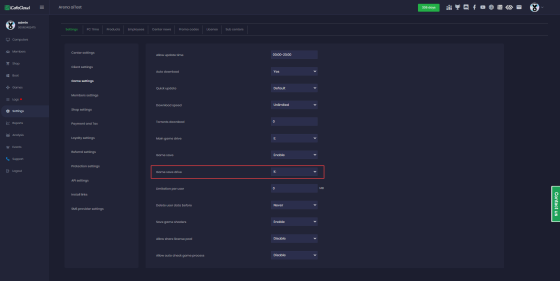
(The red box in that screenshot is around a different row, the game save drive. Save game shaders are three rows below it.)
You don't create any folders. Once the setting is on, the system builds the shader folders on the shared disk by itself, per game, the first time a seat needs them. From then on, a seat that compiles shaders is writing them to the server, and a seat that boots tomorrow finds them waiting.
Seats that share the same graphics card share the result. One of them does the compiling, and every other seat with that card reads what's already there. On a floor of 40 identical PCs that means one machine pays the cost and 39 don't. If you bought in two batches and have two card models on the floor, each model builds its set once, and the same rule applies inside each group.
One habit makes the first run go right. After you enable the setting, pick a seat, start the game, and let the shader step run all the way to the end. Get to the menu, load into a match or a practice range, then quit the game the normal way and shut the PC down normally. A compile that's cut off halfway, because someone held the power button or killed the game from Task Manager, leaves half a cache on the server, and the next boot has to finish the job. People see that second progress bar and assume the setting isn't working. It is. It saved what it was given.
The wiki keeps the current list of supported titles on the save game shaders page.
What each game does with it
Games don't agree on how to store shaders, so the folders that appear on the shared disk won't all look alike. This is what to expect from the titles the feature covers.
Game | What gets kept on the server |
Call of Duty and Warzone | A separate shader folder for each |
Roblox | Its own shaders folder |
Marvel Rivals | The graphics driver's cache folder and |
Delta Force | Its shader folder, created automatically |
Steam titles | Per-game user data, organized by |
The Call of Duty row is worth a second look. Because each version of the game gets its own folder, a floor that carries more than one Call of Duty title keeps a clean cache for each, and a patch to one doesn't disturb the other.
The Steam row does more than shaders. Per-game user data includes configuration, so the video settings a title was last run with come back after a reboot as well. That matters for shaders in a quiet way: a game that opens with the same settings it had yesterday has no reason to rebuild anything.
Roblox deserves its line in the table for a practical reason. It's the birthday-party game, and a party is the one booking where every seat starts the same title in the same minute.
After a patch or a driver update
A cache matches three things: the game's shaders, the graphics card, and the driver. Change any one and the game compiles again. That's normal behavior everywhere, on a home PC as much as in a gaming center, and it happens once per change.
What you control is who's sitting there when it happens.
Honestly, this is the part most rooms never plan for. The patch gets installed, the floor gets rebooted, everything looks finished, and the first customer of the day becomes the person who compiles the new shaders for everybody else. With the game shader cache diskless seats now living on the server, that first compile can be yours instead (and you aren't paying by the hour).
So build it into patch day. Update the game on the server while the floor is closed. Then, before you open, boot one seat for each card model on the floor, start the patched game, and let it compile to the end. Quit normally. In practice this is a coffee's worth of time, and it's the difference between you watching a progress bar at 10am and a paying customer watching one at noon.
Treat a graphics driver update the same way. New driver in the image, one seat per card model, one full compile for each game that matters on your floor, then open.
Players seated in a row at a gaming center during a private booking

If you run events, put this on the checklist for the day before. A tournament bracket or a school esports scrimmage is the worst possible moment to discover that Thursday's patch hasn't been compiled on the tournament row, and it's also the easiest moment to avoid, because you know the date and you know the game.
Mid-match reboots
PCs restart in the middle of games. A cable gets kicked, a customer hits the wrong button, Windows decides it has an opinion.
In a ranked match there's a reconnect window, and it's short. A seat that comes back up and has to compile shaders before it can load the map will miss it. A seat that comes back up and finds its shaders on the server loads straight in, and the player is back with their team while the round is still live.
It's a small thing until it happens to a regular.
Checking that it stuck
The test is a second cold boot, and you run it from a seat.
Boot a client, start the game, let the shaders finish, quit, shut down. Then power the same PC on again and start the same game. If the compile step is gone, or flashes past in a few seconds, the cache came back from the server. Now do the same on a different seat with the same graphics card, one that hasn't run the game since you enabled the setting. It should behave like the first seat's second boot, because it's reading the same files.
That second seat is the stronger proof of the two. A PC keeping its own files could be luck or a reboot that didn't fully happen (it's worth watching the boot screen to be sure it did). A PC that loads shaders it never compiled can only have got them from the server, which is the whole idea behind keeping the game shader cache diskless seats build in one shared place.
On the server, open the shared disk. You should see folders that weren't there before, named for the games, and their size should have grown after that first full compile. While you're there, check free space. If the disk is close to full the cache has nowhere to grow, and adding space is the first thing to fix.
If a seat still compiles on every boot, check the Game fix for that title before anything else, then ask support to check the shared disk with you. They can tell from the folders in a couple of minutes whether the seat is writing to the server.
Start with the slowest game
Every floor has one title where the shader bar is the longest. Start there. Enable the setting, run that game to the menu on one PC, reboot it twice, and time the second start against the first.
If you're still planning a diskless floor and this was the question holding you up, you can settle it on a bench: try it on a spare machine, install one game, and watch what the second boot does. Licensing is counted by the number of client PCs, so when you're ready to size it for your room, check the current per-PC pricing. The game shader cache diskless PCs build doesn't have to be thrown away every night. Next Saturday, the back row sits down and plays.