
A diskless setup can run games with anti-cheat when the complete client configuration meets the game's requirements. Check the game, its security requirements and the actual network boot path together. For anti-cheat and diskless boot, the useful result is a repeatable launch after a fresh boot, followed by entry into a protected game session.
Use the operating procedure below as a release checklist for a gaming center or LAN center. Keep a dated record for each game and client hardware group. Treat lobby access as an intermediate check. Acceptance comes after the same configuration has completed the full session test and repeated it after a restart.
Start with the game's current requirements
Open the publisher's support documentation before changing the client image. Record the game name, the relevant support page and the date checked. Read any specific error message alongside that documentation. An error that names a security feature gives a more useful starting point than a general report that the game stopped launching.
For example, Riot's current Vanguard security requirements list TPM, Secure Boot, Memory Integrity and IOMMU among the features Vanguard may require, depending on the system configuration. Use the requirement shown for the client being tested. The presence of those features in one publisher's guidance does not establish a common settings list for every game.
Create a short working record before the maintenance window:
· Game and launcher being tested, with the current publisher support link.
· Client hardware group and the image assigned to that group.
· Security requirements stated by the publisher or identified in the client's error message.
· Date of the last successful fresh boot and protected session test.
This record should identify the game itself. Two titles using the same anti-cheat brand can have different operating requirements. A successful test for one title belongs in that title's record. When another game is added to the lounge, give it its own acceptance run.
Set the test conditions before the download begins. Choose an available client from the group receiving the update, use the normal customer launch method and prepare an authorized test account. Put the work outside active customer sessions. For a weekend event or private booking, leave enough time between maintenance and the booking to repeat the test from a shutdown.
Decide what the first pass must prove. A launch check can establish that Windows, the launcher and the game open in sequence. Then test protected session access. Finally, a restart check establishes whether the saved configuration produces the same result when the PC starts again without a maintenance session. Record each result separately.
Keep the scope of each anti-cheat and diskless boot test narrow enough to reproduce. If the update affects VALORANT on one hardware group, start with that game and group. A separate record can cover another title or a different motherboard configuration. This makes later comparisons useful without turning the log into a history of every setting in the building.
Use a maintenance worksheet with separate spaces for the planned requirement and the observed result. For example, write the publisher's stated Secure Boot requirement in the first space, then enter the value reported by the booted client in the second. Leave an untested item open. Copying a requirement into the results column gives the appearance of a check without an observation.
Check firmware and Windows security state
Inspect the gaming client. The server's security settings describe the server, while the game checks the environment in which its client runs. Capture the required information after booting the test PC through its normal network startup path.
For a Secure Boot check, open System Information with msinfo32. Read BIOS Mode and Secure Boot State together. Record both values in the test log, then compare them with the game's stated requirement. Microsoft's Secure Boot explanation and verification guidance describes checking Secure Boot State in System Information. Hardware support for a feature and its current enabled state are separate checks.
For TPM, open tpm.msc and read the reported status and specification version. Microsoft's TPM guidance explains these fields and notes that firmware labels vary between manufacturers. Match the reported result to the publisher's requirement. Retain the original wording of an error if the expected device or state is absent.
Use each remaining security requirement as a separate line in the log. If the game requests Memory Integrity or another protection, consult its current support instructions and verify the client after any required restart. A checkbox changed during maintenance still needs confirmation in the running system.
The same discipline applies to firmware. Use the PC or motherboard manufacturer's instructions for the installed hardware. Plan the required UEFI network boot configuration with the supported boot components and image, then verify the complete startup sequence. For a configuration list matched to the current deployment, contact CCBoot support before applying changes across a hardware group.
Keep firmware work separate from game updates in the maintenance record. Note the setting changed, restart the client and read the resulting state again before proceeding. If several settings are adjusted together and the next boot behaves differently, the record should still show which changes belong to firmware and which belong to Windows.
Do not mark every PC as checked because the test client has the expected values. Inspect another representative machine when a group uses a different motherboard or firmware configuration. Even matching external cases can contain different client platforms. Define the group by the hardware and startup configuration being validated.
When a client reports an unexpected state, stop at that check. Verify that the recorded requirement applies to this game and configuration, then follow the relevant manufacturer or publisher procedure. Restart and inspect the state again. Continue to the game test only after the required state has been observed through the intended boot path. This keeps the next launch result tied to a known configuration.
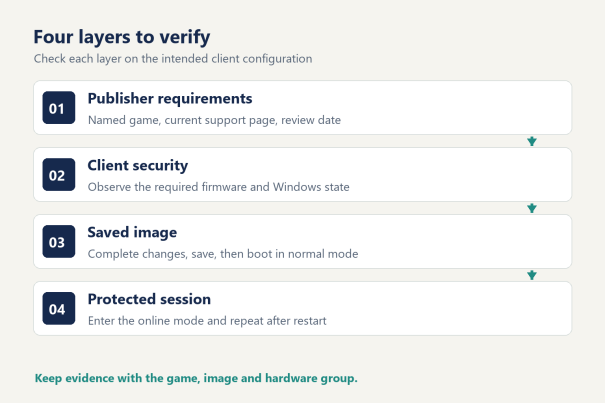
Prepare the diskless client image
Start from an identified image. Write down which saved image the test client will receive, the planned changes and the condition that will count as a successful release. Give the change a readable note, such as the game name and the reason for maintenance. The next person opening the record should be able to match the booted client to that saved state.
The CCBoot diskless boot system centralizes client system images. Its documented workflow lets changes made to the master environment reach other clients through a reboot. This gives the technician one maintained system state to prepare and then verify on the floor. Use the same image identity throughout the acceptance run so the results describe the release that will actually be used.
Identify where each change belongs
Separate the planned work into the components it changes. Game assets and launcher files belong to the game installation. Windows components, installed drivers and system services belong to the client operating environment. Firmware settings belong to the physical PC. A single game update can involve more than one of these areas, so read the installer's messages before deciding that maintenance is finished.
For anti-cheat and diskless boot, this distinction determines what needs to survive the next startup. If an installer adds or changes a Windows service, include that change in the maintained system state and complete its requested restart. If the publisher only delivers new game files, confirm the updated installation seen by the client. Inspect the actual update rather than assuming every patch follows the same path.
Use this table to assign each observation to the appropriate part of the deployment:
Check layer | What to confirm | Evidence to keep |
Publisher requirements | Current requirements for the | Support page and date |
Client firmware | Required boot mode and | Values observed on the test |
Windows image | Saved system changes and | Image identity and |
Game installation | Updated launcher and game | Client opens the intended |
Protected session | Acceptance into the intended | Mode tested and result after |
Complete the operating system changes
Use the supported image maintenance procedure from the CCBoot setup documentation. Finish the intended Windows, driver or service changes within that procedure. Follow the game's official installer and repair instructions when an anti-cheat component needs attention. Complete every restart requested during installation before saving the release for ordinary use.
A restart during image maintenance and a restart from the saved production image answer different questions. The first lets an installer complete its work. The second shows what an ordinary client receives after maintenance has ended. Keep both in the procedure.
When the installer finishes, check the condition it reported. Record whether a further reboot was requested or whether another action remains pending. Then close the maintenance session through the documented image procedure. Avoid treating a working desktop inside the maintenance session as proof that the saved image has been accepted.
Boot the test PC again in its normal operating mode. Confirm the assigned image and repeat the checks from Windows. The client must now reproduce the intended system state without another maintenance session. If the launcher requests an additional component, record that requirement and finish the corresponding image change before starting the acceptance run again.
Check the saved image assignment before repeating an installation. If one client requests setup again while another reaches the game, first confirm that both received the intended release. Compare their hardware group and recorded security state next. These observations decide whether to revisit the image change or a setting on the individual PC. Reinstalling on each seat before checking those facts obscures the difference between the two clients.
CCBoot also documents restore points for image maintenance. Preserve an appropriate restore point before the planned change and record its identity alongside the release note. This keeps the image history understandable while the new game configuration is being evaluated. Finish the session tests before consolidating image history as part of routine housekeeping.
Keep the test environment consistent
Use the same launcher, game installation and startup method that customers will use. Close maintenance tools after their work is complete. Avoid adding diagnostic utilities halfway through a test unless they are needed for a specific question and are included in the record. Otherwise, two runs labeled with the same image may describe different running environments.
Make one planned change at a time when investigating a failed launch. Capture the original error, apply the documented action and repeat the same launch sequence. Compare the two runs. A changed result is useful when the record identifies the action between them, while an unchanged result belongs with the observation supporting the next official diagnostic step.
For an evaluation environment, use the CCBoot free trial download with a spare test client. Build the same kind of dated image and session record used for an existing deployment. This creates an acceptance process that can be repeated when the evaluated configuration is introduced to the gaming floor.
Anti-cheat and diskless boot: validate the full launch path
Run the first acceptance test from a fully shut down client. Confirm that the PC takes its intended network boot path and receives the image recorded for the test. Continue through the ordinary Windows sign-in and customer launch sequence. Keep the maintenance session closed.
The first pass should follow the customer journey without shortcuts. If customers start games through a venue launcher, use that route. If a title opens another launcher before starting the game, include that transition. A direct executable launch can be useful during diagnosis, but the accepted result must describe the route available at the seat.
Check the transitions in order
1. Confirm that the client reaches Windows from the intended startup path. Check the image identity before opening the game.
2. Open the launcher and allow the planned update or verification work to finish. Record any new component request.
3. Start the game and watch for an anti-cheat prompt or a restart request. Preserve the exact message when further action is required.
4. Enter the intended protected online mode using the authorized test account. Confirm that the client is accepted into a session.
5. Exit normally, restart the client and repeat the customer launch path. Compare the second result with the first.
The decisive observation is entry into the mode customers intend to play. A launcher showing an enabled Play button confirms a useful earlier stage. A visible game menu confirms a later stage. Continue until the protected session has accepted the client, then record the mode and result in plain language.
Use an available casual, practice or other suitable online mode that exercises the required protection without interrupting a paid event or an ongoing competitive match. Choose the mode deliberately and name it in the record. Different online modes should not be assumed equivalent when the game or platform documents different requirements.
Repeat after ordinary client restart
Restart the PC after leaving the game. Repeat the required security checks if those settings were part of the change, then launch through the same customer route. Record whether an update or installation request appears again. The second run should begin from the saved image and end in the same accepted session state.
CCBoot documents restoration of the client system after reboot. Include that ordinary reboot in the test so the result represents the maintained image that the next customer receives. Any component needed for routine play should already be accounted for in the approved configuration and maintenance procedure.
A useful log entry reads as an observation: the client booted the named image, opened the launcher, entered the recorded online mode and repeated the sequence after restart. Add the date and the hardware group. Avoid a general entry such as "anti-cheat works," which leaves the game mode and boot conditions unspecified.
Capture enough information for the next diagnostic step
If a check stops, identify the last completed stage. Record whether the interruption occurred before Windows, while opening the launcher, during anti-cheat initialization or when joining the protected session. Keep the error text with that stage. This gives the support team a defined event to investigate.
Use the publisher's current instructions to gather game or anti-cheat logs when requested. Keep account credentials out of shared maintenance notes. Provide the image change summary and observed security state with the relevant logs so the support conversation starts with the configuration that was actually tested.
When the game names a security requirement, return to the corresponding client check and record its current value. When the installer asks for a restart, complete that stage before attempting a session. When the game reaches its menu but online entry stops, retain the exact message at that transition and check the publisher's guidance for it. Each observation points to a different next action.
A second client can help narrow the comparison after the first record is complete. Use one from the same defined hardware group and boot the same saved image. Run the same game mode with an authorized account. Record the result separately, then compare the last completed stage on both PCs. Keep any difference in account conditions visible rather than assuming the two runs were identical.
Repeat the same acceptance sequence after the documented corrective action. For anti-cheat and diskless boot, a fix becomes a release candidate when it can be reproduced from the saved image through the ordinary network startup path. Leave the record open until that repeat run is complete.
Roll out after the test client passes
Match the passing configuration to the intended client group. Check the image assignment and the group definition before beginning the rollout. A group with different firmware or motherboard settings needs its own representative validation, even when it shares the same Windows image. Attach that result to the release record.
Keep the anti-cheat and diskless boot record available to the opening shift. If a seat needs attention after release, staff can identify its assigned image and compare the observed launch stage with the accepted test.
Schedule the rollout around the venue's actual bookings. For a LAN center with an evening private event, finish the image change and the restart checks before staff begin preparing customer sessions. Assign one person to confirm the release and another staff member, when available, to verify the customer launch route at a seat.
Keep the handoff short enough to use during a shift. Record the image identity, the games checked and the tested hardware groups. Include the date of the protected session test and any action still awaiting completion. Staff opening the floor need to know which configuration is ready and which test record supports that decision.
Place the handoff beside the venue's normal maintenance notes so the opening staff can find it without contacting the technician who performed the update.
The licensing line belongs in the deployment plan as well. CCBoot licensing is based on client PC count. Use the current per-PC licensing details for the venue's intended deployment, and keep the licensing review alongside the client inventory. The article's technical checks remain attached to the actual image and hardware group receiving the release.
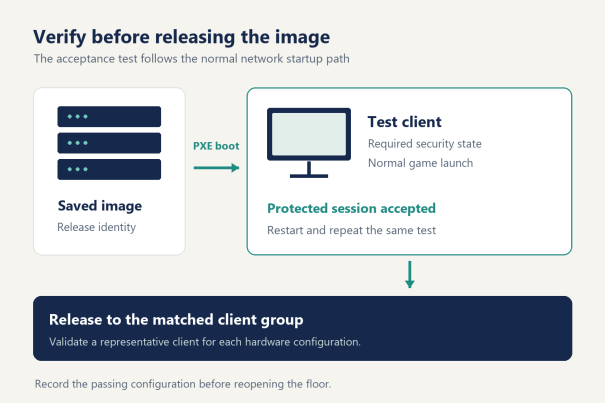
After rollout, use the same test record when a game introduces a new system requirement or the client environment changes. Note the change before rerunning the acceptance sequence. A new driver, firmware setting or image revision gives the technician a specific reason to compare the latest result with the last accepted configuration.
Six checks before reopening the floor
Close the release record with six observable results. Mark each item after checking the intended client configuration.
· The named game's current requirements have been reviewed, with the source and review date recorded.
· Client security values match the recorded requirements.
· The saved image contains the intended system changes, and all requested installation restarts have been completed.
· The ordinary customer launch route opens the intended game installation without another maintenance action.
· The test account enters the protected online mode recorded in the acceptance test.
· The same client repeats the launch and session test after an ordinary restart, with representative results for each hardware group.
For anti-cheat and diskless boot, retain those results with the image note and the game support link. The release record should let the next technician boot the same configuration and repeat the accepted customer session.