
In CCBoot Cloud, a Super Client update is not saved until you choose to update the image after the client shuts down. Enabling Super Client makes the selected disk editable from a client PC. The safe decision comes later. If you know which disk holds the change and where the save choice appears, the sequence is straightforward. CCBoot uses the saved image for the client PCs that boot from it. The quick answer is: select the correct disk, make the change on the maintenance client, then explicitly save the image when ending the session.
What is a Super Client update in CCBoot?
A Super Client update is a change made through one client PC and then saved to a selected disk image. The change might be an application or driver added to the boot image, or files written to a game disk. Super Client gives the maintenance PC an editable session for the disk you select. The selected client is where the administrator performs the maintenance. Other PCs do not need to be used to make the same change one by one because they can boot from the image after it has been updated.
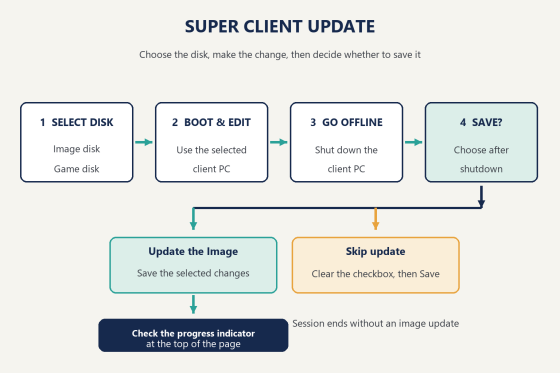
The important distinction is between editing and saving. The client can be in Super Client mode while you work, but the shared image is updated only when you finish the session and choose to save the image update. That choice appears after the client has shut down and is offline. Treat those as separate checkpoints: completing an installer or changing a setting finishes the work on the client, while confirming the image update publishes that work to the selected disk.
This is why “I enabled Super Client” and “the image is updated” are not the same status. The first starts the edit session. The second follows the save step.
Is a Super Client update the same as “Update CCBootClient”?
No. A Super Client update saves changes you made to a selected disk from a client PC. Update CCBootClient is a separate action that updates the CCBoot client software in an image from the web admin panel.
For the software action, open Boot → Image, right-click the image, choose Update CCBootClient, then start the update. For image editing, enable Super Client on a client PC, make the intended change there, and save the image after the PC goes offline. The names sound similar, but they start from different places and update different things. Checking whether the guide starts in Boot → Image or with client disk selection helps keep the procedures separate.
Which disk should I select for an update?
Select the disk that contains the files you plan to change. For an operating-system or installed-application change, that is usually the image disk. Select the game disk as well only when your task writes game content there from the client PC.
Change being made | Disk to select |
A setting, driver, or application in the | Image disk |
Game files stored on the game disk and | Game disk |
Changes that touch both selected disks | Both relevant disks |
If you are unsure, locate the target files before enabling Super Client. For an installed program or operating-system setting, identify whether it is part of the boot image. For game content, confirm which game disk the client uses. When a task affects both locations, select both relevant disks. The current CCBoot setup wiki is the place to check your installation’s disk layout. In practice, noting the target location makes the selection easier to verify.
Diagram of the Super Client update flow from disk selection to save or skip
Can I change more than one disk in a session?
Yes. Select each disk that contains a change you intend to make during that session. The disk selection is the scope for the update, so base it on where the files live rather than on how many client PCs will use them later. Think of the selection as a short work order: include the image disk for changes inside the client environment, and add a game disk only when the maintenance task writes to it. Avoid adding unrelated disks just because they are available. A focused selection makes the later save decision easier to review because it matches the actual change.
For example, a change to Windows belongs to the image disk. If the same maintenance task also writes files to the game disk from the client, include that disk too. Keep the list tied to the planned change, then make the update on the client that you enabled for Super Client.
What should I do while Super Client is enabled?
Boot the selected client PC and make the intended change there. Keep the work within the disks selected for the session. When the installation or setting change is finished, shut down the client PC.
The support sequence is short: select the disk, boot the maintenance PC, make the change, then shut it down. The save decision is not made while the client is still running. Wait until the client shows offline before disabling Super Client. If an installer asks for a restart, finish the installation and return the client to a clean shutdown before ending the session. Keep a brief note of the intended change so you can compare it with the save prompt and with the verification you perform afterward. The first useful support check is the client status: confirm it has completed shutdown before changing the session state.
How do I save the changes to the image?
After the client PC is offline, disable Super Client and keep Update the Image selected. Enter a short note describing the change, then confirm. That submits the selected changes to the image.
Use a note that will make sense later, such as “added approved drawing app” or “updated audio settings.” A plain description helps distinguish this maintenance session and connect the record to the validation step.
Here is the check order:
1. Confirm the client PC is offline.
2. Disable Super Client for that PC.
3. Leave Update the Image selected.
4. Enter a short description and confirm the update.
5. Watch the progress indicator at the top of the page.
That is the commit point. A Super Client update is saved after this confirmation, not when the mode is first enabled. If the option was cleared by mistake, pause and review the prompt before confirming. Once confirmed, follow the progress indicator to completion. Do not treat the initial click as proof that the image operation has finished.
Can I skip saving the update?
Yes. If you want to end the session without writing its changes to the image, clear Update the Image and click Save. The update process is skipped.
This is useful when you opened an edit session to inspect a setting or decided the proposed change should not become part of the shared image. Check the box before saving the session: selected means proceed with the image update, while cleared means skip it. Read the choice once more before clicking Save, especially if you have just switched from another maintenance task. If you intended to keep the change, leave the update option selected. If you intended to discard the session’s changes, clear it. The two outcomes are controlled at this final decision point.
Where can I see whether the update is finished?
Watch the progress percentage at the top of the page. CCBoot Cloud also shows a notification popup while the operation is running. Let the progress finish before closing the notice or refreshing the page. This visible progress is the confirmation that the image operation is still underway. If the screen is being monitored by another staff member, pass along the current status and wait for completion before handing the machine back for normal use.
There are three separate checkpoints: the client is offline, the save choice was confirmed, and the progress indicator has completed. If you are helping someone else, ask which checkpoint they have reached before repeating any steps. This check order also helps diagnose a report that “the changes did not appear”: first establish whether the client shut down, then whether the image update was selected, and finally whether progress finished. Each answer points to the next place to look without restarting the whole workflow blindly.
Gaming center operator checking a client PC after an image maintenance session

What should I check before clients use the updated image?
Start one client PC from the updated image and confirm the intended change is present. Once that check is clear, reboot the other client PCs that use the same image so they load the saved version.
Keep the confirmation tied to the change itself. If you added an application, check that it opens. If you changed a setting, check that setting. This gives the administrator a simple handoff: the image was saved, the progress finished, and a client booted with the expected result.
Where can I find CCBoot setup help and next steps?
For setup instructions, use the CCBoot setup wiki. If you are checking licensing, see the current per-PC pricing, which lists the current figures. If you are evaluating the workflow, download the CCBoot trial and follow the setup material for your environment.
A Super Client update has one clear finish: make the change, shut down the client, choose whether to save, and wait for progress to complete. Keep that order in view whenever you plan this workflow in CCBoot.