
2026-02-12
faceit, restart
The following explains how to resolve the FACEIT Anti-Cheat issue where it repeatedly requires a system restart to complete installation and remains stuck in a loop.
- Gigabyte B650M GAMING WIFI
- ASUSTeK TUF GAMING B650-PLUS WIFI
- MSI MAG B650 TOMAHAWK WIFI (MS-7D75)
- If you see this message, you need to restart the computer to complete the installation. (Figure 1)
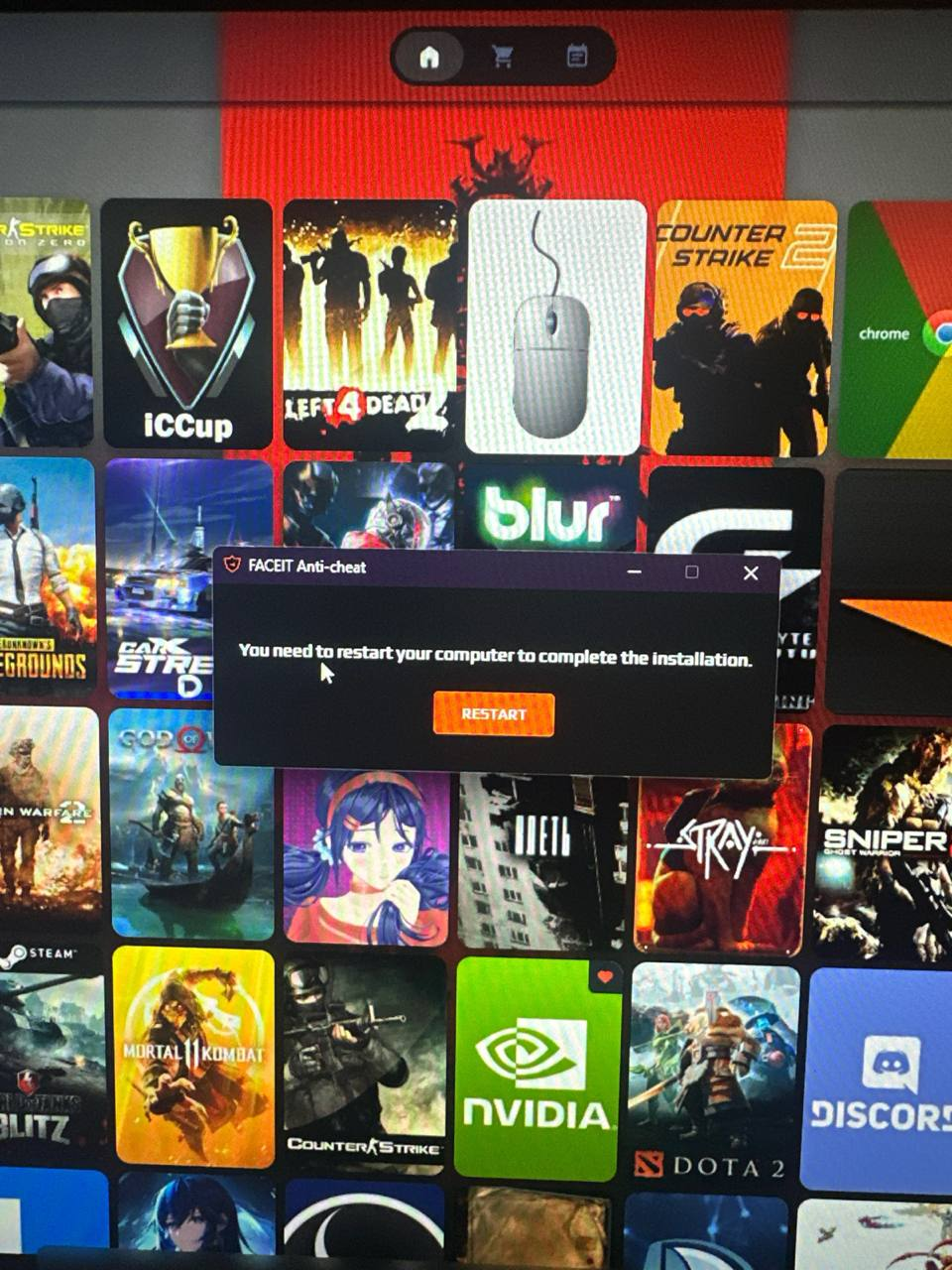
Figure 1
- First, check which motherboard model you are using. If the motherboard has built-in Wi-Fi, you should disable Wi-Fi in the BIOS.
Access BIOS: Turn on the computer and immediately press the Delete key repeatedly to enter the BIOS setup.
Switch to Advanced Mode: If not already there, press F2 to enter Advanced Mode.
Locate Network Settings: Navigate to the Settings tab.
Find Wi-Fi/Bluetooth: Look for a menu named Onboard Devices or Integrated Peripherals.
Disable: Find the specific setting for Wi-Fi, Wireless Module, or Onboard LAN Control, and toggle it to Disabled. - If your motherboard does not provide an option in the BIOS to disable Wi-Fi, an alternative solution is to physically remove the Wi-Fi module from the motherboard.
- For example, on the B650 AORUS ELITE AX V2, you can follow the steps below.
Remove the two screws on the back of the motherboard holding the VRM heatsink, then remove the two screws for the I/O shield.
After that, remove the single screw on the back securing the Wi-Fi module housing.
Once the screw is removed, the Wi-Fi module assembly can be pulled out together with the antenna ports. The metal housing will be easy to recognize once you see the board from the back.
After removing the module, reinstall the VRM heatsink (making sure the thermal pad is properly aligned) and reattach the I/O shield. (Figure 2)
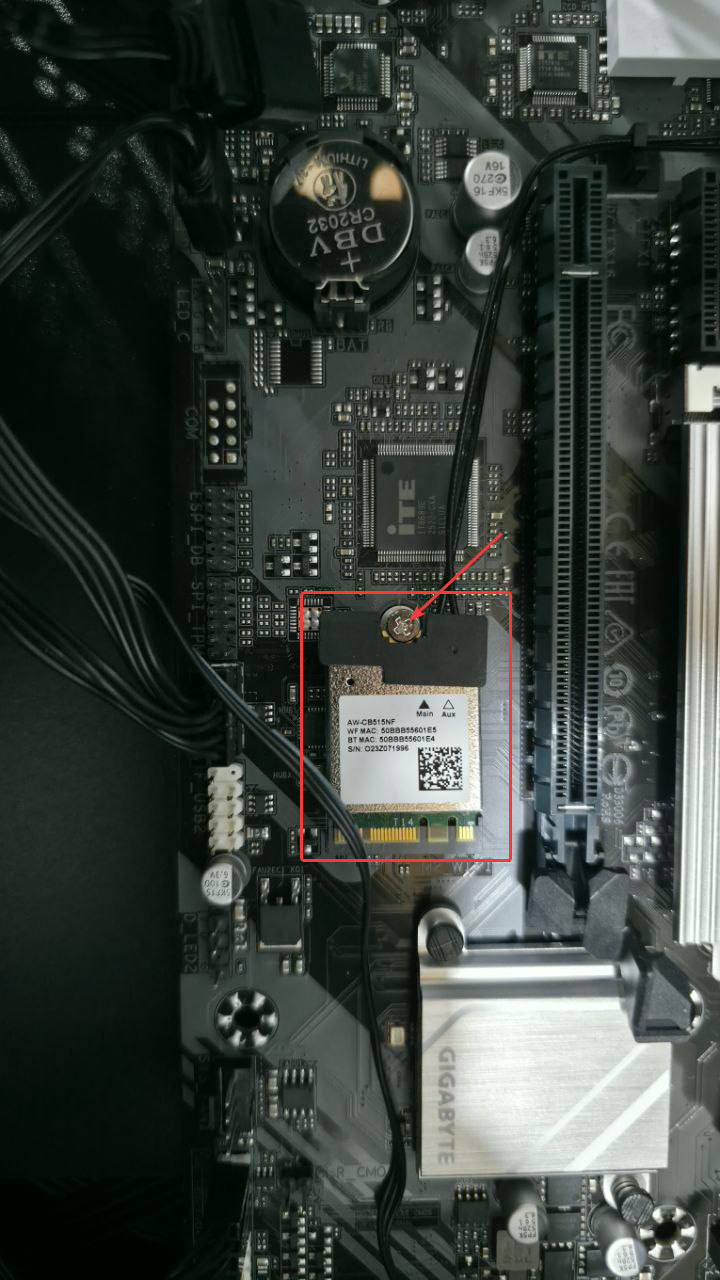
Figure 2