
2026-01-13
diskless, boot, certificate, uefi, secure boot
The following explains how to import a Youngzsoft certificate from a USB drive using the BIOS method .
- Prepare an USB format in FAT32
- Download Youngzsoft v1 certificate - Used for IPXE.PXE
- Download Youngzsoft v2 certificate - Used for IPXE2025
- Download Youngzsoft v2 certificate - Used for IPXE2026 - Recommended
- Download Youngzsoft v2 certificate.esl - Used for newer motherboards that support ESL format cert only.
- Download Youngzsoft v2 certificate.pem - Used for older motherboards like Lenovo
- Those 2 certificates (are custom certificates created by our company)
- Copy / paste the file to the USB that doesn't include anything else.
- This certificate is essential for Secure Boot access.
The BIOS way - Recommended
- In the BIOS, you can import either certificate version (V1 or V2). Both are supported, so you can choose the one that matches your setup.
- We recommend importing Youngzsoft v2 certificate in the BIOS directly with IPXE2026
- Plug in the USB on the client PC
- Navigate to the Boot page, select the PC you want to boot, then click Edit. Scroll down to the PXE section and choose IPXE2026. (Figure 1)
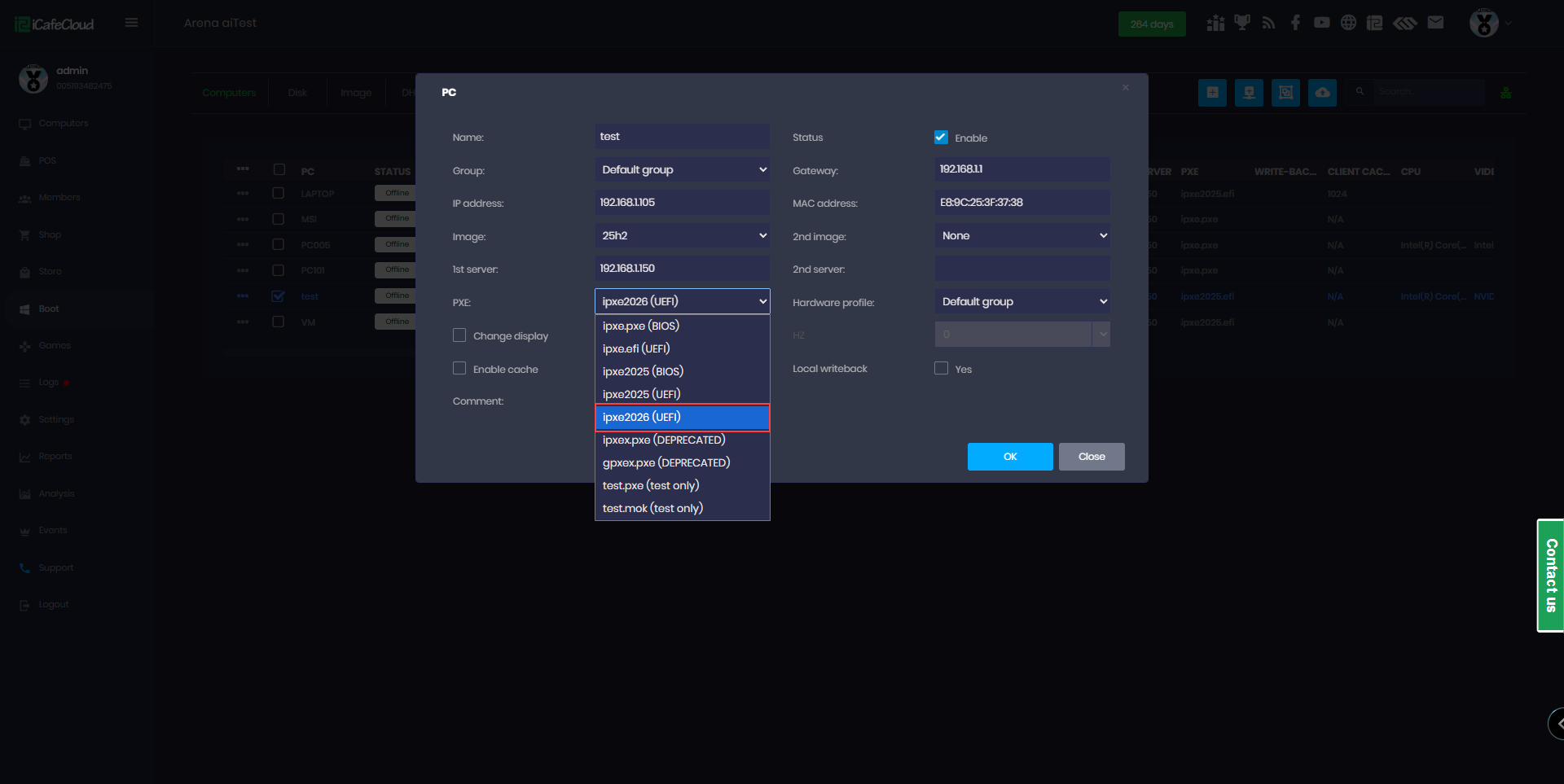
Figure 1