
2026-05-09
game, disk, locked
The following explains how to resolve the locked GameDisk issue when using Super Client and receiving the error: *** ERROR *** lock volume \\.\D: failed 0x5 Access is denied.
- If you are getting the following errors logs
*** ERROR *** lock volume \\.\D: failed 0x5 Access is denied.
( Drive D: is opened by some processes, please terminate them first. ) reason: 0x5 Access is denied. 09:45:35 *** ERROR *** Open \\.\D: failed - This indicates that a page file has been created on the GameDisk, causing the disk to become locked.
- Open the Start menu, type "advanced system settings", and select "View advanced system settings".
- Under the Advanced tab, click Settings in the "Performance" section.
- Go to the Advanced tab in the new window and click Change under "Virtual memory".
- Uncheck "Automatically manage paging file size for all drives".
- Select the drive (e.g., G: you gamedisk) and choose "No paging file".
- Click Set, then click OK and restart your computer. (Figure 1)
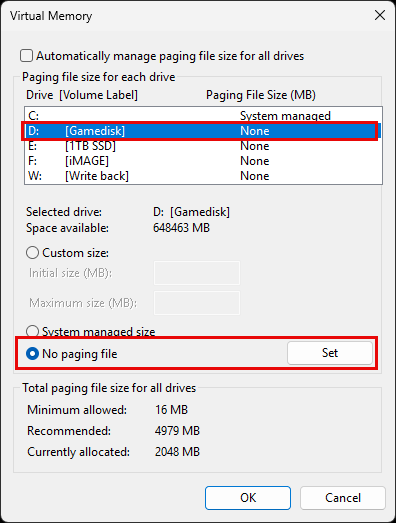
Figure 1
- After completing these steps, you can start Super Client and use the GameDisk without errors.