
2026-01-24
BSOD, intel, NIC
The following explains about the stop code reference by pointer that caused from intel NIC as intel i225 / i226 and need specific driver to work and boot on diskless
- If the BSOD stop code is REFERENCE_BY_POINTER, the issue is related to the Intel NIC.

Figure 1
- Prepare a SSD with windows OS on client PC
- Install the Intel NIC driver on the SSD PC using version intel.1.1.4.45, as other versions do not work.
- Open Device Manager, select the NIC, and click Update Driver. (Figure 1)
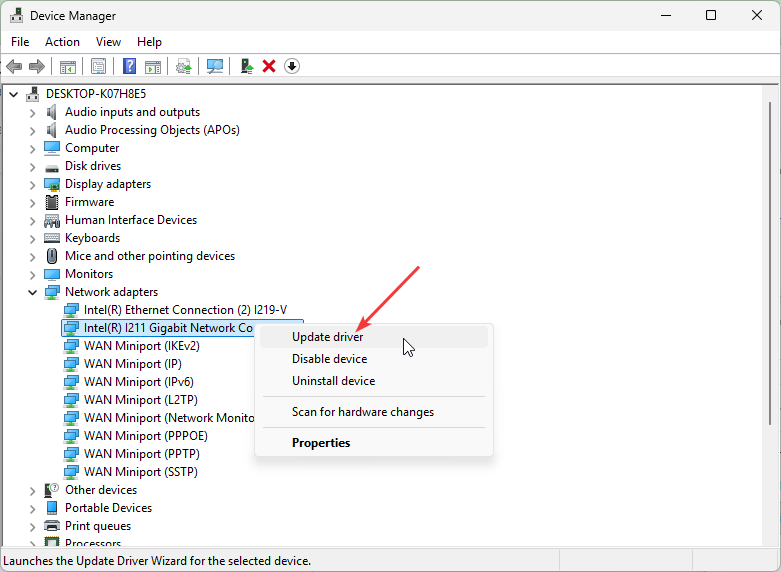
Figure 1
- Next, locate the unzipped folder on your PC, select it, and click Next to install.(Figure 2)
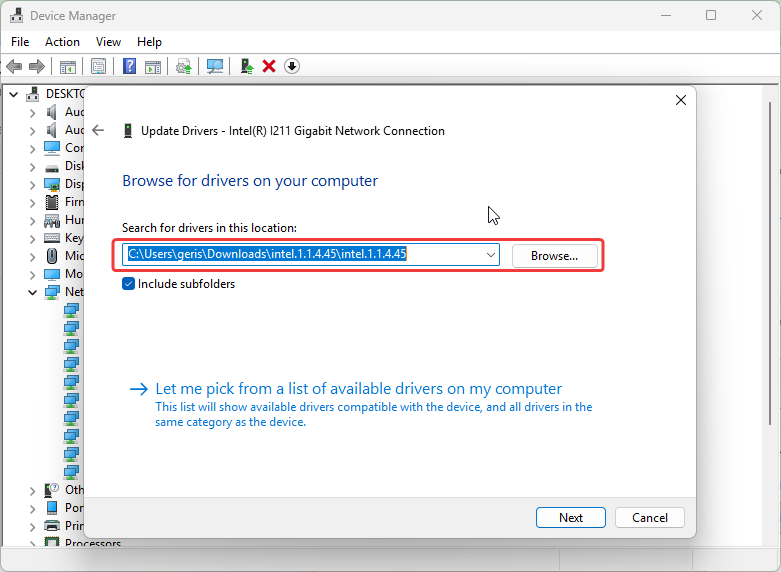
Figure 2
- On the client PC use CCBootPNP.exe tool (can be found at CCBootclient folder) and collect the driver follow here (Figure 3)
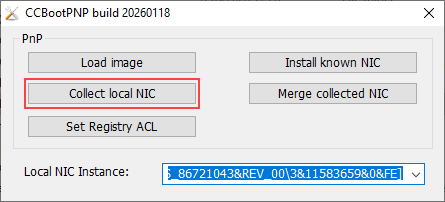
Figure 3
- After confirmation, a folder named Drivers will be created in the same directory as CCBootPNP.exe.
- Copy this folder to the server PC and paste it into the same directory where CCBoot is installed.
- Download Super image and add it as image in Boot section
- Update CCBootClient to latest version (Figure 4)
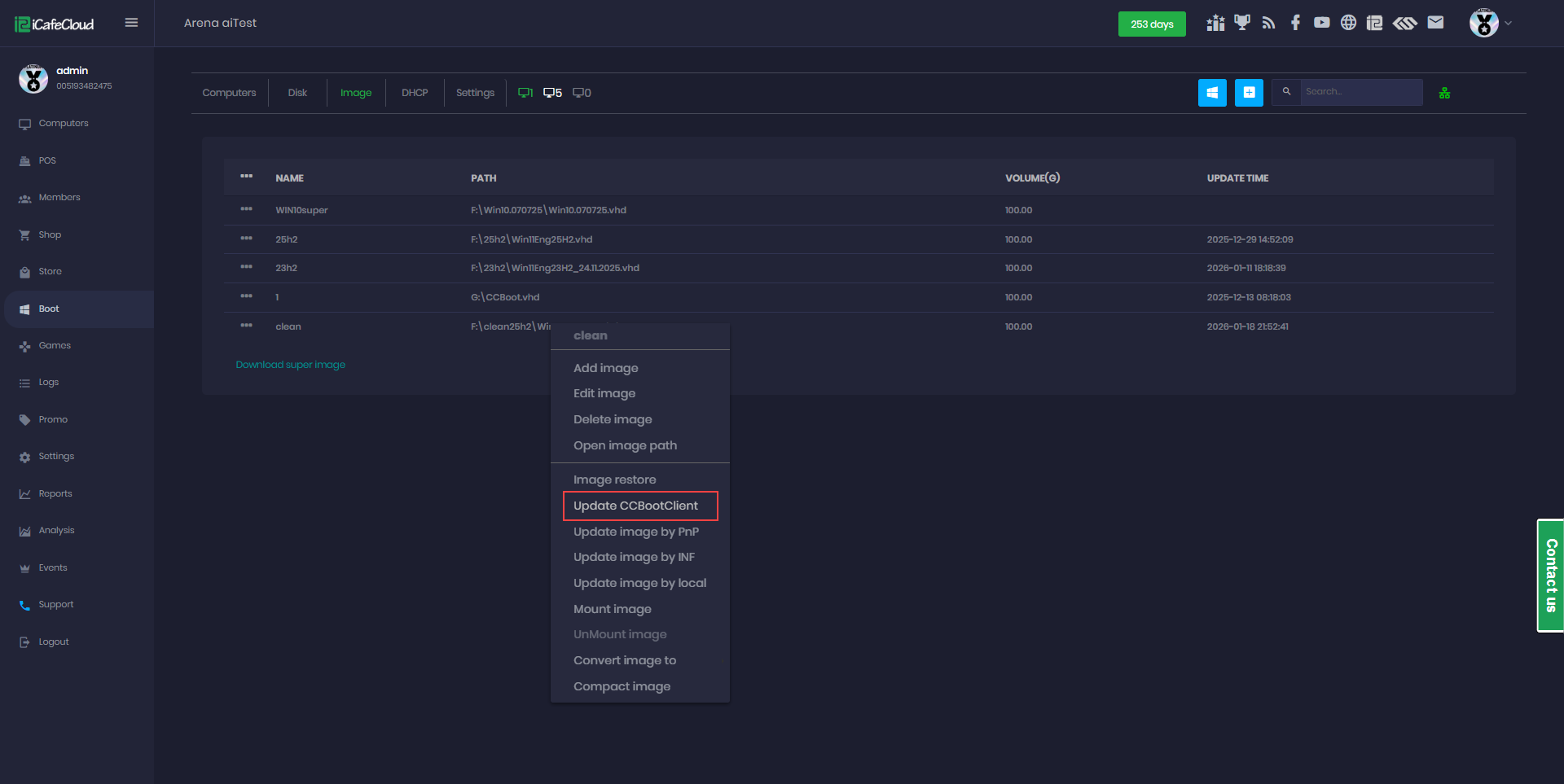
Figure 4
Navigate to Boot → Image, select the target image, and choose Upload Driver by Local. (Figure 5)
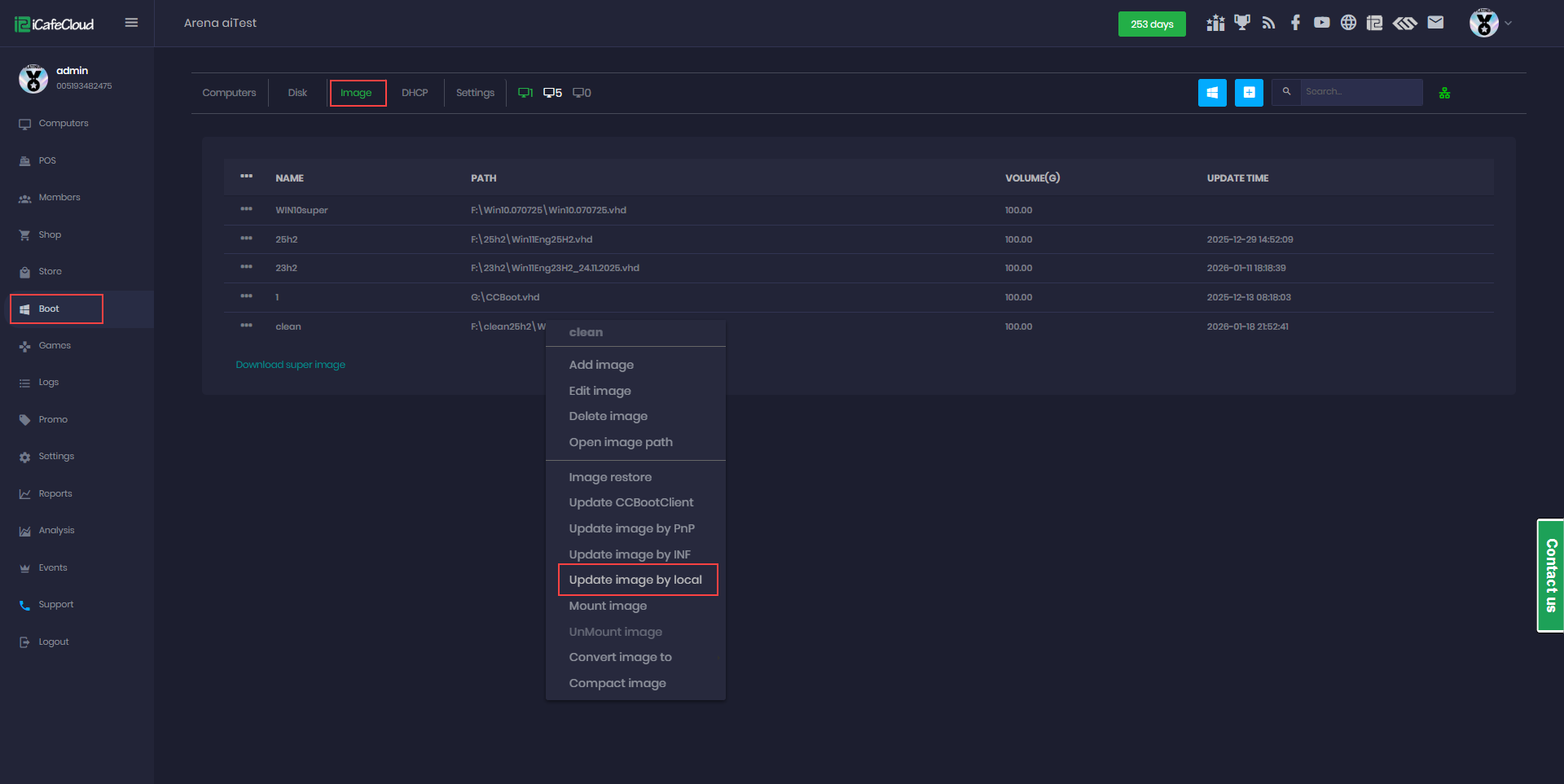
Figure 5
- The NIC driver will be added to the image, allowing it to boot successfully without errors.
- If the image is booting slowly, check whether the motherboard has a Wi-Fi adapter. If present, disconnect or disable it.
- Enable Super Client Mode and boot into the desktop.
- Open Registry Editor (regedit) and apply the following registry configuration:
Windows Registry Editor Version 5.00
[HKEY_LOCAL_MACHINE\SYSTEM\CCBootPnP\Optimize]
"Enable"=dword:00000001
[HKEY_LOCAL_MACHINE\SYSTEM\CCBootPnP\Optimize\Driver]
"*FlowControl"="0"
"FlowControl"="0"
"S5WakeOnLan"="1"
"*InterruptModeration"="0"
"PowerSavingMode"="0"
"*PowerSavingMode"="0"
"EEE"="0"
"*EEE"="0"
"EnableGreenEthernet"="0"
"*IPChecksumOffloadIPv4"="0"
"*IPChecksumOffloadIPv6"="0"
"*TCPChecksumOffloadIPv4"="0"
"*TCPChecksumOffloadIPv6"="0"
"*UDPChecksumOffloadIPv4"="0"
"*UDPChecksumOffloadIPv6"="0"
"EnablePME"="1"
"Diskless"="1"
"*WakeOnMagicPacket"="1"
"*WakeOnPattern"="1"
"*LsoV1IPv4"="0"
"*LsoV2IPv4"="0"
"*LsoV2IPv6"="0"
- Reboot the PC. Boot time should improve after applying the registry.
- Shut down the PC and disable Super Client Mode, then save the changes