

A diskless Steam station runs Steam locally while its Windows image and shared game content come from the server. The station's processor and graphics hardware run the game. What changes is where the operating system and installed content are maintained.
Running Steam on diskless PCs becomes easier to organize once each kind of content has a named home: game files on the game disk, installed system components in the Windows image, and selected player data in its configured storage paths.
How Steam on diskless PCs uses shared game files
In the CCBoot diskless environment, administrators maintain Windows images and game content centrally. A client boots its assigned image and accesses the game disk presented to it. To the person at the keyboard, Steam is a Windows application running at that station. The server supplies storage, while the client handles the running application and its display.
That arrangement gives a gaming center a useful place to maintain its installed library. A game content update belongs with the shared game installation. An operating system component belongs with the image used by the stations that need it. A player's saved progress needs a separate decision about where it is written and how it will be available next time.
These are different maintenance objects.
Content | Where it belongs | What the administrator maintains |
Installed game files | Shared game disk | The game installation and its content updates |
Windows and installed runtimes | Assigned boot image | The operating system environment used by clients |
Selected settings and saved files | The game's configured data paths | The intended retention and account behavior |
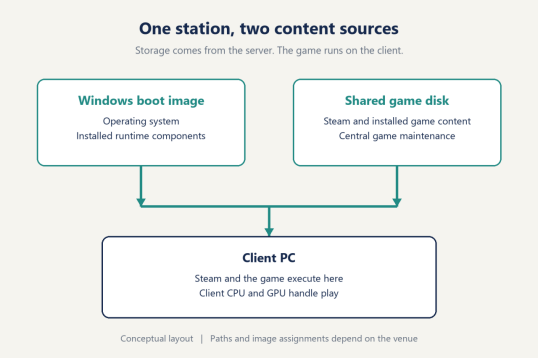
Consider a content patch and a first launch as two separate events. The patch changes files in the installed game. The first launch can also prepare components in the client's Windows environment. Recording which event happened makes the next maintenance decision much clearer. A note that says "game updated" should identify the installation changed, while a note about a runtime should identify the image saved.
For a LAN center, this distinction is useful when preparing a booked session. The administrator can check the shared content version, the image assigned to the relevant stations, and a normal launch as separate observations. A successful launch then refers to a known combination of content and image. Keep that pairing in the maintenance record, especially when different groups of stations use different images.
Steam also has a download distribution feature with a different job. Valve's PC Café Server and Content Cache documentation describes a cache that receives game downloads and supplies them across the local network. Its role is to serve download content. The shared game disk in this article is the storage client's access for an installed game library. Give these two services separate names in the network documentation so a staff member knows which one a maintenance instruction means.
The practical question is simple: did this change alter the installed game, or did it alter the Windows environment that runs it? The file's destination determines which maintenance task to open.
Keep that language consistent in staff handoffs. A request to update the shared game installation gives the next person a defined object to inspect. Include the game name and the image assignment in the record, so the preparation for a scheduled event can be checked against the stations that will actually be used.
First-run components belong in the Windows image
Steam games may need shared software components installed in Windows. Valve documents this mechanism under Common Redistributables: developers select the components their game requires, and Steam installs them when needed. Microsoft Visual C++ and DirectX are familiar examples. The relevant component is determined by the game, so use its supported installation process rather than choosing an arbitrary old runtime package.
The important distinction is installation state. Having an installer among the game files and having its components installed in Windows describe two different things. A maintenance record should say which one was completed. This makes an image change understandable to the next administrator without requiring them to reconstruct an earlier launch.
CCBoot's first-run guidance uses Super Client maintenance for the image, followed by saving the completed changes. The image is the maintenance destination because this work prepares the operating system environment that the client boots. The game disk remains the destination for game content changes.
For preparation, obtain the current CCBoot installer and follow the documentation for the installed management environment. Identify the intended client image before opening its maintenance session. Complete the required component installation, finish the documented shutdown and save sequence, then verify a normal client boot using that image. Use an authorized account for launch checks and finish signed out before saving the public environment.

Change being prepared | Maintenance destination | Observable follow-up |
A game's downloaded content changes | Shared game installation | A normal client launches the intended content version |
A required Windows runtime is installed | Assigned Windows image | A normal boot uses the saved environment and launches the game |
A selected game preference is retained | Configured data location | The chosen value behaves as intended after restarting |
An example helps make the handoff precise. Suppose the image is called Gaming-A and the shared game installation is on D:. Those are illustrative names. If a launch installs a required Windows component, the record should identify Gaming-A as the image that received it. If downloadable game content changes, identify the game installation on D:. A drive letter tells staff where they looked; the image name tells them which boot environment they changed.
For Steam on diskless PCs, the useful acceptance result is a launch from the normal client state after the maintenance changes have been saved. Observe the game reaching its expected start screen, then close it normally. Record the image and content used for that check. This is a proposed verification method, with the result to be established in the venue's own environment.
Player settings and saved files follow their own paths
Player data is the part that needs the most careful naming. A saved campaign, a sensitivity preference, Steam userdata, and a shader cache can all be files created during play, yet each has a different purpose. Start with the exact item the venue wants to retain. "Keep this game's sensitivity setting" is a testable requirement. "Save everything" leaves the destination and account behavior undefined.
CCBoot's userdata documentation describes retention on the server's shared storage and shows directories organized by Game ID. That is useful evidence about a storage arrangement. For player-facing behavior, examine the particular file and the account using it. A Game ID identifies the application, while the active Steam account identifies the player. Record both when validating a setting.
The Game fixes documentation explains links between server and client AppData and ProgramData locations for supported applications. Steam is among the listed applications. Those links help connect an application's expected data location with the configured server-side files. Read the linked instructions for the actual management component before setting paths, since the setting belongs to that component's workflow.
For an acceptance check, choose one harmless preference with a visible value. For example, set a test game's sensitivity to 1.0 under an authorized test account, close the game normally, and record the account and file involved. Restart the station, sign in with the same account, and inspect the value. The number is an example of a measurable preference, not a recommended setting for every game or player.
Next, sign out and use a different authorized account for a separate session. Inspect that account's expected preference and saved progress. This second observation answers a different question: what does the next player receive? Retention across a reboot and the behavior of successive accounts deserve separate entries in the test record. Avoid changing or copying real customer data during that check.
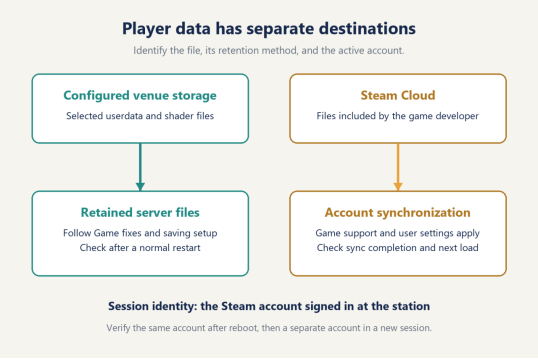
Steam Cloud adds account-based synchronization for the files a developer includes in the game's Cloud integration. Valve's Steam Cloud documentation describes developer-configured file paths or Cloud API use, with synchronization around game sessions. Users can enable or disable synchronization globally and per game. A venue should check the game's Cloud support and the active user's settings when planning how progress follows that user.
A useful staff note names the file or progress item expected to synchronize and records the observed completion state. Finish the game session normally and allow synchronization to complete before signing out. Treat the next successful load under that account as the result to inspect. Video options or other machine-specific preferences should be checked individually rather than included in a blanket promise about player settings.
Shader data has another purpose: it supports rendering preparation. CCBoot documents server-side retention through the shader saving setup. Its instructions place Steam on the game disk, require the relevant Game fixes entries, and locate the saving option under game settings. Follow the listed prerequisites and storage guidance for the configured setup. Check the intended shader files after a normal launch and restart, separately from saved progress.
This gives an administrator specific questions for each title: which file carries the preference, which system retains it, which account should receive it, and what happens after the session ends? Write the answers beside the game entry. That record gives the next shift an observable behavior to check.
Steam accounts and game access stay with the session
A shared installation supplies game files. The Steam account signed in at the station supplies the player's identity, library context, and applicable access to play. Keep the maintenance account and the player session clearly identified when preparing a public image.
Valve's Steam Users guide for the PC Café Program describes customers using their own accounts onsite and accessing content an organization provides through the program. Organization-provided licenses appear in a separate library category. Plan the offered titles around the venue's actual program setup and the player's available access.
Budget for the station software using current CCBoot client licensing options. Check Steam game access separately through the relevant account or PC Café arrangement. In the operating record, these are separate entries: the station's CCBoot licensing, the installed content, and the access used for a player's session.
At the end of a booked session, let the game close and any supported Cloud synchronization finish, then sign out. The next session should begin with the next player's account and the intended data behavior. Include that transition in the venue's checks, alongside the launch check performed during maintenance.
Choose the maintenance destination by what changed
For Steam on diskless PCs, assign each change to the content it affects. Maintain game downloads with the shared installation. Save required Windows components in the assigned image. Give retained settings, saved progress, and shader data their documented storage and account handling.
Before closing a maintenance task, write down the changed object and the result observed from a normal client session. For a runtime, that means the saved image boots and the game launches. For a preference, it means the expected value returns under the intended account. That pairing of destination and observable result is the rule staff can reuse for the next change.