

Keep the working Windows 10 image available while a separate Windows 11 image is prepared for testing. To upgrade diskless image from Windows 10 to 11, use the candidate image to establish a new operating environment, then move validated client groups to it. This is a migration using a separately prepared image, with the existing configuration recorded for recovery.
Within the CCBoot diskless environment, centrally managed images provide the operating system for client PCs. Treat the Windows change as an image release. Give the candidate its own name, check it through network boot, and publish it only to the clients covered by the validation record.
Check Windows 11 readiness on each hardware group
Group the clients by motherboard and network adapter, including any differences in graphics hardware or required peripherals. Choose a representative from each group. Check the reference PC used to prepare the image as well as the clients that will receive it.
Use Microsoft's Windows 11 requirements to establish eligibility. Verify the supported processor requirement and the required memory and storage. Check for TPM 2.0 and UEFI firmware with Secure Boot capability. A shared operating system image still needs eligible hardware at each station.
On an existing Windows client, open msinfo32 and record BIOS Mode and Secure Boot State. Open tpm.msc to inspect the TPM information. These observations form part of the inventory. Complete the processor eligibility check using Microsoft's current compatibility information or PC Health Check, rather than inferring support from the machine's ability to run Windows 10.
Record the actual firmware settings before making changes.
For the target installation, align UEFI network boot with the prepared image. Record Secure Boot capability and its actual enabled state separately. Games may specify an enabled security state beyond the operating system's basic eligibility checks. Verify those requirements against the publisher's current guidance for the titles the venue uses.
Keep the reference hardware and its network connection identifiable throughout preparation. If a hardware group needs different network support, include that group in the image preparation and later client tests. One successful desktop startup establishes a result for that tested configuration.
Separate readiness findings from settings still to be changed. Record three states for each hardware group: eligibility checked, target boot configuration prepared, and network startup validated. Date each completed check. A group can then move through preparation without its inventory entry being mistaken for a completed migration result.
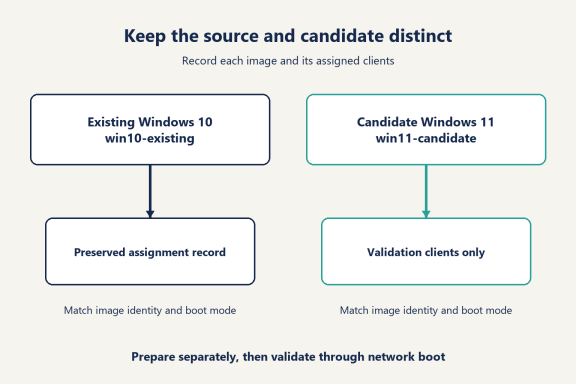
Record the current image and client assignments
Before changing assignments, record which image each client group uses. Save its file location, the current boot mode and the date of the record. Include the game disk arrangement and the location of data deliberately retained across restarts.
Use the venue's established backup procedure to preserve the image and the information needed to restore its use. Check that the backup can be read and that the required files are accounted for. Image restore points are useful for maintenance; keep an independent backup as a separate recovery resource.
The following is a recording template. Replace the blanks with details from the installation.
Record | Existing environment | Windows 11 candidate |
Image name and file location | To record | To record |
Reference hardware and boot mode | To record | To record |
Assigned client group | To record | Validation clients only |
Game disk and persistent data locations | To record | To verify |
Backup or preparation record | To record | To record |
Verification owner and date | To record | To record |
Give the original and candidate distinct names. For example, win10-existing and win11-candidate describe their roles without implying a particular Windows build. These are example names, not software settings.
Account for dependencies in the backup record. If the image arrangement relies on related files or an image chain, preserve the set required by that arrangement and document how it is restored. Confirm the procedure before the maintenance window. Keep a copy of the assignment record outside the machine being prepared, so the recovery instructions remain available while that machine is offline.
Choose the target image preparation path
Use a clean Windows 11 installation on an eligible reference PC as the preparation route for this migration. Reinstall the approved venue applications and restore selected configuration through their supported procedures. Carry forward required files deliberately, with their destinations recorded.
Microsoft distinguishes an in-place upgrade from deployment using a fresh image. An in-place procedure depends on the running installation and its supported upgrade conditions. Its deployment guidance also treats Native VHD boot as a separate scenario. Check the boot arrangement first.
For the workflow below, the deliverable is a separately prepared Windows 11 candidate. Keep that scope clear in the maintenance record, especially where the request includes retaining existing applications. Record which applications will be reinstalled and which configuration files will be restored.
Upgrade diskless image from Windows 10 to 11 with a separate image
Prepare the reference PC
Use a reference client that passed the readiness checks. Prepare a separate installation disk and identify it physically before starting Windows Setup. Keep production image files and retain user data outside the installation target. Record the disk chosen for preparation so another technician can identify it without guessing.
Obtain Windows 11 installation media from Microsoft. Boot the reference PC in UEFI mode and complete the installation on the designated preparation disk. Follow the setup choices appropriate to the selected Windows edition and the venue's account arrangement. Confirm the intended disk and partition selection before accepting installation changes.
After setup, allow the system to complete its required restarts. Check that Windows reaches a responsive desktop and that the reference PC has working network connectivity. Record the Windows edition. Keep the activation status in the preparation notes, separately from the client licensing record.
Prepare network support and the client software
Obtain the network driver appropriate to the reference hardware from its manufacturer. Use the current image preparation procedure for the client software and the required network support. If several motherboard groups will share the image, account for their network adapters during preparation and verify each group later.
Get the current CCBoot installer and use the client installation workflow for the reference PC. Follow the applicable official instructions for the installed interface. Complete the requested restart, then confirm that the selected network adapter is the one connected to the intended server network.
Record the server connection details. When a static address is part of the preparation procedure, use an address from the venue's documented plan and check that it is unassigned. Preserve the existing DHCP arrangement for the operating network. The candidate image preparation should use that known network plan.
Keep the preparation record open.
Mark each completed restart and network check before continuing. This provides a clear stopping point if another technician takes over, and avoids treating an unfinished installation as the image ready for capture.
Prepare the approved venue applications
Install the applications identified in the migration record using their supported installers. Reapply approved settings through the application's documented import or configuration procedure. Record any settings that staff must apply after deployment, and give that task an owner before release.
For a game launcher, verify the intended library location and confirm access to the existing game storage. Keep that check separate from signing into a customer's account. Open the venue's normal session tools and test the peripherals needed at the counter or station. This establishes which application checks must later be repeated during network boot.
Capture the agreed baseline. A temporary file used while preparing an application should be identified as a test artifact, while the approved configuration should have a recorded expected state for the first customer session.
Capture the candidate to its own destination
Follow the current capture procedure for the preparation method being used. In the client-upload workflow, CCBoot provides an Upload Image action. Confirm the selected system and boot partitions, then send the resulting image to the agreed server destination. Use the image format specified by the applicable preparation procedure.
Choose a new candidate filename and check the destination before starting the operation. Record the final path after capture completes. Preserve the working source disk until the captured image has passed network-boot validation. Local startup and startup from the server are separate checks.
If upload is interrupted, record the message and the stage reached. Check the source adapter and destination access. Confirm the destination before repeating the documented upload procedure. Identify any incomplete output according to the maintenance process so it cannot be mistaken for the completed candidate.
Add the image to the server configuration
The official add-image workflow uses the control panel's Boot page and Image tab. Select +, enter a distinct image name, browse to the candidate file and confirm the selection. Check the listed name and path against the capture record.
The candidate should now have its own entry.
Leave the existing entry identifiable. A later assignment change should select the intended entry by name, rather than depend on remembering which file was replaced. Keep the capture record with the candidate so its origin remains clear after validation.
At this point, the new entry establishes that the server configuration references the prepared file. The next stage proves that a designated client can obtain and run that environment through the planned network path.
Assign the candidate image to validation clients
Choose designated validation stations from the recorded hardware groups. Use the official instructions for assigning boot images to individual clients. CCBoot supports keeping several images in the image list and selecting images for a particular client. That gives the candidate a defined test audience before wider assignment.
Record the station identifier and the selected image. Where a boot selection menu is used, verify the choice during startup. Keep the initial assignment limited to the stations listed in the validation plan.
Configure the client to use the intended UEFI network-boot path. During this check, ensure it is starting from the server rather than the preparation disk. Confirm the image identity after Windows loads. A successful local installation remains a preparation result until this network startup is observed.
For a mixed-hardware floor, repeat the assignment and startup check on the representatives selected earlier. Record any remaining work against the particular group and operation involved. Avoid copying one group's result into another group's row.
Use the last completed stage to direct investigation. A client that has not reached the network boot program needs its network-startup path checked first. If the intended image is selected but Windows has not reached the desktop, retain the displayed message and verify the boot-mode pairing and network support in the prepared environment. If Windows works and a game needs attention, continue with that application's current requirements. Keep these findings separate in the record.
If the maintenance plan includes returning a client to the existing environment, verify that path too. Pair the image assignment with the firmware mode required by that image. A machine whose startup configuration changed during migration needs the corresponding settings checked when using the preserved environment.
Validate Windows, games and restart behavior
Run validation on ordinary client sessions after preparation changes have been saved. Complete a fresh network boot, then check the system and the applications needed for the venue's actual service.
In an American gaming center or LAN center, separate walk-in stations from an event area when their game selection or startup schedule differs. A group preparing for a shared session needs a test that represents that session. Keep the checks aligned with the next booking and the normal opening procedure.
Check | Evidence to record | Result |
Server-based startup | Client group, image identity and boot path | To complete |
Windows and devices | Edition, activation state and required device status | To complete |
Venue applications | Required front-desk connection or launcher workflow | To complete |
Game session | Title, current publisher requirements and playable session | To complete |
Audio and peripherals | Required headset, input devices and display operation | To complete |
Restart and retained files | Expected reset state and designated persistent file | To complete |
Use the current game library for the session test. Fortnite, Valorant and Counter-Strike 2 are examples to select from where installed. Verify the applicable publisher requirements, complete sign-in through the normal process, and reach a playable session. Keep the result tied to the tested game and client hardware.
Test a restart after the session. CCBoot restores the system on reboot and supports personal disks for data intended to remain available. Place identifiable test files in the agreed temporary and persistent locations. After restarting, check both outcomes against the recorded data policy.
Verify the approved application state again. Changes intended for every customer belong in the published environment, while temporary session activity follows the reset arrangement. A restart test makes that distinction visible to the person accepting the migration.
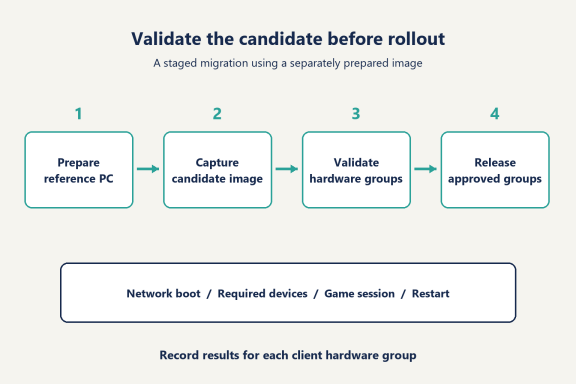
Keep the results for each hardware group together. If a required device or application needs attention, identify the affected check and resolve it before assigning the candidate to that group for service. Preserve the observed messages so follow-up work starts from evidence.
Where loading behavior is part of acceptance, hold the client hardware and game selection consistent. Record initial startup separately from a repeat after caching, and distinguish reaching the desktop from reaching a playable session. Recheck the event area's expected group startup if it forms part of the booking plan. These are observations to collect during the migration, not performance figures supplied by this guide.
Switch client groups and document the release
Promote the candidate to the venue's approved Windows 11 environment after the required checks pass. Assign it to the validated groups during the agreed maintenance window. Record the image name, client group and date of the change, together with the person confirming readiness.

Have the next shift use the release record to identify the environment it should see. Retain the earlier image and its backup according to the agreed recovery and retention plan, while the approved target becomes the environment used for normal service.
Keep licensing records current. Use current client licensing options for the CCBoot authorization side of any changed deployment. Verify Windows activation and applicable Windows licensing separately. Record any hardware or license work still assigned to the supplier.
Confirm the final configuration with support
Before scheduling work to upgrade diskless image from Windows 10 to 11, send support the current image's boot arrangement and the intended reference hardware. Include the candidate preparation method and the client groups it will serve. Keep any actual error messages with the stage where they occurred.
For an existing-image upgrade that must retain installed applications, confirm the image preparation path with CCBoot support for that particular environment. Supply the same records when requesting current hardware or component recommendations. Once the route is agreed, keep its preparation instructions with the verified client results and the final release record.