
2026-01-25
server, m2, nvme, performance
The following explains how to improve NVMe performance on Windows Server 2025 or Windows 11 by enabling Native NVMe.
- Download and install the latest Windows updates on Windows Server 2025 or Windows 11.
- For Windows Server 2025, this feature becomes available after installing update KB5072033 (x64).
- This Microsoft update is designed to improve NVMe performance and reduce CPU load when working with NVMe drives.
- For Windows 11
- To enable this feature, run the registry command below, or copy and paste it into the Command Prompt.
reg add HKEY_LOCAL_MACHINE\SYSTEM\CurrentControlSet\Policies\Microsoft\FeatureManagement\Overrides /v 1853569164 /t REG_DWORD /d 1 /f
reg add HKEY_LOCAL_MACHINE\SYSTEM\CurrentControlSet\Policies\Microsoft\FeatureManagement\Overrides /v 156965516 /t REG_DWORD /d 1 /f
reg add HKEY_LOCAL_MACHINE\SYSTEM\CurrentControlSet\Policies\Microsoft\FeatureManagement\Overrides /v 735209102 /t REG_DWORD /d 1 /f
- For Windows Server 2025
reg add HKEY_LOCAL_MACHINE\SYSTEM\CurrentControlSet\Policies\Microsoft\FeatureManagement\Overrides /v 1176759950 /t REG_DWORD /d 1 /f - After enabling the feature, reboot the server PC to apply the changes.
- To verify that Native NVMe is enabled, open Device Manager and check under Storage Controllers; your NVMe device should be listed there. (Figure 1)
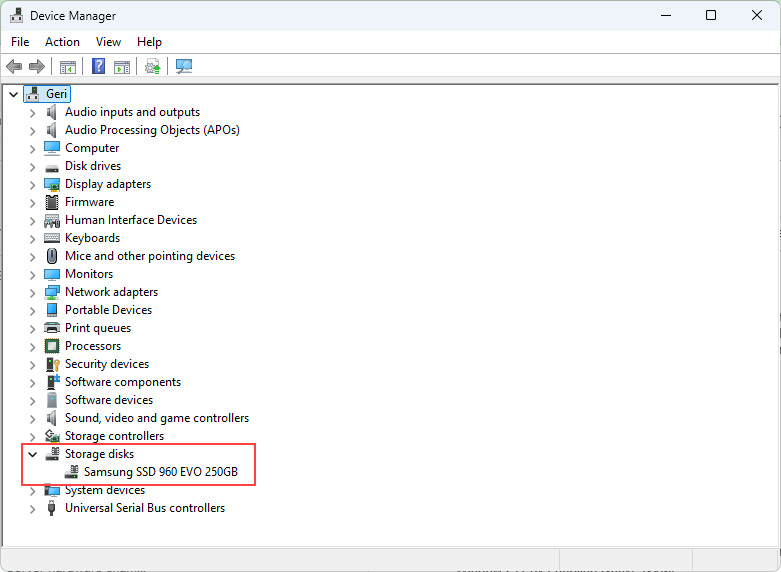
Figure 1
- For reference you can check https://www.reddit.com/r/windows/comments/1pppa3u/announcing_native_nvme_in_windows_server_2025/
- Tests in a local environment also show higher random 4K read and write speeds. Random 4K performance is critical for diskless systems.
- Native NVME disabled (Figure 2)
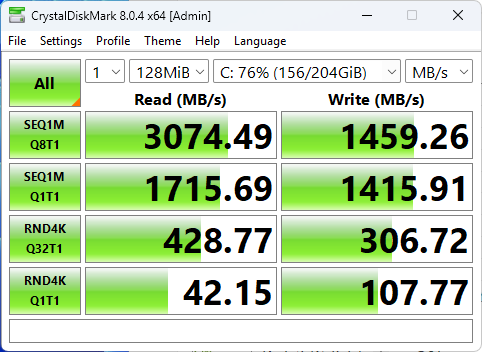
Figure 2
- NativeNVME enabled (Figure 3)
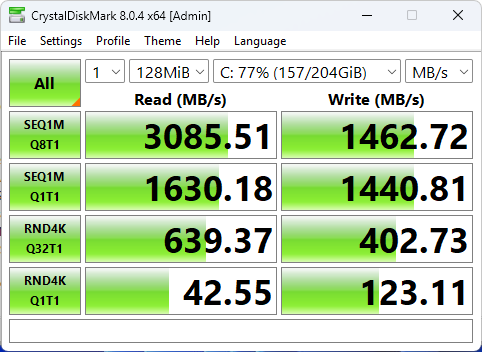
Figure 3