

If I'm adding PCs to a gaming center, my first question is which machines already have an SSD. Say the main floor runs on PXE and a dozen PCs arrive with drives fitted. I'd leave the existing row on PXE and put the new row on CCBoot Hybrid. Both groups can use the same CCBoot server and shared game disk.
If A08 has a booking this afternoon, I'd start there. The desk can pull up the reservation in iCafeCloud and tell me when the customer is due. I can then decide whether there's time to swap that PC and try the game, or whether the spare can stay on the bench until the customer's session is over.
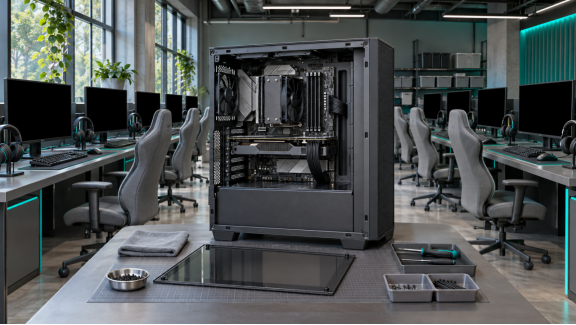
A gaming center adding SSD-equipped PCs beside an existing row of gaming seats
Give Every Box a Seat Number
I'd start with the labels the desk staff use. In iCafeCloud, Layout shows where A08 sits, the PCs page shows whether it's in use or on standby, and Bookings shows the start and end of its reservation. Those details matter when there's a customer in the chair and two black towers under the desk, one about to go into service and one on its way out.
The one thing I want someone to check as the new PCs come out of their boxes is the drive inside. If an invoice says twelve PCs with SSDs and one unit arrives without its drive, the installer can get on with preparing the other eleven. There's no reason to disturb a working PC on the main floor to make up the numbers for the new row.
Walk the floor.
I'd leave the main row on its current PXE image and use CCBoot Hybrid for the new SSD row. A diskless spare for A08 is a different purchase decision, even if it arrives with the new batch. It needs to work in A08's place, with the same network image the other main-floor seats already use.
I'd keep the spare's equipment label on the case. After the swap, the desk still knows that position as A08. Before the old tower leaves the room, I'd have the tech match the replacement to the right client entry in CCBoot. That's particularly worth doing when the desk next door is still occupied.
The main row can keep taking walk-ins while the new desks are being wired. If the first reservation is for a group, I'd ask which seats they booked before deciding which end of the new row to finish first. The people doing the cabling and the person preparing the drives then have the same deadline, including time for someone to play a round.
Bookings also lets the desk see the reservation against the PC name on a timeline. If the front half is booked again later that day and the back half has a longer gap, I'd take the longer job to the back. Moving a bench or unpacking more towers can wait until the installer has finished the seats the group actually booked.
It helps to put hardware, labor, and licensing on separate lines in the expansion budget. I want to see what came with the machines, how much bench time I've allowed for getting them ready, and how many PCs will be in service when the new seats open. For licensing, use current per-PC pricing with the actual seat count you plan to put into service. I'd keep any spare that may later become a bookable seat visible on that sheet so the forecast is easy to update.
Where CCBoot Hybrid and PXE Fit on the Same Floor
When I talk to the installer about the new row, “local” has a specific meaning. On a CCBoot Hybrid seat, the Windows image is prepared on the server. A copy in VHD format, short for virtual hard disk, is written to the PC's own SSD. At startup, the computer reads Windows from that local copy.
A PXE seat starts over the network and uses a PXE image from the server. On the main row, I'd leave the working configuration in place. If A08 needs a replacement, the tech can look up its assigned image in CCBoot before disconnecting the old PC and use that name when setting up the spare.
Both rows can use the same CCBoot server. In the image list, the tech has a place for Local SSD Images and a place for PXE Images. That also gives me some flexibility on delivery day. If the desks are ready before the last machine arrives, the installer can prepare the SSDs we have and get those seats through their startup checks together.
Hybrid SSD boot and PXE boot groups using the same CCBoot server and game disk
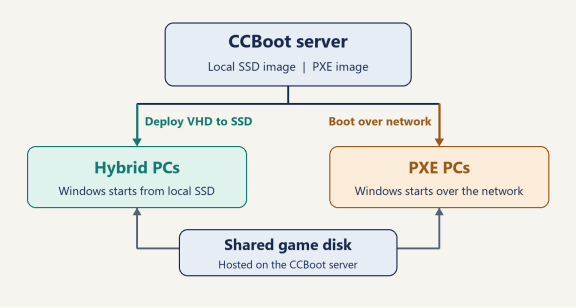
Once both groups are configured to use the shared game disk, the games and shared data are managed on the server. Suppose the desk puts two friends on A08 and B03 for the same game. Windows takes a different route to each desktop, but the two players should still be able to sit down, open their usual game menu and join each other.
For a club that takes group bookings, I'd try the same title on both rows, even if the new stations will usually be sold as a separate area. A birthday group might get split between A and B when the room is busy. That's an awkward time to discover that the launcher opens on one side of the aisle and asks for another component on the other.
When the desk makes a batch booking in iCafeCloud, it can select several PCs for one group. If one was already booked, the system reserves the available PCs and flags the partial booking. I'd look at which seats actually went through before promising six friends a row together. A free seat across the aisle may work for them, but I'd ask first.
I'd ask whoever handles game updates which title that group is coming to play. If it has its own launcher, I'd open it in a normal player session on a seat from each group after restarting. For the Windows side of the job, the CCBoot Hybrid documentation covers installation and image maintenance.
If B03 gets to the desktop but the game won't open, the tech already knows the local startup worked. I'd ask whether the game disk is visible and how far the launcher gets. Those two observations give the installer somewhere to start while the desk finds the customer another seat. The overview of CCBoot diskless boot software explains how the server fits into that setup.
There's a buying decision here too. For a second batch later in the year, I'd ask the supplier whether the quoted price includes a drive in every tower. A drive already in the box gives me a reason to prepare another local VHD. If the machines come without drives and will sit alongside the main PXE row, I'd price that batch as diskless seats before buying a dozen SSDs separately.
Give Each Group the Right Image and Boot Order
For the CCBoot Hybrid row, have the tech prepare and install the VHD on the local SSDs using the Hybrid setup documentation. For the PXE row, identify the intended network image by name on the server. If the center has more than one working PXE image, I'd check a neighboring PC that serves the same customers before changing the replacement's settings.
In CCBoot, go to Computers, open Edit PC for the client, and check its Image field. Choose Local for a prepared CCBoot Hybrid seat. For A08's diskless replacement, choose the main floor's PXE image. The official walkthrough shows where to set up Hybrid and PXE on the same server.
Check which device the PC is set to start from as well. On the SSD row, confirm that each machine starts from its prepared local drive. If you're reassigning a former Hybrid PC to PXE, the Wiki calls out changing the BIOS boot priority to network boot. For an existing live PXE row, I'd have the tech check that the network boot services for that row are in place before approving any changes to the center's boot setup.
If the new PCs arrive in two shipments, I'd start with the first six drives. The installer can prepare them together and restart those machines while there's still bench space for the second batch. At a desk where a PC has just been replaced, I'd watch the first startup there, with the network connection the customer will actually use.
Verify it at the seat.
Take B04. With Local selected, restart the machine and check that Windows comes up from the VHD on its SSD. Over at A08, watch the spare start over the network and reach the desktop on the intended image. I'd do both before putting the old tower away, while it's still easy to tell which connection or setting changed during the swap. If the spare is still trying to start from a local device, I'd check its boot priority before sending anyone back to prepare the server image a second time. At that point the player hasn't even reached Windows.
What if the gap is too short? I'd leave the old A08 in service for its reservation and finish the spare on the bench. Someone who booked that particular desk may be sitting with friends. Offering them the newest PC in the building, by itself on an empty row, does very little for them. The booking end time gives me another chance to do the swap with the seat empty.
Test Both Rows Before You Sell the Seats
I'd start the opening check with one assigned seat from each group. Reboot the CCBoot Hybrid PC and confirm the local Windows image starts. Reboot the PXE PC and check it comes up on the assigned network image. Once both desktops are up, verify access to the shared game disk and launch the same game on both seats in the sort of session you'd sell to a customer.
Pick one you get asked about.
I'd have the person testing go as far as the menu that a paying player expects to reach. If your desk books groups across both rows, run the check on both at once. Seeing the game disk in Windows is a useful first check. Reaching the game lobby on A08 and B03 answers the question that matters to the two friends at the counter.
For the other seats, check that each machine completes a normal restart on its assigned boot path. If one bank of PCs has its own Windows image, include a seat from that bank in the game checks too. A center that's still wiring the far end of the room can finish the nearer group first, especially if the next booking is for that area.
If a PC needs repair, the tech can put it into maintenance on the iCafeCloud PCs page. The desk sees its maintenance status in Layout and can offer another checked seat after consulting Bookings. At shift change, the detail I'd pass on is what still needs attention, such as a launcher on B03 that stops before the lobby. Staff Shift and the shift view in Reports already show who worked and when.
If you're checking a planned expansion on your own equipment, download the CCBoot free trial. I'd use the game the desk gets asked for most and give the tech access to both a local-boot seat and a network-boot seat for the test.
Which Image Would I Use for Each Row?
Back to the dozen SSD PCs and the spare for A08. Here's how I'd configure those machines alongside the existing main row.
Seats | SSD status | Image choice | Windows startup | Check before booking |
A01–A16, existing row | Diskless | Room PXE image | Network boot | Assigned image starts and the shared game opens |
B01–B12, new row | SSD fitted | Local | Local SSD VHD | Local image starts and the same game opens |
A08, after the scheduled PC swap | Diskless spare | Room PXE image | Network boot | Spare starts on A08's image and passes the game check |
I'd make the A08 swap in the gap before its next reservation, provided there's time to start the spare and reach the game lobby. Once the B row passes the CCBoot Hybrid boot and game checks, the desk can seat a group there. For the next party that asks for seats together, I'd have the desk look at the actual row in Layout and check its reservations in Bookings.