

A disk image is the copy of Windows your gaming PCs start from each time they boot. With CCBoot’s diskless boot system, a player can change the wallpaper, use the PC for an hour and leave the next player with the venue’s usual desktop after a restart. A voice chat app the technician added that morning can still be there. So can the latest map in the game library. To predict what a diskless boot solution will keep, follow the change back to the place it was saved.
An empty gaming station with its headset ready for the next player
What a Diskless Boot Solution Resets on a Player’s PC
Take an ordinary guest session on a gaming PC that boots from the venue’s Windows image. Choose a picture for the desktop background and put a small text file on the local desktop. Both changes are visible immediately. The player can open the file, edit it and save it again throughout the booking. At this point, looking at the screen tells the desk attendant very little about what the next guest will see.
Restart the PC. It loads the assigned image again. In this example the wallpaper returns to the venue’s setting and the file disappears from the local desktop. The guest made both changes within the running session. Neither required the attendant to edit the copy of Windows that the venue keeps for its gaming stations.
Change someone made | Where it was saved | What the next player sees after reboot |
A guest changed the wallpaper | Local Windows session | The venue’s usual wallpaper |
A technician installed a voice chat app | The Windows image assigned to the PC | The app is available to launch |
An administrator updated the game files | The shared game disk used by the PC | The updated game files are available |
Use a local desktop for this check. A file opened from a network share has a different address even if its shortcut sits beside the Recycle Bin. Open the shortcut’s properties and read the target before telling a player where a file will be after checkout. A shortcut and the document it opens can have quite different lifetimes.
For the same reason, check what the venue does between bookings. If the handover depends on a fresh boot, include the restart in the shift routine. Closing the game takes the attendant back to the current Windows desktop. In the wallpaper example, the picture is still there while that session is running.
How a New App Becomes Part of the Windows Image
Suppose a team has booked adjacent PCs for practice and needs the same voice chat app on each. The job for the technician is to make the app available to the next person who boots any of those PCs. Start with the name of the Windows image assigned to the booked stations. A venue that keeps separate images for practice and public play has two possible destinations for the installation.
On the maintenance PC, open the intended image for updating through the venue’s CCBoot maintenance procedure. Install the application for the users who will sit down at those stations. An installer that offers a choice between the current user and everyone on the computer deserves a moment’s attention here. Pick the scope the venue intends to support. A successful launch under the maintenance account only confirms that the app opens for that account.
Decide what the team should see the first time the app opens. If players bring their own accounts, they should arrive at the sign-in screen. A technician who signs in to test the microphone has one more thing to check before saving the image. Close the program and reopen it. If it goes straight back to the technician’s conversations, sign out of that account and clear any saved sign-in details. The next player should be able to enter a different account from the first screen.
Keep the installer separate from the program it installs. Downloading the installer to the maintenance desktop gives the technician a file to run. The useful result for the player is an application that opens from the normal Windows menu. Follow that route once during maintenance, close the app, then save the completed image update in CCBoot. Note the image name in the shift record so the person checking the floor knows which machines to visit.
Now move to a booked station that uses the updated image. Wait until it is free, restart it in its ordinary player configuration, and open the app from the menu. Choose the headset attached to that station and use the app’s audio check if it offers one. This last step answers a question the maintenance desk cannot settle from across the room. Can a player at this particular seat hear a teammate and speak through the microphone?
Leave occupied stations in the shift record as pending. Players already in a match can finish their booking. When those machines next boot the saved image, the attendant can make the same menu check without carrying the installer from station to station. For the team captain, the useful handover is the row assignment and the name players should look for in the menu.
If the app opens on the maintenance PC and is missing from a newly restarted station, compare their assigned image names first. Check that the technician saved the update, then look at which Windows account received the installation. Those details narrow the search before anyone repeats the install. When budgeting to extend the diskless boot solution to a second room, count the PCs in that room for current per-PC licensing. The number of distinct images tells the technician how many copies of Windows may need the same change.
Why the Updated Game Files Are Still There
A map update takes a different route. Say a venue keeps a game on its shared game disk and the administrator has finished applying a patch there. The new map is among the files in that installation. A station set up to launch that copy reads the updated files from the shared disk when it starts the game again. Restoring the station’s Windows desktop leaves that installation in place.
For a practical check, note a detail that the patch changes. A build number in the game menu works if the publisher exposes one. For a map update, the map’s name in the selection screen gives the floor attendant something easier to recognize. Let the administrator finish updating the shared installation before starting a fresh copy of the game on an available player station. Check the detail there.
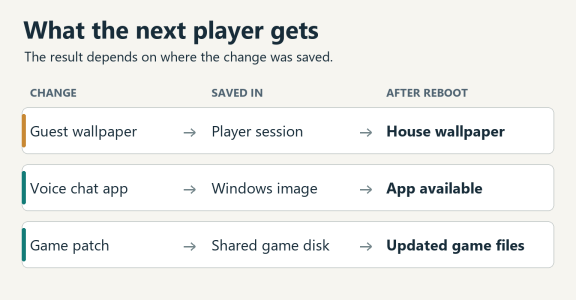
Where desktop changes, installed apps, and shared game files go after reboot
If another row still opens an older build, inspect the path used by its launcher. Two desktop shortcuts can carry the same game title while opening installations from different folders. Match the installation folder on that row to the one the administrator patched. That is a more useful detail for a handover note than “the game was updated,” particularly when someone has kept a separate copy for an event.
One game can use all three locations discussed here. Its map files may be on the game disk, a required Windows component may be in the boot image, and a graphics preference may belong to a player’s local session. When a player asks whether a setting will be there tomorrow, find out where that game saves it. An account with cloud saves follows the game provider’s sync rules. A file held only in the temporary Windows session follows the station’s reboot behavior.
Three Questions Before the Next Player Sits Down
Where should a file go if it needs to survive a restart?
Where the venue has configured a CCBoot personal disk for that user, save the file there. Check the destination in the save dialog. A local desktop folder and an assigned personal disk can both appear in the same file browser.
Will PCs using a different Windows image get the new app?
An installation saved in the practice-room image goes to PCs that boot that image. To offer the app in the public room as well, check which image those stations use and save the installation there if needed.
How can staff check what the next player will see?
Use an ordinary guest login after a restart. Look for the house wallpaper, open the voice app and read the game build from inside the game. Those three observations cover a typical handover. To run the same check while evaluating a diskless boot solution for your venue, download CCBoot and use the image and library you plan to give players.