
This article is for CCBoot v2.1 only. For CCBoot v3.0, please refer to the video - "How to Diskless Boot Windows 7 with CCBoot v3.0" on Youtube.
iSCSI boot technology can be used to diskless boot Windows 7 for computers without local hard disk (in this article we call them client PC), so it's also known as diskless boot. As a Windows based iSCSI boot software, CCBoot is compatible with windows 7 lan boot, and support install windows 7 over network. Win XP and Vista. The brief process of diskless boot Window 7 with CCBoot is as bellow:
- Client PC iSCSI boot over network and broadcast DHCP request.
- CCBoot handles the DHCP requests and allocates IP address for the client PC.
- Client PC get IP addresses and then download Win 7 system image via TFTP from CCBoot server.
- Client PC iSCSI boot Win 7 over network.
-
Install and Initialize iSCSI Boot Server with CCBoot
iSCSI Boot Server Installation
Download iSCSI boot software - CCBoot server installation package from - http://www.ccboot.com/download.htm.
Launch ccbootsetup.exe on the server and keep press the next button to the end.
CCBoot uses the following ports - 67 (DHCP), 69 (TFTP), 3260 (iSCSI), 1000 (Image Upload), 8001 (Service Control). Please open these ports on the server firewall to make sure client PC can diskless boot successfully. Since CCBoot v2.1, you also need to open port 66. V2.1 uses port 66 as DHCP backup.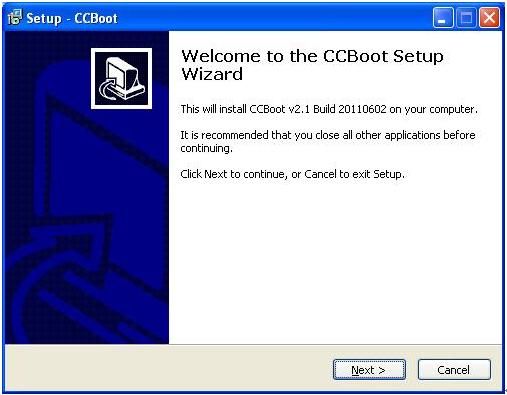
Figure 1
Note: To make sure client PCs can diskless boot well, please shut down the other DHCP services on the LAN especially the DHCP service in the router.
Launch CCBoot and you will get the main interface as bellow: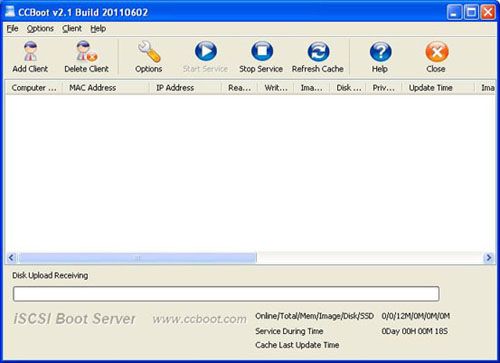
Figure 2iSCSI Boot Server Initialization
Demo Environment
Server IP: 192.168.1.10
Gateway: 192.168.1.1
DNS Address: 192.168.1.1
IP Mask: 255.255.255.0
DHCP Range: 192.168.1.101-192.168.1.254
Open the iSCSI boot software - CCBoot, "Options"->"Options Wizard" and configure step by step as bellow:
You need to select the correct local IP address as "DHCP Server IP". Press "Scan DHCP" to check if there are other DHCP services on the LAN. If yes, shut them down so that client PC can get IP address from CCBoot DHCP and then diskless boot Windows 7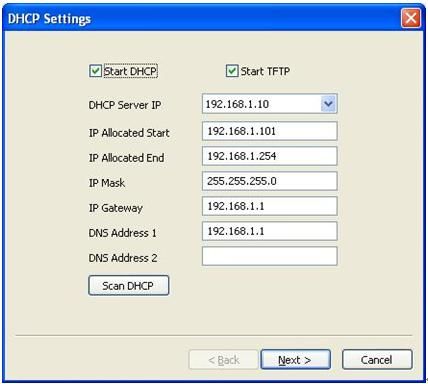
Figure 3
Set "Server IP Address". Normally, it’s the same as "DHCP Server IP".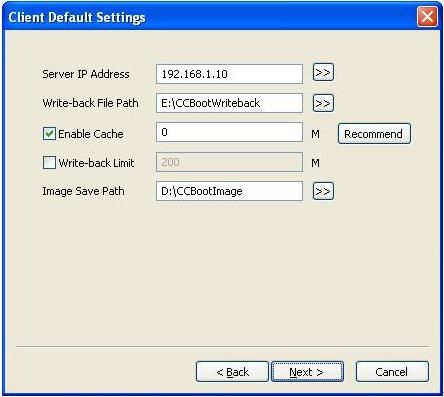
Figure 4
Set "Write-back File Path" and "Image Save Path" as you want.
"Write-back File Path" is used to store the diskless booted clients’ write-back data. You’d better use a big volume hard disk as "Write-back File Path". This disk should be formatted as NTFS and 32K bytes per cluster.
"Image Save Path" is used to store the iSCSI boot images. This disk should be also formatted as NTFS and 32K bytes per cluster. You’d better use a fast speed hard disk as "Image Save Path". For example, use an SAS hard disk.
Keep default values in "Server Cache Settings".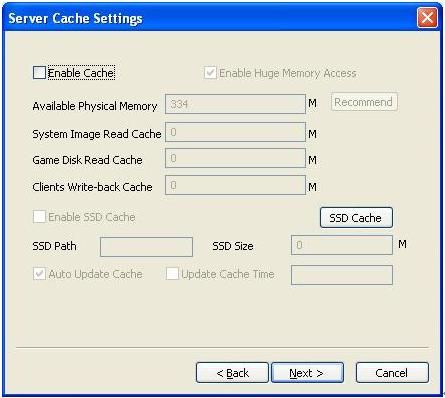
Figure 5
Keep default values in "Other Settings". Press the "Finish" button and confirm the popup dialog box.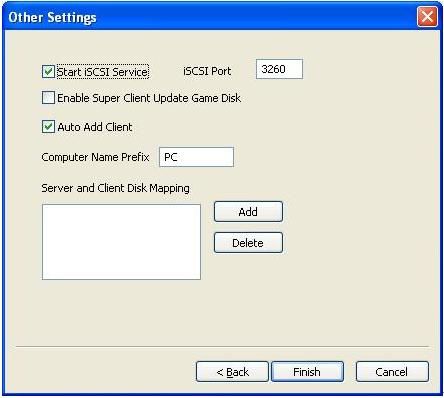
Figure 6
-
Upload Win7 System Image for iSCSI Booting
To diskless boot Win 7, we need to create a system image for Win7 and save it on the CCBoot server.- Choose one client PC as master PC used for uploading iSCSI boot image. Attach a hard disk on the PC.
- Delete all partitions first. Allocate a small MBR partition about 40G size and leave the rest unallocated. Format the 40G partition with NTFS. Install Window 7 into this partition.
- Install only NIC driver, chips driver and other low level drivers on this master PC.
-
Open the local area connection network properties and configure as bellow:
Click "Properties".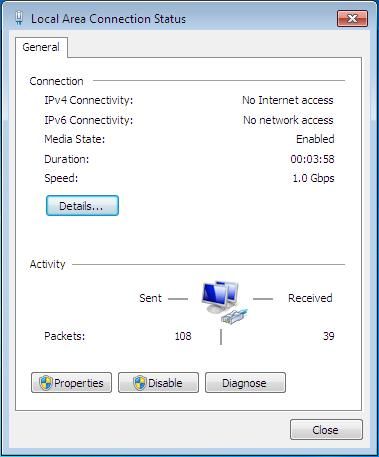
Figure 7
Select "Internet Protocol (TCP/IP)" and click "Properties".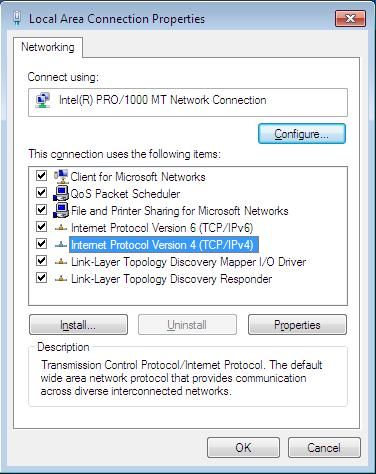
Figure 8
Select "Obtain an IP address automatically" and "Obtain DNS server address automatically", then click "OK" to save.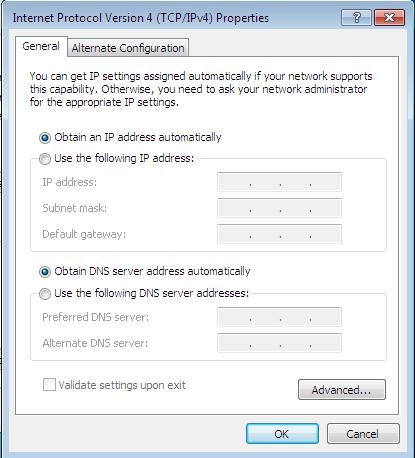
Figure 9 -
On the CCBoot server you will find a client in the client list (Figure 10) that was added by CCBoot automatically when the client PC got IP address from the CCBoot DHCP service.
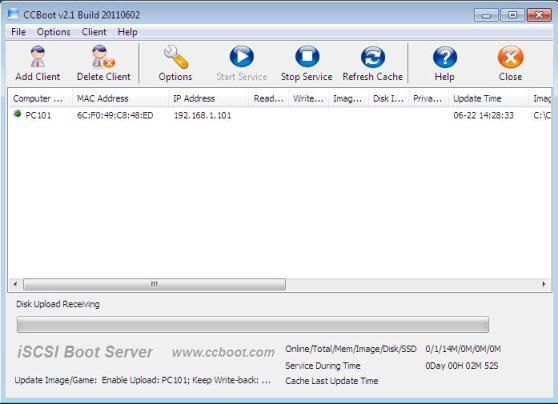
Figure 10 -
Double click the client to edit and check both "Enable Upload Image" and "Keep Write-back File" (Figure 11), when press "save" button it will ask you "Are you sure to delete write-back file?" Just press "No".
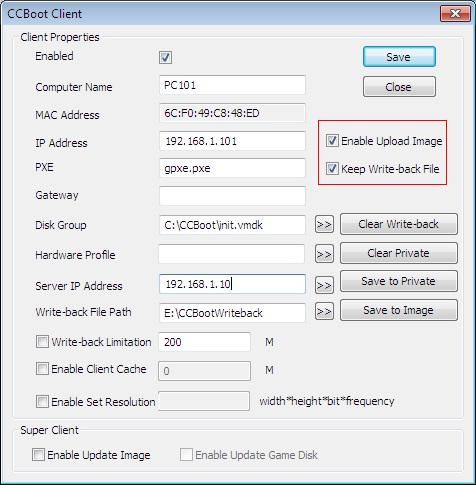
Figure 11 -
Download CCBoot client installation package from: http://www.ccboot.com/download.htm. Launch ccbootsetupclient.exe and keep press the next button to the end. Then launch CCBoot client and you will see the main interface as bellow (Figure 12).
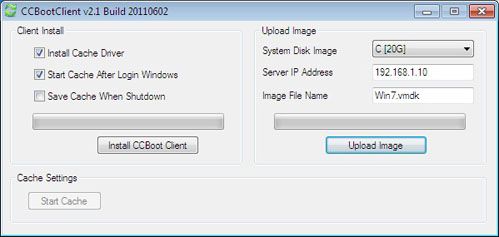
Figure 12 - Press the "Install CCBoot Client" button. After finished, it will require reboot system. Reboot the client PC.
-
After reboot, launch CCBootClient again, input the correct "Server IP address", it should be the IP address of the PC on which CCBoot server has been located. Input the image file name as you wish in the "Image File Name". Press the "Upload Image" button to upload the image to the CCBoot server. Then CCBoot will create an iSCSI boot image in the server "Image Save Path".
Note: CCBoot supports two types of image file format. It supports ".VMDK" image file format if you are using Windows 2003 as CCBoot server system. It will support both ".VMDK" and ".VHD" image file format if you are using Window 7 or Windows 2008. As you can see in Figure 12, the image file format depends on the file extension you have set for the "Image File Name". For example, if you set "Win7.vmdk" as the "Image File Name", it means you will use ".VMDK" image file format, while if you set "Win7.vhd", it means you will use ".VHD" image file format.
-
iSCSI Boot Windows 7 on LAN
- On CCBoot server, double click PC101 (Figure 10) to open the master PC’s properties dialog box, uncheck "Enable Upload Image" and "Keep Write-back File".
-
Remove the HDD from the master PC, set it firstly boot from LAN (or network, PXE rom, or some similar settings) in BIOS settings so that it will start diskless boot (Figure 13).
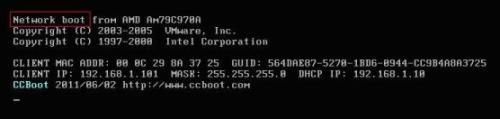
Figure 13 -
The first time diskless booting the master PC, you can modify its computer name (Figure 14).
Set the computer name as you wish then press enter key to boot it (Figure 15).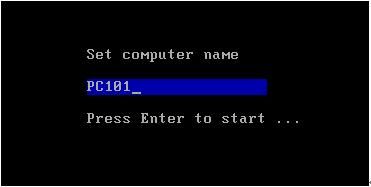
Figure 14
Note: the first time you diskless boot Windows 7, you will get a startup list just like has not shut down computer normally. That’s just because we uploaded the iSCSI boot image during Win 7 is running. Bellow is how to prevent from this situation for future booting.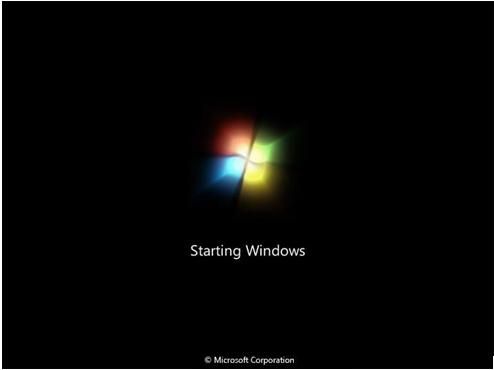
Figure 15
1) Select "Start Windows 7 Normally" to boot.
2) When this client PC diskless boot OK, shut it down. On the CCBoot server, press "Save to Image" in this client's properties.
Now, clients can diskless boot Windows 7 from this image normally.
- On CCBoot server, "Options" -> "Settings" -> "Default Client Settings" -> "Disk Group" -> press the ">>" button, select "Win7.vmdk" as the default boot image in "System Image Selection" section.
- Do the same as Step 2 and Step 3 for other diskless PCs with the same specifications as the master PC to diskless boot Win7 for them.
-
Additional Instruction
- If the image you have uploaded from the master PC can be used to iSCSI boot Windows 7 for all the other client PCs, please install other drivers (display, sound etc), Windows updates, and various application level softwares to the image by update image.
- If you want to iSCSI boot Windows 7 with a single image for client computers with different hardware specifications, you need to implement PnP, please refer to this article for more details - how to create a single image for all specifications.