
This article is for CCBoot v2.1 only. For CCBoot v3.0, please refer to "Update Image" in wiki.
I. Update Image
Method 1: Use "Keep Write-back File" and "Save to Image" (Recommended)-
Choose one client PC as the update client. Click to select the "Keep Write-back File" check box in the "Client Properties".
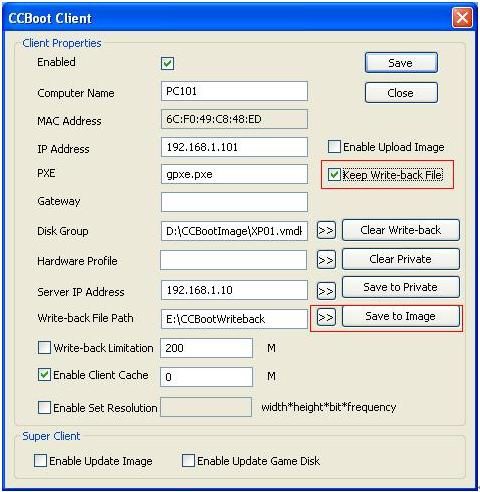
Figure 1 - Diskless boot Windows on this client PC and do some modifications as you wish. For example, install Windows updates and application level softwares.
- Shutdown the client PC. Click the "Save to Image" button in the "Client Properties" window. Uncheck the "Keep Write-back File" option when finished.
Method 2: Use "Super Client"
- Stop CCBoot service.
- Backup the image you plan to update. When backup OK, please start CCBoot service.
-
Choose one client PC as the update client. In its "Client Properties" window, check "Enable Update Image".
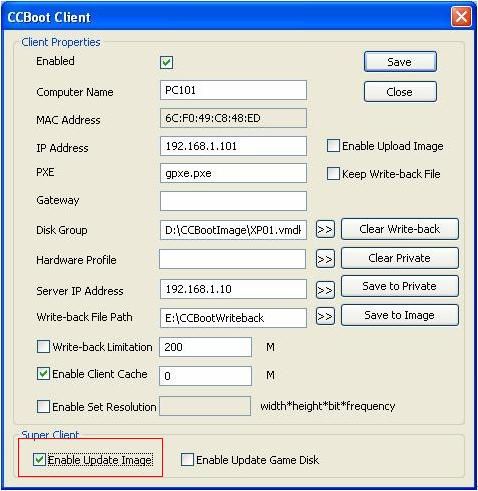
Figure 2 - Diskless boot the client and do some modifications as you wish. For example, install Windows updates and application level softwares.
- Shutdown the client PC. Uncheck "Enable Update Image" in the "Client Properties" window. Now, the image has already been modified.
With this method, the client will update the image directly, so you cannot recover the image to previous state.
II. Recover Image
With method 2 mentioned above, the client will update the image directly, so you cannot recover the image to previous state.With method 1 mentioned above, you will find a series of vmdk files such as "XP01.vmdk", "XP01-001.vmdk", "XP01-002.vmdk" and so on. "Save to Image" will create a new file "XP01-nnn.vmdk". If you want to recover to the last image state, please stop CCBoot service and delete the latest "XP01-nnn.vmdk" file. That’s to say "Save to Image" is recoverable.
III. Merge Image
If you have created many "XP01-nnn.vmdk" files with method 1 mentioned above, that will degrade operation performance of the image. In this case, you need to use "Merge Image" function to merge all of them and the original image file (XP01.vmdk) to a single image file.- Stop CCBoot service.
- Backup the image you plan to merge. When backup OK, start CCBoot service.
-
"Options" -> "Settings" -> "Client Default Settings" -> "Disk Group" -> press">>" button to open the window as bellow.
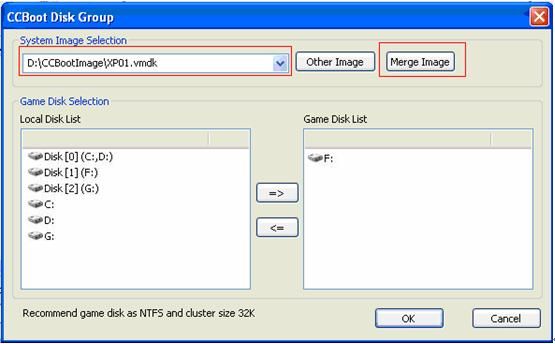
Figure 3 -
Choose the image you want to merge, then press "Merge Image" button to merge it. When completed, you will find a new image file named "XP01.vmdk_new.vmdk".
Note: If the image is "XP01.vhd", the new image file name will still be "XP01.vhd" and all files like "XP01-001.vhd" will be removed after merged. - Diskless boot other clients with this new image, if all OK, you can delete the old image files.
For more information about how to update image, you can also refer to "Update Image" in CCBoot v3.0 wiki.