
This article is for CCBoot v2.1 only. For CCBoot v3.0, please refer to "Update Game Disk on the Server" in wiki.
Update Game Disk
Method 1: Update game disk on the server.- On CCBoot server, install new games or game patches on the game disk.
- Refresh disk cache. Please refer to Chapter 11.2 to get more information.
- After rebooting clients, they can get new game data.
-
On CCBoot server, "Options" -> "Settings" -> "Other Settings", check "Enable Super Client Update Game Disk" as bellow.
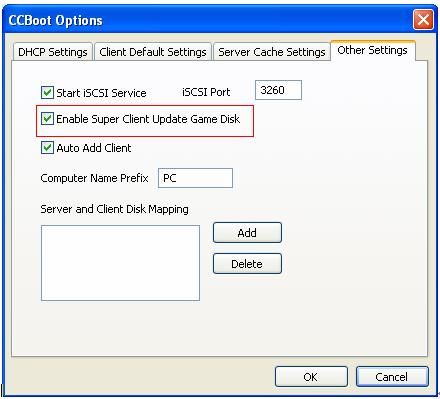
Figure 1 -
Choose one client PC as the update client. In its "Client Properties" window, check "Enable Update Game Disk"

Figure 2 - Diskless boot the client and update the games in the game disk.
- Shutdown the client PC. Uncheck "Enable Update Game Disk" in its "Client Properties" window. Now, the game disk on CCBoot server has been updated.
Refresh Disk Cache
If you have enabled server cache ("Options" -> "Settings" -> "Server Cache Settings") as bellow, you need to refresh cache to enable the modification you have made for game disk.

Figure 3
Auto Update Cache: Update game disk cache automatically. If you have enabled this option, CCBoot will monitor the game disk. It will begin timing as soon as it finds a writing operation on the game disk. If there’s no data written into game disk for 5 minutes, CCBoot will automatically refresh RAM cache and clear SSD cache file for game disk.
Update Cache Time: Update game disk cache at the specified time. The format is like "10:00", which means CCBoot will automatically update cache file for game disk at 10:00 every day.
If you do not want to immediately enable the modification you have made, please just press the "Refresh Cache" button on CCBoot server main window.