
This article is for CCBoot v2.1 only. For CCBoot v3.0, please refer to "Load Balance" in wiki.
CCBoot supports multiple servers on a single LAN to implement load balance and redundancy.
Suppose
Server A - 192.168.1.1, takes E:\CCBootWrite-back as its "Write-back File Path".
Server B - 192.168.1.2, takes F:\CCBootWrite-back as its "Write-back File Path".
Go to Server A, open "Options" -> "Client Default Settings".
-
1, Add 192.168.1.1 and 192.168.1.2 to "Server IP Address".
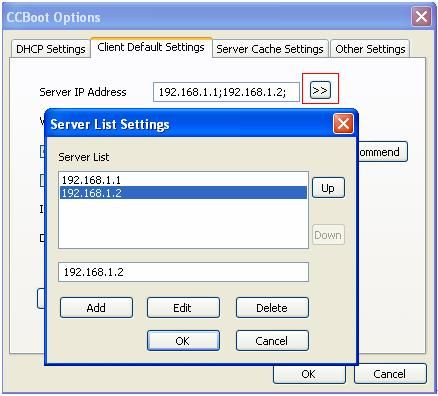
Figure 1 -
2, Add "E:\CCBootWrite-back" and "F:\CCBootWrite-back" to "Write-back File Path".
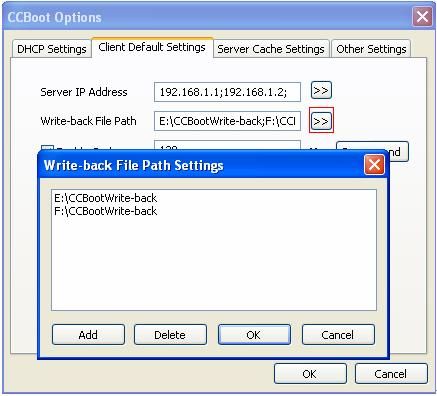
Figure 2 -
3, Click "Apply to All Clients". CCBoot will apply the client default settings to all existing clients. Now the clients' settings become as bellow.
Client1 will try to boot from 192.168.1.1 first, if failed, it will try to boot from 192.168.1.2. The write-back file path is E:\CCBootWrite-back.
Figure 3
Client2's settings are different from Client1's.
Notes: You need to add all clients before implement load balance and redundancy.
- 4, Copy CCBoot.ini and AccInfo.ini from the Server A’s CCBoot installation folder to Server B’s. Open "Options" -> "DHCP Settings" on Server B. Select correct "DHCP Server IP". Restart CCBoot service on Server B.
- 5, Now you will see that client1 connect to server A and client2 connect to server B. If you shutdown server A, client1 can still boot from server B.